

MP4 vs MKV: Which Is Better for Videos?
Quick Answer
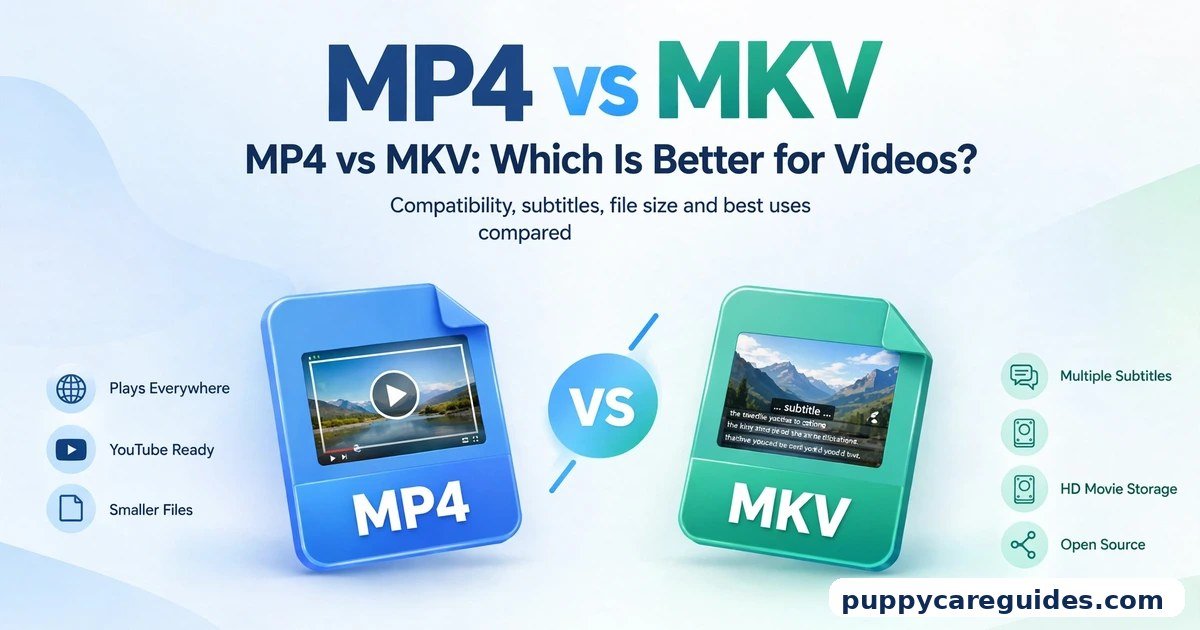
Use MP4 for sharing, uploading, and watching on any device. Use MKV for storing movies and shows at home, especially when one file needs several subtitle or audio tracks. That is the short answer to mp4 vs mkv.
For more technical background, see the Matroska (MKV) overview on Wikipedia.
Table of Contents
MP4 plays almost everywhere — phones, TVs, browsers, game consoles, and social media apps all accept it. MKV is a more flexible container that can hold many audio tracks, subtitles, and chapters inside a single file, which makes it perfect for a personal media library. But MKV support is patchy: some TVs, phones, and editing programs refuse it or play it without sound. Neither format changes the quality of the video itself — the codec inside the file does that. The container only decides what the file can hold and where it will play.
Introduction
You download a movie, copy it to your TV’s USB stick, sit down with snacks — and the screen says “file not supported.” Or a friend sends you a video that plays perfectly in one app and stays black in another. Nine times out of ten, the problem is not the video. It is the container: MP4 or MKV.
MP4 and MKV are not video quality settings. They are containers — boxes that hold the video picture, the sound, and extras like subtitles together in one file. Think of them as two different suitcases. Both can carry the same clothes. One suitcase is accepted by every airline in the world. The other has more pockets and compartments, but a few airlines will not let you check it in.
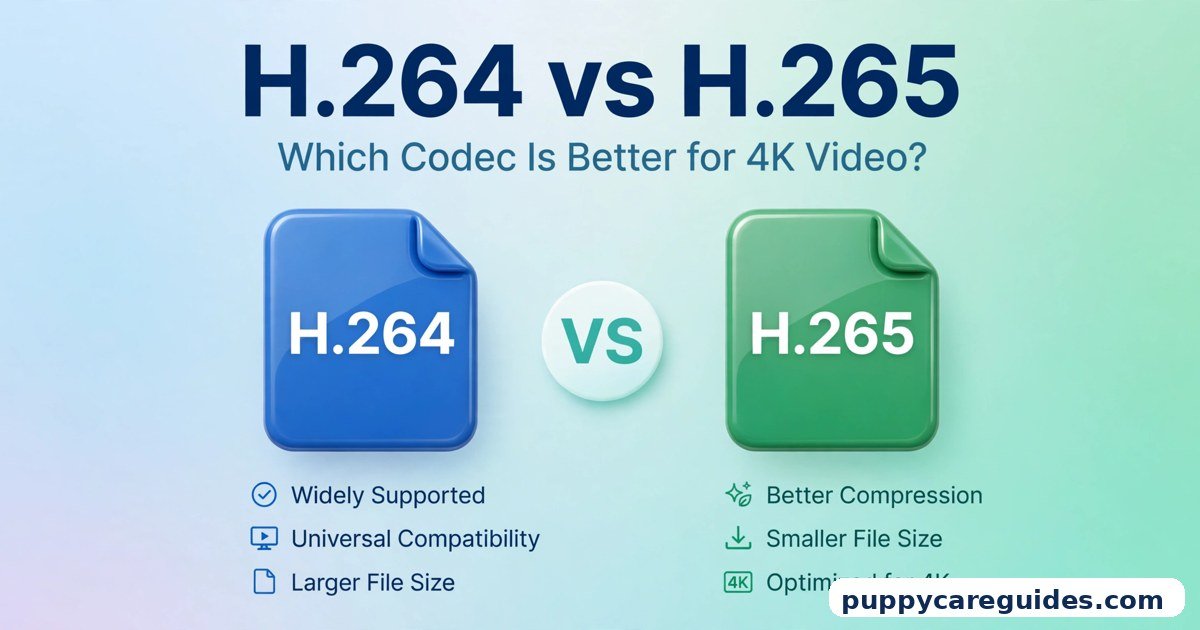
This guide compares MP4 vs MKV in plain language: what each container is, where each one shines, the mistakes people make with both, and a simple rule for choosing. Because containers and codecs are often confused, you may also enjoy our guide to H.264 vs H.265, which explains the technology that actually controls quality and file size inside both formats. The mp4 vs mkv decision is simpler than it looks once you know what to check first.
mp4 vs mkv: Quick Comparison Table
The table below sums up mp4 vs mkv at a glance.
| Feature | MP4 | MKV |
|---|---|---|
| Full name | MPEG-4 Part 14 | Matroska Video |
| Type | Container format | Container format |
| Compatibility | Excellent — plays on virtually every device | Good — needs a capable player like VLC on many devices |
| File size | Typically similar; often slightly smaller in practice | Typically similar for the same video and audio |
| Video quality | Determined by the codec inside, not the container | Determined by the codec inside, not the container |
| Subtitle support | Limited — usually one track, sometimes burned in | Excellent — many subtitle tracks in one file |
| Audio tracks | Usually one or two | Many — multiple languages and commentary tracks |
| Chapters and extras | Basic support | Full chapters, attachments, and metadata |
| Streaming and upload | The standard for YouTube and social media | Not accepted by most upload platforms |
| Editing support | Works in every editor | Limited — many editors reject it or need conversion |
| Open source | No — a formal MPEG standard | Yes — free and open |
| Best for | Sharing, uploading, phones, TVs, everyday watching | Home media libraries, movie archives, multi-language files |
Note: file sizes above are typical outcomes for the same content. The container alone adds very little size — the codec and bitrate inside decide almost all of it.
What Is MP4?
MP4, formally MPEG-4 Part 14, is the world’s default video container. It was standardised by the MPEG group, the same organisation behind the video technology used on DVDs, broadcasts, and streaming services. If you record a video on your phone, download a clip from a website, or export a project from an editor, it almost certainly comes out as an MP4 file. The whole mp4 vs mkv story starts here.
An MP4 file typically holds one video track, one or two audio tracks, and optionally subtitles and basic metadata such as title and cover art. Its superpower is not flexibility — it is acceptance. Phones, tablets, smart TVs, Windows and Mac computers, web browsers, WhatsApp, YouTube, Instagram, and every video editor all speak MP4 fluently.
Real example: You record your child’s school performance on your phone. The file is MP4. You send it to the family WhatsApp group, your mother watches it on her older Android phone, your brother opens it on his iPhone, and your cousin plays it on a smart TV. Nobody installs anything, nobody converts anything. That effortless journey is exactly what MP4 was built for. In any mp4 vs mkv comparison, MP4 stands for playing anywhere with no fuss.
What Is MKV?
MKV stands for Matroska Video, named after the Russian matryoshka nesting dolls — a fitting name, because an MKV file is designed to hold lots of things inside one container. It is a free, open-source format created in the early 2000s by developers who wanted a container with no practical limits. The mp4 vs mkv gap is easiest to understand right here.
Inside a single MKV file you can pack:
- One video track in high quality, including 4K and HDR versions
- Many audio tracks — for example, the original language, a dubbed version, and a director’s commentary
- Many subtitle tracks in different languages, which you can switch on, off, or between while watching
- Chapter markers, like the scenes on a DVD menu
- Extra attachments, such as cover images and fonts for styled subtitles
This is why MKV became the container of choice for people who rip their Blu-rays or build home media libraries with tools like Plex or Kodi. One file contains everything, exactly like the original disc. Subtitles and multiple audio tracks are where mp4 vs mkv gets practical.
Real example: You own a movie on Blu-ray and back it up to your home server. As an MKV, that single file keeps the best picture, the English audio, a second dubbed track for your parents, subtitles in three languages, and the chapter points. As an MP4, some of those extras would have to be dropped or simplified. In any mp4 vs mkv comparison, MKV stands for keeping every track and the full quality.
mp4 vs mkv: Key Differences Between MP4 and MKV
1. Compatibility: plays everywhere vs plays where supported
This is the biggest real-world difference. MP4 is supported by essentially every device and app made in the last fifteen years. MKV is supported by many — VLC, Kodi, Plex, and most modern media players handle it well — but support has holes. Some smart TVs play MKV video with no audio because they dislike the audio codec inside. Many phones need a third-party app. Most video editors either reject MKV outright or behave strangely with it. If a video must “just work” for someone else, MP4 is the safe answer every time.
2. Subtitles and audio tracks: one of each vs everything at once
MP4 was designed for delivery, not archiving, so its subtitle and audio support is modest. In practice, MP4 files usually carry a single audio track and either no subtitles or subtitles burned permanently into the picture. MKV was designed for collections. It happily stores a dozen subtitle tracks and several audio tracks, all switchable during playback. For foreign films, anime, or a family that watches in two languages, this difference alone settles the question.
3. File size and quality: the container is not the cause
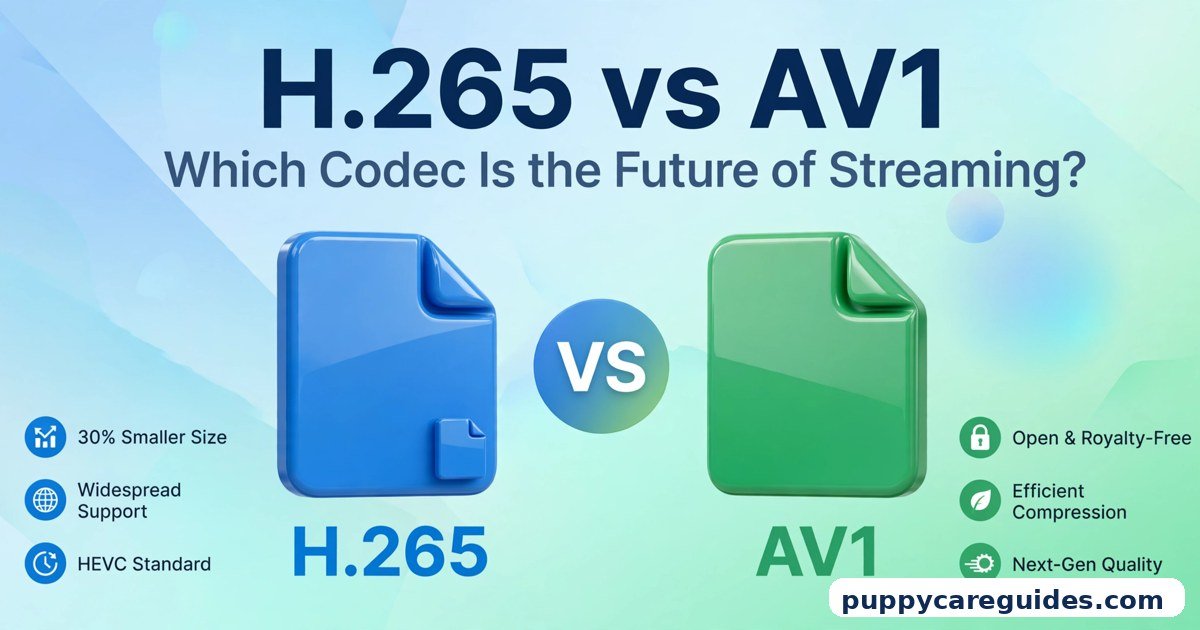
People often ask which format gives better quality or smaller files. The honest answer: neither, by itself. Quality and size come from the codec — such as H.264, H.265, or AV1 — and the bitrate chosen when the video was encoded. The same video, encoded with the same settings, comes out at nearly the same size and quality in an MP4 or an MKV box. In practice MKV files are often larger, but only because the people who choose MKV usually also choose higher bitrates and extra audio tracks. If file size matters to you, our H.265 vs AV1 guide covers the codecs that genuinely shrink files.
4. Uploading and streaming: the internet runs on MP4
YouTube, Facebook, Instagram, TikTok, and X all expect MP4 uploads. Website players stream MP4, and browsers play it natively without plugins. MKV cannot be uploaded to most platforms at all, and no mainstream browser plays it directly. So if a video’s destination is the internet — a channel, a classroom link, a client review page — it needs to be MP4, whatever format it started in.
5. Editing: editors love MP4 and tolerate MKV
Every editing program, from the free editor on your phone to Premiere Pro and DaVinci Resolve, imports MP4 without complaint. MKV is a known pain point: some editors refuse it, others import the picture but lose an audio track, and variable frame rate MKV recordings are famous for audio that slowly drifts out of sync. Screen-recording software that saves MKV (a common default, because MKV survives crashes without corrupting the file) should be remuxed or converted before editing — a two-minute job we explain in the conversion section below.
6. Safety during recording: MKV survives a crash
Here MKV scores a genuine point. If recording software crashes or the power cuts while saving an MP4, the file is often unplayable, because MP4 writes key information at the very end. MKV writes its structure as it goes, so a interrupted MKV recording is usually still watchable up to the moment of the crash. This is why tools like OBS record to MKV first and then convert — you get crash safety during the recording and MP4 compatibility afterwards. Every mp4 vs mkv difference above comes back to a container that plays anywhere versus one that holds everything.
mp4 vs mkv: Best Uses of MP4
- Sharing videos with family, friends, clients, or students — it plays on their devices with no extra apps
- Uploading to YouTube and social media — MP4 is the accepted standard everywhere
- Watching on phones and tablets, including older models with limited app support
- Playing on smart TVs and game consoles, where accepted formats are few and MP4 is always one of them
- Final exports from editing software — the file you deliver, publish, or archive for easy access
- Website videos — browsers play MP4 natively, no plugins needed
mp4 vs mkv: Best Uses of MKV
- Home movie libraries on a PC, NAS, or media server using Plex, Kodi, or Jellyfin
- Backing up DVDs and Blu-rays while keeping every audio track, subtitle, and chapter from the disc
- Foreign-language films and anime, where switchable subtitle and dub tracks matter
- Recording long screen captures or streams, where crash protection keeps the file usable
- Archiving the “master” copy of important footage, with a separate MP4 copy made for sharing
- Multi-language households, where one file serves viewers who prefer different audio or subtitles. For a personal movie archive, mp4 vs mkv usually ends in MKV’s favour.
Pros and Cons
MP4 — Pros
- Plays on virtually every device, app, TV, and browser
- Accepted by every upload platform and video editor
- Small, tidy files with one clear purpose: easy delivery
- The format every non-technical viewer already handles without thinking
MP4 — Cons
- Limited subtitle and audio track support
- Subtitles are often burned in or missing entirely
- If a recording is interrupted, the file can be lost completely
- Less flexible for serious archiving of discs and collections
MKV — Pros
- Holds many audio tracks, subtitle tracks, and chapters in one file
- Free and open format with no practical limits on contents
- Perfect for media servers and movie collections
- Recording survives crashes and power cuts. That is the mp4 vs mkv balance in one line.
MKV — Cons
- Not supported by many TVs, phones, browsers, and editors by default
- Cannot be uploaded to YouTube or social media directly
- Some players show picture without sound due to the audio inside
- Confusing for non-technical people you share files with. This is where the mp4 vs mkv choice really bites.
mp4 vs mkv: Which Should You Choose?
- Beginner / everyday user: MP4 for everything. If a file arrives as MKV and will not play, install the free VLC player — or convert it using the steps below.
- Student: MP4 for recorded lectures you share or upload, and for anything a teacher must open on a school computer. MKV only for your private collection of films with subtitles you switch often.
- Creator / YouTuber: Record in MKV if your software offers it (for crash safety), edit and export in MP4. Your audience, your editor, and every platform expect MP4 — see also our MP4 vs MOV guide if you record on an iPhone or camera.
- Professional / archivist: Keep MKV masters for collections, disc backups, and multi-track material. Deliver MP4 copies to clients and the public. You get the archive quality of MKV and the universal reach of MP4. Decide mp4 vs mkv by where the video will play — anywhere at all, or your own archive — and the choice makes itself.
mp4 vs mkv: Common Mistakes
- Converting MKV to MP4 and expecting better quality. Conversion cannot add quality that is not there. At best it preserves quality; re-encoding carelessly makes it worse.
- Re-encoding when you only need to remux. If the video inside the MKV is already H.264, it can move into an MP4 box without re-encoding — a process called remuxing that takes seconds and loses nothing. Many people waste an hour re-encoding instead.
- Sending MKV files to non-technical people. Your cousin’s TV or your manager’s laptop may reject it, and they will conclude the file is “broken.” Send MP4 to people; keep MKV for yourself.
- Deleting the MKV after a lossy conversion. If you convert with low settings to save space, the extra subtitle and audio tracks are gone forever. Keep the master until you have checked the copy.
- Assuming a “bad video” when the container is the problem. A black screen or missing sound usually means the player lacks support for the container or codec — try VLC before blaming the file.
- Recording important footage directly to MP4. One crash can erase the whole recording. Record to MKV (or your camera’s safest option), then convert. Most mp4 vs mkv regrets come from exactly these avoidable errors.
How to Convert MKV to MP4
The simplest free tool is HandBrake (Windows, Mac, Linux). VLC can also convert, and OBS has a built-in “Remux Recordings” option for its own files.
- Install HandBrake from its official website and open it.
- Drag your MKV file into the window, or click File to select it.
- In the Summary tab, set Format to MP4.
- On the Video tab, choose H.264 as the encoder for maximum compatibility, and set quality around RF 20–23 for good-looking results (these are typical settings, not a test result).
- On the Audio and Subtitles tabs, pick the one track each you actually need — remember, extras beyond that may not survive in MP4.
- Choose the destination folder at the bottom, then click Start Encode.
- Play the finished MP4 on the actual device you care about — your TV, phone, or a browser — and check picture, sound, and subtitles before deleting anything.
Faster option — remux instead: If the MKV’s video is already H.264, tools such as OBS’s remux feature or MKVToolNix-style workflows move it into MP4 in seconds with zero quality loss, because nothing is re-encoded. Whichever side of mp4 vs mkv you pick, keep the original file saved before you convert.
mp4 vs mkv: FAQs
Does converting MKV to MP4 reduce quality?
It depends on how you convert. Remuxing — moving the same video into an MP4 container without re-encoding — loses nothing at all. Re-encoding with a tool like HandBrake does reduce quality slightly, because the video is compressed again. With sensible quality settings the difference is usually invisible, but a low quality setting will visibly soften the picture. When in doubt, remux first. This is the core of the mp4 vs mkv debate.
How can I play MKV without VLC?
Many options exist. On a computer, Kodi and MPC-style players handle MKV well. On a phone, VLC’s free app is still the easiest answer, though some gallery apps now play MKV too. On a TV, a media server like Plex can convert the file on the fly while streaming it to your screen. If none of that appeals, convert the file to MP4 once and the problem disappears everywhere. That is mp4 vs mkv in practice.
Why does my TV not play MKV files?
Usually one of two reasons: the TV’s built-in player does not support the MKV container at all, or it supports the container but not the audio or video codec stored inside — which is why some MKV files play silently. TV makers support only a short list of combinations. Converting the film to MP4 with H.264 video and AAC audio fixes the large majority of TV playback problems. That is the mp4 vs mkv difference where it counts.
Is MKV legal and safe?
Yes. MKV is simply a file format, as legal and safe as MP4 or a ZIP file. What matters legally is the content and whether you have the right to copy it — backing up discs you own is treated differently from downloading other people’s copies, and rules vary by country. The format itself is free, open, and used by plenty of legitimate software. That is mp4 vs mkv in daily use.
Can I upload MKV to YouTube?
Not reliably — YouTube’s accepted formats list is built around MP4, and MKV uploads are rejected or fail processing on most accounts. Even where an upload seems accepted, converting first is safer and faster, because you control the quality settings instead of hoping the platform handles an unusual file well. Convert to MP4 with H.264 video and you will never have an upload refused for format reasons. That is the mp4 vs mkv difference that matters most.
mp4 vs mkv: Final Verdict
Watching and sharing = MP4. Collecting and archiving = MKV.
These two containers are not really rivals. MP4 is the delivery format: small, simple, and welcome everywhere a normal person might press play. MKV is the storage format: generous, flexible, and ideal when one file must carry a whole disc’s worth of audio, subtitles, and chapters. Most happy setups use both — MKV masters on the shelf, MP4 copies on the phone. If you remember only one line, make it this: never send an MKV to someone who just wants to watch the video. That is the mp4 vs mkv choice in short: MP4 for sharing and streaming anywhere, MKV for archiving at full quality.
Next: MP4 vs MOV: Which Is Better for Recording and Editing? — why your iPhone and camera love MOV, and why your final video should still be MP4.
Related Articles
- MP4 vs MOV: Which Is Better for Recording and Editing? — the next comparison in this series
- AVI vs MP4: Which Is Better for Quality and Compatibility? — the older container vs today’s standard
- MP4 vs WebM: Which Is Better for Websites? — the two formats browsers know best
- H.264 vs H.265: Which Codec Gives Smaller Files? — the technology inside both containers that really controls size and quality







Free Antivirus vs Paid Antivirus - puppycareguides.com
[…] MP4 vs MKV: Which Is Better for Videos? — from our Video Formats series, a lighter read after all this security talk […]