


MKV vs MOV: Which Is Better for Movies and Editing?
Quick Answer
Use MKV for watching and storing movies and MOV for recording and editing video. That is the short answer to mkv vs mov.

For more technical background, see the Matroska (MKV) overview on Wikipedia.
Table of Contents
MKV is like a big, flexible suitcase: one file can hold a film, several audio tracks in different languages, many subtitle tracks, and chapter markers. MOV is Apple’s professional container: cameras and iPhones record in it, editors love it, and it carries high-quality editing codecs like ProRes. Same video can live in either box — the smart choice depends on whether the file’s job is to be played or to be edited.
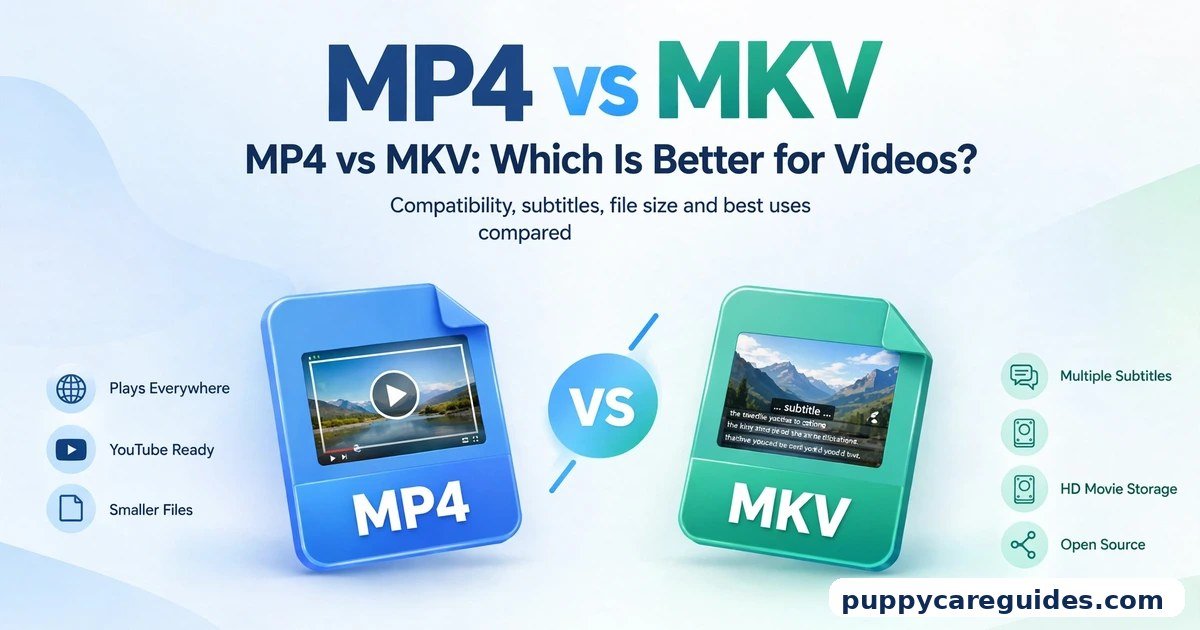
Not sure how containers relate to the more common MP4? Start with MP4 vs MKV for the basics.
Introduction
Here is a situation almost everyone meets. You download or record a video, double-click it, and your player says it cannot open the file. Or the opposite: a video plays perfectly on your laptop, but your TV refuses it. Often the problem is not the video itself — it is the box the video is packed in.
That box is called a container, and two of the most talked-about containers are MKV and MOV. MKV has a loyal following among movie collectors and home-theatre fans. MOV comes straight from Apple and dominates phone footage and professional editing suites.
This guide compares them honestly: what each container really is, how they differ in playback, subtitles, size, and editing, and which one you should pick for movies, archives, and projects. No jargon without an explanation, and no winner for everything — because there isn’t one. The mkv vs mov decision is simpler than it looks once you know what to check first.
mkv vs mov: Quick Comparison Table
The table below sums up mkv vs mov at a glance.
| Feature | MKV | MOV |
|---|---|---|
| Full name / origin | Matroska — open-source project | QuickTime File Format — made by Apple |
| Main job | Storing and playing finished movies | Recording and editing video |
| Video/audio inside | Almost any codec (H.264, H.265, AV1 and more) | Common camera codecs, including Apple ProRes |
| Subtitle tracks | Many tracks in one file, many formats | Possible, but less flexible in practice |
| Multiple audio tracks | Excellent — languages, commentary, surround | Supported, commonly used in editing |
| Chapters and menus | Yes — chapters, attachments, metadata | Chapters supported, simpler in practice |
| Plays on | VLC, Kodi, Plex and most modern players; weaker on Apple devices and some TVs | Apple devices natively; good support in editors; some Windows/Android players need help |
| Editing support | Weak to mixed — many editors dislike it | Excellent — a standard editing container |
| Typical file size | Depends on codec and bitrate, not the container | Often large when it holds ProRes or camera-original quality |
| Cost / licence | Free and open source | Free to use; strongly tied to Apple’s ecosystem |
Note: a container does not set picture quality or file size by itself — the codec and bitrate inside it do. Size and quality figures mentioned in this article are typical ranges, not measurements from a single test file.
What Is MKV?
MKV is the file extension of Matroska, an open-source container launched in 2002. The name comes from the Russian matryoshka nesting dolls — a perfect image, because an MKV file is a doll full of smaller parts: one or more video streams, several audio streams, subtitle tracks, chapter information, cover images, and fonts, all packed neatly in a single file. The whole mkv vs mov story starts here.
MKV is not a codec. It does not compress anything itself. Inside an MKV you will usually find video compressed with H.264, H.265, or AV1, plus audio in formats like AAC, AC3, or DTS. Because the container accepts almost anything, it became the collector’s favourite: a whole Blu-ray film — picture, three languages, ten subtitle tracks, chapters — fits in one tidy MKV.
Real example: A film fan rips their own Blu-ray collection to a home server. Each movie is one MKV file with English and Spanish audio, subtitles in four languages, and chapters. On movie night the family picks language and subtitles from the player menu — no separate files to lose. In any mkv vs mov comparison, MKV stands for keeping every track at full quality.
What Is MOV?
MOV is the extension of the QuickTime File Format, created by Apple in the 1990s and still at the heart of Apple’s video world. If you record video on an iPhone, it saves as MOV (unless you changed the setting). Many cameras, screen-recording tools, and editing programs also export MOV. The mkv vs mov gap is easiest to understand right here.
Like MKV, MOV is a container, not a codec. Its special strength is what usually travels inside it: professional editing codecs such as Apple ProRes, alongside everyday choices like H.264 and H.265. ProRes files are deliberately large and lightly compressed, which makes them smooth to edit — your editor can jump to any frame without struggling. Editing is where mkv vs mov gets practical.
MOV also handles editing-friendly extras well: timecode, multiple audio channels, and metadata that professional workflows depend on.
Real example: A wedding videographer records on cameras that save MOV files with ProRes. In the edit, she scrubs through hours of footage instantly, the colourist grades it in another program, and nothing breaks — because every professional tool speaks MOV fluently. The final film for the couple is exported as MP4, which brings us to why these two containers rarely compete for the same job. In any mkv vs mov comparison, MOV stands for the Apple-native way to record and edit.
mkv vs mov: Key Differences Between MKV and MOV
1. Purpose: MKV is built for playback and storage, MOV for editing
This is the difference that explains all the others. Matroska was designed as a universal box for finished media — the file you keep, catalogue, and play for years. QuickTime was designed as a working format — the file you record, cut, grade, and only then turn into something else. When a tool or device seems to “prefer” one of them, it is usually this purpose showing through.
2. Playback support: MKV needs the right player, MOV needs the right ecosystem
On a computer with VLC — the free player that opens almost everything — both play without drama. The differences appear elsewhere:
- MKV plays beautifully in VLC, Kodi, Plex, and most modern Android players, but Apple devices historically do not play it natively, and some smart TVs reject certain MKV files (often because of the audio or subtitle format inside, not the video).
- MOV plays natively on every iPhone, iPad, and Mac. On Windows and Android it usually plays in modern players, but professional MOV files (ProRes) can choke phones and cheap players — the container opens, the heavy codec inside does not.
So neither is “the compatible one” in every home. MKV’s home turf is the media-player world; MOV’s home turf is Apple’s.
3. Subtitles and audio tracks: MKV is far more flexible
This is MKV’s party trick. A single MKV can carry:
- Many subtitle tracks, in several formats, that you can switch or turn off
- Multiple audio tracks — original language, dubbed language, director’s commentary, stereo and surround versions
- Chapter markers, attached cover art, and even the fonts subtitles need
MOV can hold multiple tracks too, and editors use that for separate dialogue, music, and effects channels. But for a viewer switching languages and subtitles at the press of a button, MKV’s support in players like Plex and Kodi is simply more complete and more reliable.
4. Editing support: MOV wins by a mile
Try editing an MKV file and you will quickly feel the difference. Many editors import it reluctantly, slowly, or not at all; the usual professional advice is “convert it first.” Streaming apps and OBS often record MKV on purpose — it survives crashes better than MP4 — but even OBS itself suggests remuxing the recording afterwards for editing.
MOV is the opposite experience. Final Cut Pro, Premiere Pro, and DaVinci Resolve all treat MOV as a first-class citizen. Timelines scrub smoothly, effects preview cleanly, and ProRes MOV files are the industry’s favourite hand-off format between editors, colourists, and sound teams. If a file’s next stop is an editing timeline, MOV is the professional choice.
5. File size and quality: the codec decides, not the container
A common myth says “MOV files are huge” and “MKV files are small.” The truth is more useful: the container adds almost no size at all. What matters is the codec and bitrate packed inside.
- MOV files seem huge because they often contain ProRes or camera-original footage, which trades size for editing smoothness — tens of gigabytes per hour is normal for ProRes.
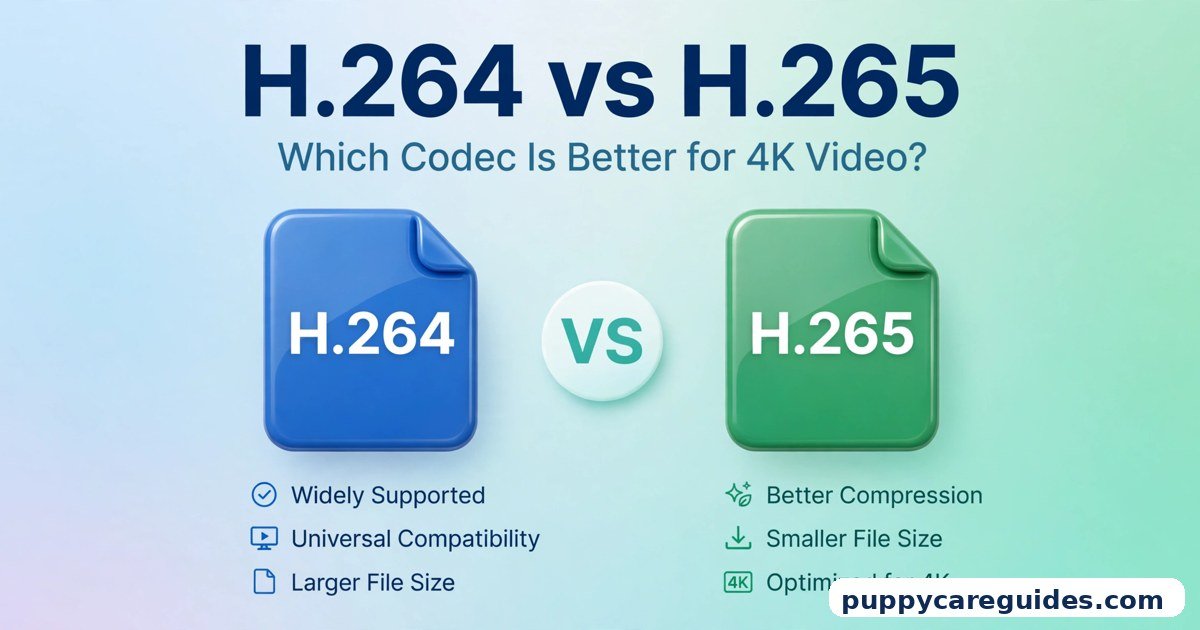
- MKV files seem small because they often contain efficiently compressed H.265 video made for storage, as explained in H.264 vs H.265.
Put the same H.264 video in both boxes at the same bitrate and the two files will be nearly identical in size and quality. Choose the container for compatibility and features; choose the codec for size.
6. Openness and future: MKV is community-owned, MOV is Apple-guided
Matroska is free, open source, and supported by a community — no company can retire it or charge for it, which is why archivists trust it for long-term collections. MOV is also here to stay, but its direction follows Apple: it thrives exactly as long as Apple’s devices and professional tools thrive — which, to be fair, shows no sign of stopping. For a home archive, MKV’s independence is reassuring. For professional work today, MOV’s industry backing is what counts. Every mkv vs mov difference above comes back to the open archive container versus Apple’s own format.
mkv vs mov: Best Uses of MKV
- Movie and TV collections — one file per film, with every language and subtitle track inside.
- Home media servers — Plex, Jellyfin, and Kodi are built around MKV libraries.
- Blu-ray and DVD backups — keep chapters, multiple audio tracks, and full quality from your own discs.
- Long-term archiving — an open, free container that no company controls.
- Screen-recording safety — tools like OBS record MKV because a crash does not destroy the whole file.
mkv vs mov: Best Uses of MOV
- Video editing projects — smooth timelines in Final Cut Pro, Premiere Pro, and DaVinci Resolve.
- iPhone and iPad footage — the native format your Apple device already records.
- Professional hand-offs — ProRes MOV files moving between editor, colourist, and client.
- Camera-original footage — many cameras record high-quality MOV straight out of the body.
- Animation and motion graphics exports — a common delivery format for editors to drop into projects. For filming and editing on Apple gear, mkv vs mov usually ends in MOV’s favour.
Pros and Cons
MKV — Pros
- Holds many audio and subtitle tracks, chapters, and attachments in one file
- Accepts almost any video and audio codec
- Free and open source — ideal for long-term archives
- Perfect fit for media servers and movie collections
MKV — Cons
- Apple devices and some TVs do not play it natively
- Many video editors import it poorly or not at all
- Not accepted for upload by most websites and social platforms
- Playback problems can hide inside — an unsupported audio codec looks like a “broken MKV”
MOV — Pros
- Excellent editing support in every professional program
- Native on all Apple devices; standard for iPhone footage
- Carries ProRes and other editing-friendly codecs
- Handles timecode and multi-channel audio for professional work. That is the mkv vs mov balance in one line.
MOV — Cons
- Files are often very large when they hold ProRes or camera quality
- Weaker fit for movie collections — subtitle/track handling is less viewer-friendly
- Some Windows/Android players struggle with heavy professional MOV files
- Tied to Apple’s ecosystem and decisions. This is where the mkv vs mov choice really bites.
mkv vs mov: Which Should You Choose?
- Beginner: Recording on your phone? Leave it as MOV and share an MP4 export when friends cannot open it. Downloading films to watch in VLC? MKV plays wonderfully there.
- Student: Edit coursework in MOV (or whatever your camera gives you), submit in MP4 if your teacher asks for “a video file,” and keep MKV for your personal film collection.
- Creator: Record and edit in MOV for a painless timeline, upload to YouTube as MP4 or MOV, and archive finished projects as high-quality MOV masters — with an MKV copy if the project has multiple language versions.
- Professional: MOV with ProRes for anything in production or being handed to another human. MKV belongs at the very end of the chain — delivery to media servers and archives, not in the edit. Decide mkv vs mov by the job — archiving a film collection or editing on a Mac — and the choice makes itself.
mkv vs mov: Common Mistakes
- Blaming the container for a codec problem. “This MKV won’t play” usually means the TV dislikes the audio or video codec inside. Check what is inside the file (MediaInfo is a free tool for this) before converting blindly.
- Re-encoding when you only need to remux. If the codec inside is fine and only the box is wrong, changing container (MKV to MP4, for example) is fast and loses no quality. Re-encoding the video is slow and can reduce quality.
- Editing MKV directly and fighting your software. Convert or remux recordings to MOV or MP4 before editing. Ten minutes of converting saves hours of timeline stutter.
- Assuming MOV always means huge. A phone’s H.265 MOV clips are modest in size; it is ProRes that is enormous. Look at the codec, not the extension.
- Storing the only copy as a streaming rip. Keep your best-quality original (MOV master or full-quality MKV). You can always make a smaller copy later; you cannot get back quality you threw away.
- Uploading MKV or MOV to social platforms. Most reject MKV entirely and prefer MP4 even over MOV. Export a proper MP4 for sharing — see MP4 vs MOV for that side of the story. Most mkv vs mov regrets come from exactly these avoidable errors.
How to Convert Between MKV and MOV
- Decide whether you need a remux or a full conversion. Same codec, new box = remux (fast, no quality loss). Different codec or an editor that needs ProRes = full conversion (slower, choose settings carefully).
- Pick a tool. Shutter Encoder and HandBrake are free and friendly; VLC can convert simple files; FFmpeg does everything if you like typing commands.
- For editing: convert MKV to MOV. In Shutter Encoder choose the file, pick an editing-friendly output (ProRes MOV for professional work, or H.264 MOV/MP4 for lighter projects).
- For a movie archive: convert MOV to MKV with HandBrake or a remux tool, keeping the subtitle and audio tracks you actually want — tick every language you need before starting.
- Set quality sensibly. For re-encodes, a constant-quality setting in the typical high-quality range keeps files reasonable; avoid the lowest settings — savings are small, damage is visible.
- Keep the original until you have watched the result. Check the beginning, middle, and a scene with subtitles and a second audio track if those matter to you.
- Name files clearly.
MovieName (Year).mkvorProject_Scene01.movsaves future-you a lot of guessing. Whichever side of mkv vs mov you pick, keep the original file saved before you convert.
mkv vs mov: FAQs
Is MKV better quality than MOV?
Neither is better by itself — quality comes from the codec and bitrate inside the container. The same H.264 video at the same bitrate looks identical in MKV and MOV. MOV files often look “better” in practice because they carry lightly compressed camera or ProRes footage; MKV files often look “smaller” because they usually carry efficiently compressed video. Compare codecs, not extensions. This is the core of the mkv vs mov debate.
Why won’t my TV or iPhone play an MKV file?
Because support is missing at one of two levels: the device may not read the Matroska container at all (common on Apple devices), or it reads the container but not a codec or subtitle format packed inside (common on TVs). The fixes are simple: play it through VLC or a media server like Plex, which handles both levels, or convert/remux the file to MP4 for that device. That is mkv vs mov in practice.
Can I convert MKV to MOV without losing quality?
Yes — if the video codec inside the MKV is one MOV can hold (H.264 and H.265 usually qualify), a remux simply re-wraps the same video into a MOV box: no quality change, and it takes minutes. If your editor needs ProRes, the conversion re-encodes; done properly at high quality the visible loss is negligible, but the file will grow much larger. That is the mkv vs mov difference where it counts.
Why are my MOV files so big?
Almost certainly because of what is inside: ProRes and camera-original recordings are large by design. A typical ProRes file can be many times larger than an H.265 file of the same scene — that size is the price of smooth editing and maximum quality. If the project is finished and you just want to keep or share it, export an H.264 or H.265 version in MP4 and keep the big MOV only if you may edit again. That is mkv vs mov in daily use.
Which format should I use for a home movie library?
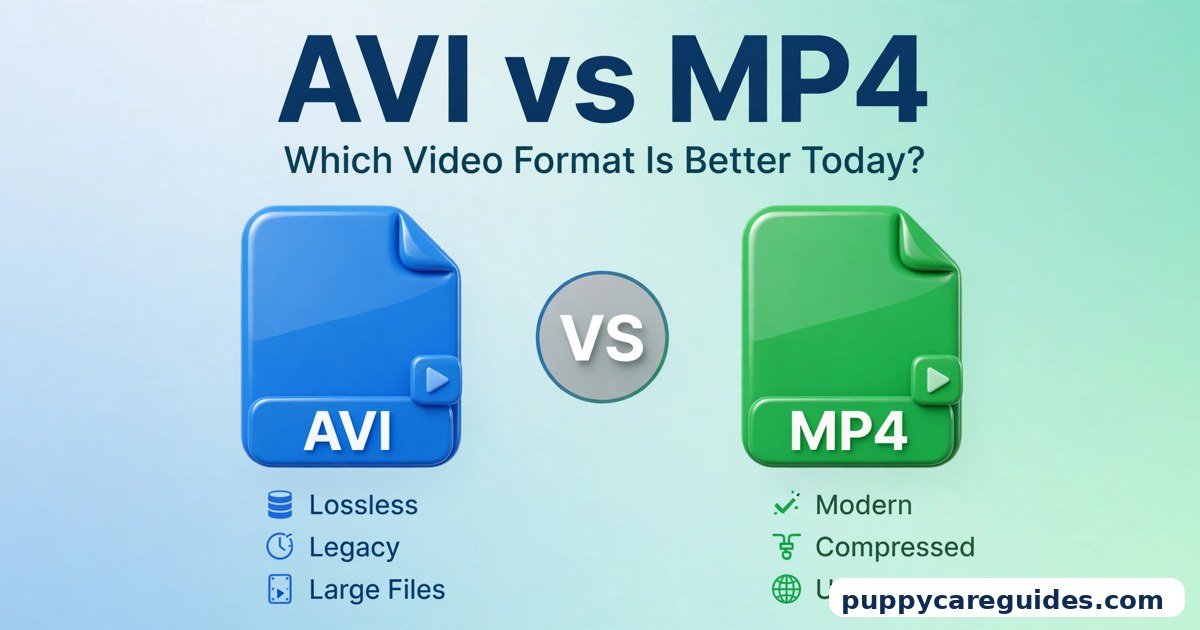
MKV, for most people. It keeps every audio track and subtitle in one tidy file, media servers love it, and the format is free and future-proof. Build the library in MKV, let Plex or a similar app handle playback to TVs and phones, and your collection stays organised for years. For the bigger picture on organising downloads, AVI vs MP4 covers another classic container question. That is the mkv vs mov difference that matters most.
mkv vs mov: Final Verdict
Movies and archives = MKV. Recording and editing = MOV.
Let the file’s job decide. A film that will be watched, catalogued, and kept belongs in MKV, with all its languages and subtitles inside. Footage that will be cut, graded, and handed to other people belongs in MOV, where every editor is fluent. And when either one needs to travel to a phone, a website, or a friend — export MP4 and save everyone the trouble. That is the mkv vs mov choice in short: MKV for archiving movies, MOV for Apple recording and editing.






Leave a Reply