

1080p vs 4K: Which Resolution Is Better for YouTube?
Quick Answer
Use 1080p if you want fast uploads, easy editing, and happy viewers on normal screens, and 4K if your videos show fine detail, you film with a good camera, and you want the best quality YouTube can give — including its better processing for uploaded videos. That is the short answer to 1080p vs 4k.
For more technical background, see the 4K resolution overview on Wikipedia.
Table of Contents
On a phone, most viewers cannot see the difference. On a big TV, 4K is visibly sharper. The smart middle path many creators use: edit and upload in 4K when your footage deserves it, because YouTube generally gives 4K uploads better quality treatment — while knowing that 1080p remains a perfectly professional choice for most channels.
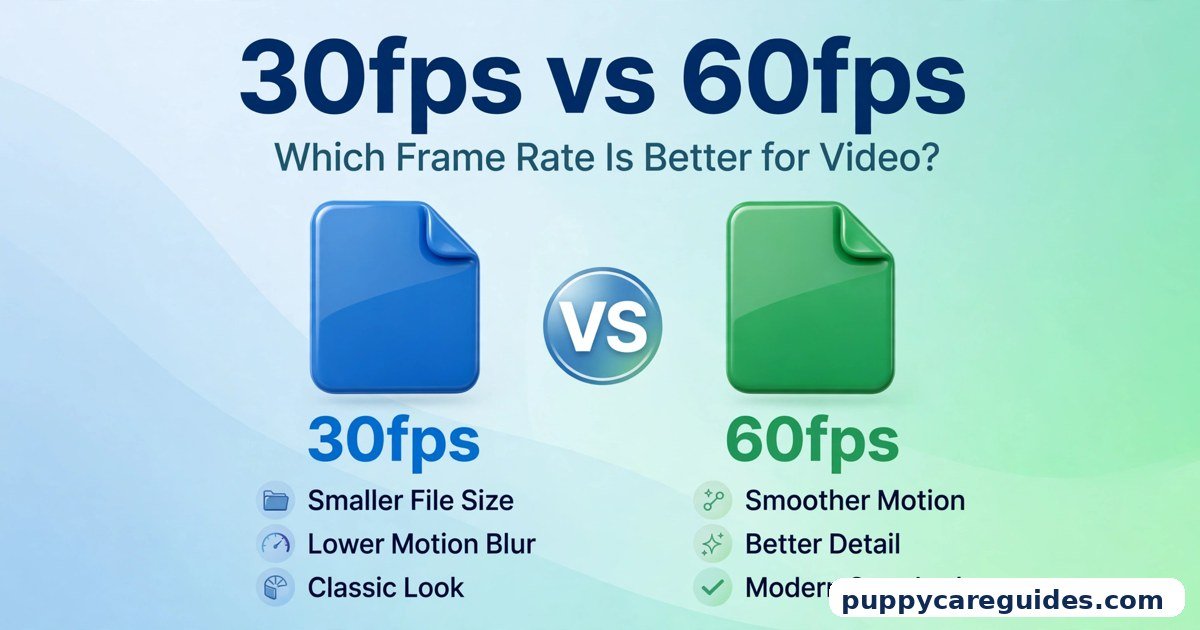
Still deciding your frame rate too? Read 30fps vs 60fps alongside this guide — resolution and frame rate are the two halves of one decision.
Introduction
Every YouTube creator meets this moment: the export screen asks a question your whole workflow hangs on — 1080p or 4K? Pick 1080p and the file is ready quickly, uploads fast, and plays everywhere. Pick 4K and everything slows down — bigger files, longer renders, heavier storage — in exchange for a sharper picture that many of your viewers, watching on phones, may never fully see.
So is 4K a creator’s upgrade or a creator’s trap? The honest answer is “it depends,” and this guide exists to make the dependence clear: what resolution really is, how each option looks on phones, laptops, and TVs, what YouTube does to your upload behind the scenes, how much each choice costs you in time and storage, and the famous trick of uploading 1080p footage in a 4K project. The 1080p vs 4k decision is simpler than it looks once you know what to check first.
1080p vs 4k: Quick Comparison Table
The table below sums up 1080p vs 4k at a glance.
| Feature | 1080p (Full HD) | 4K (Ultra HD / 2160p) |
|---|---|---|
| Resolution in pixels | 1920 × 1080 | 3840 × 2160 |
| Total detail | About 2 million pixels | About 8 million pixels — four times as many |
| Sharpness on a phone | Looks sharp — screen is small | Barely sharper to most eyes |
| Sharpness on a big TV (55″+) | Good, slightly soft up close | Clearly sharper, finer detail |
| Upload file size | Smaller, faster uploads | Typically 3–4x larger files |
| Viewer data use | Moderate | High — heavy for mobile data viewers |
| Editing load | Light; older laptops cope fine | Heavy; needs a stronger computer |
| Zoom/crop in editing | Very limited before quality drops | Room to crop, zoom, and reframe and still deliver sharp 1080p |
| Best for | Most channels: vlogs, lessons, reviews, talking videos | Detail-rich content: travel, nature, tech close-ups, big-screen audiences |
Note: file-size and data figures are typical ranges in everyday use, not results from a single controlled measurement. Actual sizes depend on codec, frame rate, and scene detail.
What Is 1080p?
1080p, also called Full HD, is a video resolution of 1920 pixels wide by 1080 pixels tall. The “p” stands for progressive scan — every line of the picture is drawn in every frame. With about two million pixels per frame, it became the world’s standard for television, streaming, and YouTube for well over a decade. The whole 1080p vs 4k story starts here.
1080p’s strength is balance. It is sharp enough to look professional on phones, tablets, laptops, and most TVs, while staying light: files are manageable, editing is smooth even on modest computers, and viewers on slow connections can stream it happily.
Real example: A cooking channel films in a home kitchen and uploads at 1080p. Viewers follow every step clearly on their phones, the creator edits on an ordinary laptop, and uploads finish in minutes. Nothing about that channel is held back by resolution. In any 1080p vs 4k comparison, 1080p stands for the reliable Full HD standard.
What Is 4K?
4K, also called Ultra HD or 2160p, measures 3840 × 2160 pixels — exactly double 1080p in both directions, which means four times the pixels in every frame. More pixels means finer detail: individual hairs, fabric texture, distant signs, the sparkle in water. The 1080p vs 4k gap is easiest to understand right here.
4K is the standard of cinema cameras, flagship phones, and modern TVs. Streaming platforms showcase it, and YouTube gives 4K uploads visibly premium treatment (more on that below). But all that detail is data, and data has a cost at every step: recording, storing, editing, exporting, uploading, and your viewers’ streaming. Screen size is where 1080p vs 4k gets practical.
Real example: A travel creator films a mountain valley at sunrise in 4K. On a big TV, viewers can pick out rooftops in the village below and the texture of snow on the ridge. On a phone, the same video looks lovely — but nearly identical to a good 1080p version. That sentence is the whole 4K debate in miniature. In any 1080p vs 4k comparison, 4K stands for maximum detail and future-proofing.
1080p vs 4k: Key Differences Between 1080p and 4K
1. Sharpness: it depends on screen size and distance
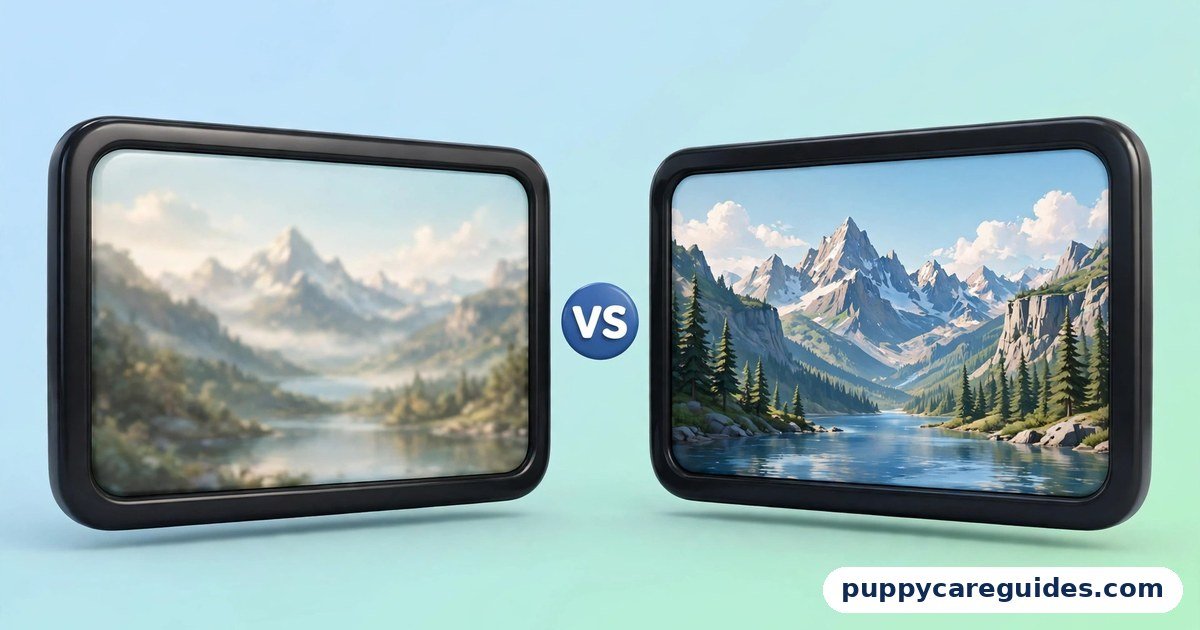
Four times the pixels sounds decisive, but your eyes have limits. On a 6-inch phone held at arm’s length, pixels are already packed tighter than your eye can separate at 1080p, so 4K adds little. On a laptop at desk distance, 4K is mildly crisper for text and fine detail. On a 55-inch or larger TV, the difference becomes obvious: 1080p starts to look soft, and 4K stays clean. Rule of thumb: the bigger the screen and the closer you sit, the more 4K earns its cost.
2. YouTube’s processing: 4K uploads usually get better treatment
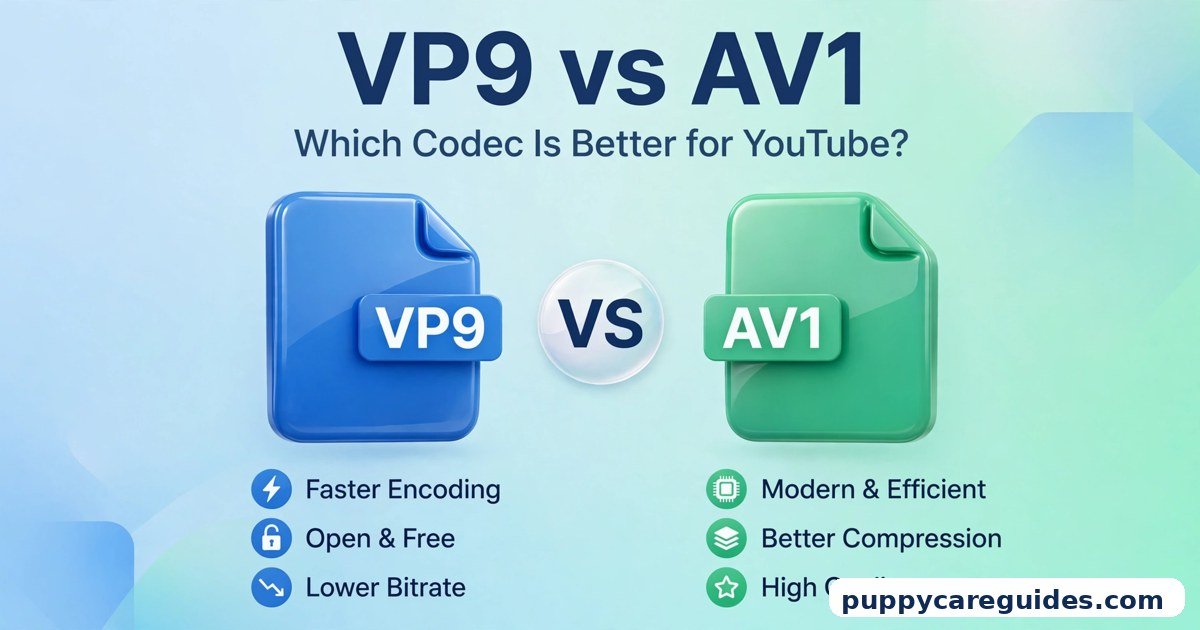
This is the difference creators whisper about, and it is real. YouTube re-compresses every upload. Videos uploaded at 1080p are usually processed with YouTube’s standard codec, while 4K uploads are typically processed with a more efficient premium codec (VP9), which keeps more quality — and, interestingly, this better treatment often extends to the lower-resolution versions YouTube generates from your 4K upload. That means a video uploaded in 4K can look cleaner even when a viewer watches it at 1080p. To understand the codec rivalry behind this, see VP9 vs AV1.
This is why some creators upload 1080p-shot videos inside a 4K export: they are buying better processing, not fake detail. It does not add real resolution, but the cleaner compression is a genuine, if modest, gain.
3. File size, storage, and upload time
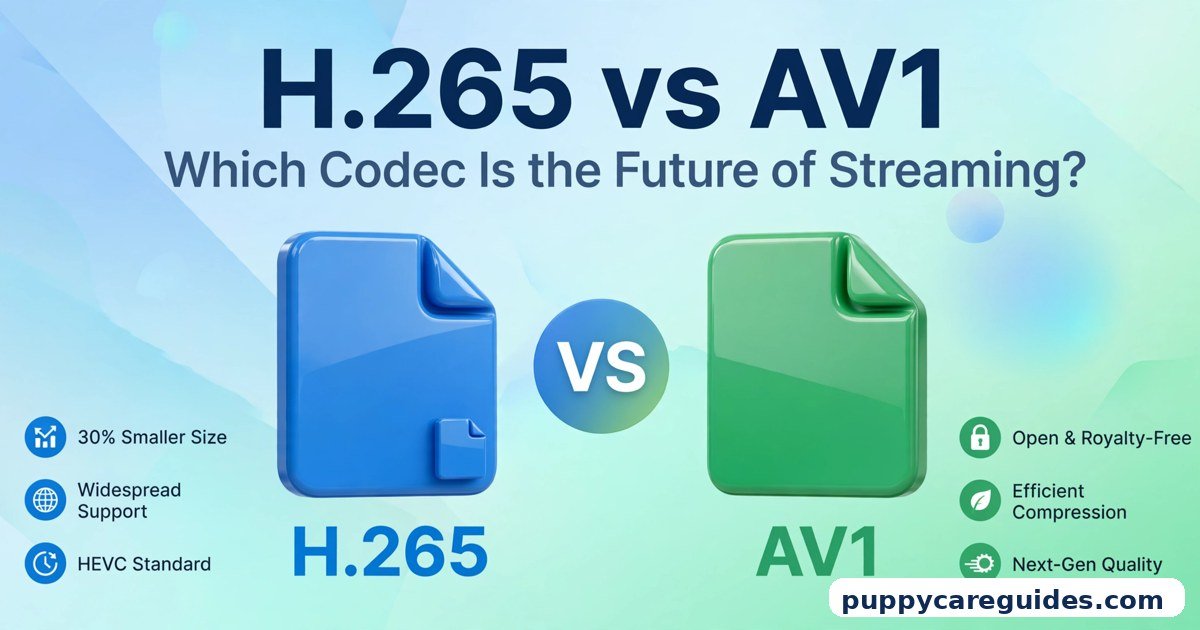
Four times the pixels typically means roughly three to four times the file size at the same quality, frame rate, and codec — the exact multiple varies by scene. A 10-minute video that is a comfortable upload at 1080p becomes a serious wait at 4K on a slow connection, and a channel publishing daily can fill a hard drive surprisingly fast. Pair resolution with a modern codec — as H.265 vs AV1 explains, smarter compression claws back much of 4K’s weight without visible loss.
4. Editing freedom: 4K lets you crop and fix framing
Here 4K gives creators something no setting can fake later: spare pixels. Editing a 4K clip on a 1080p timeline, you can zoom in up to about 200%, reframe a badly composed shot, stabilise shaky footage, or cut between a wide shot and a “close-up” from the same single camera — and still deliver full sharp 1080p. Interviews, podcasts, and event creators use this constantly: one camera in 4K behaves like two cameras in the edit.
5. Viewer experience and data costs
Your upload is only half the journey; your audience downloads the result. A 4K stream typically uses several times the data of a 1080p stream. For viewers on fibre and big TVs, that is fine and they will enjoy the sharpest version. For viewers on mobile data — a huge share of YouTube’s audience in many countries — YouTube automatically serves 1080p or lower anyway. Uploading in 4K does not force anyone to stream 4K; YouTube always offers every lower step. So audience data is a reason not to worry, not a reason to avoid 4K.
6. Recording and editing load on your equipment
4K is demanding at both ends. Phones heat up faster and drain batteries quicker recording 4K, especially at 60fps; memory cards fill around four times faster. In the editor, 4K timelines stutter on older laptops, renders take longer, and exports are slower. None of this is a problem on a strong modern setup — but a creator editing on a five-year-old laptop may find 1080p is the difference between finishing videos happily and dreading every edit. Every 1080p vs 4k difference above comes back to detail versus file size.
1080p vs 4k: Best Uses of 1080p
- Talking-head channels — lessons, reviews, commentary, and podcasts where the face matters more than fine detail
- Beginner and small channels — fast workflow, modest equipment, quick uploads
- Mobile-first audiences — viewers who overwhelmingly watch on phones
- Long videos — lectures, live-session recordings, and long tutorials where 4K files become enormous
- Creators on older laptops — smooth editing beats theoretical sharpness
- High upload frequency — daily publishers on slow internet connections
1080p vs 4k: Best Uses of 4K
- Travel, nature, and cinematic channels — landscapes and detail are the content itself
- Tech and product close-ups — screens, circuits, watches, and makeup where texture sells the video
- Big-screen audiences — channels whose viewers watch mainly on TVs
- Single-camera interviews and events — crop and reframe in the edit from one 4K shot
- Future-proofing — an archive that stays sharp as screens keep improving
- Creators with strong cameras and computers — when your gear already handles 4K comfortably. For YouTube uploads, 1080p vs 4k usually ends in 4K’s favour.
Pros and Cons
1080p — Pros
- Small files: fast uploads, cheap storage
- Smooth editing on almost any computer
- Sharp enough for phones, laptops, and most TVs
- Light on camera batteries and memory cards
- The universal, safe standard everywhere
1080p — Cons
- Looks soft on very large TVs
- Almost no room to crop or zoom in editing
- Usually receives YouTube’s standard, less efficient processing
- Aging as a “premium” signal — some audiences and brands expect 4K
4K — Pros
- Four times the detail; clearly sharper on big screens
- Freedom to crop, reframe, and stabilise in the edit
- Typically unlocks YouTube’s better VP9 processing — even its 1080p playback can look cleaner
- Future-proof master files. That is the 1080p vs 4k balance in one line.
4K — Cons
- Files typically 3–4x larger; slow uploads on weak connections
- Heavy editing load; older computers struggle
- Phones heat and batteries drain faster while recording
- Little to no visible gain for phone viewers. This is where the 1080p vs 4k choice really bites.
1080p vs 4k: Which Should You Choose?
- Beginner: Start at 1080p. Your first fifty videos need speed and consistency, not a storage crisis. Learn framing, light, and sound first — they change quality far more than pixels. Graduate to 4K when your workflow feels easy.
- Student: 1080p for lectures, presentations, and group projects — small files you can share and submit without drama. Use 4K only for a special showcase project.
- Creator: Decide by content and audience. Detail-rich visuals or TV audiences → 4K upload (even upscaled 1080p footage gains from YouTube’s better processing, though real 4K footage gains more). Talking content, daily uploads, slow internet → honest 1080p, published consistently, beats occasional 4K.
- Professional: Deliver 4K masters as standard; your clients’ screens, archives, and re-edits will thank you. Keep the full 4K workflow — recording media, storage, and a computer that edits it without complaint — and export a 1080p version where a platform or client asks for one. Decide 1080p vs 4k by your screen size and internet speed, and the choice makes itself.
1080p vs 4k: Common Mistakes
- Believing 4K fixes bad video. Blurry focus, shaky hands, poor light, and bad audio stay bad in 4K — just sharper-looking bad. Fix light and sound first; they cost less than a 4K camera.
- Recording 4K but exporting 1080p by accident, or the reverse error, upscaling without knowing why. Check export settings before the long render, not after the upload.
- Upscaling 1080p to 4K and advertising “real 4K.” The processing trick is legitimate; the claim is not. Upscaled footage has no extra real detail — informed viewers can tell.
- Mixing resolutions carelessly. Dropping 1080p clips into a 4K project without scaling them properly leaves black borders or soft, stretched footage.
- Ignoring frame rate while chasing resolution. A smooth 1080p video at the right frame rate (see 30fps vs 60fps) often looks better in motion than a juddering 4K clip shot at the wrong settings.
- Letting storage sneak up on you. 4K archives fill drives quietly. Budget storage as part of choosing 4K, and keep backups of masters, not just exports. Most 1080p vs 4k regrets come from exactly these avoidable errors.
Best Settings Guide
For a clean YouTube upload, follow these steps:
- Match export resolution to your footage. Real 4K footage → export 3840 × 2160. 1080p footage → export 1080p, or upscale to 4K deliberately if you want YouTube’s better processing and accept the larger upload.
- Keep your frame rate. Export at the same fps you recorded (24, 30, or 60). Do not convert rates in the export.
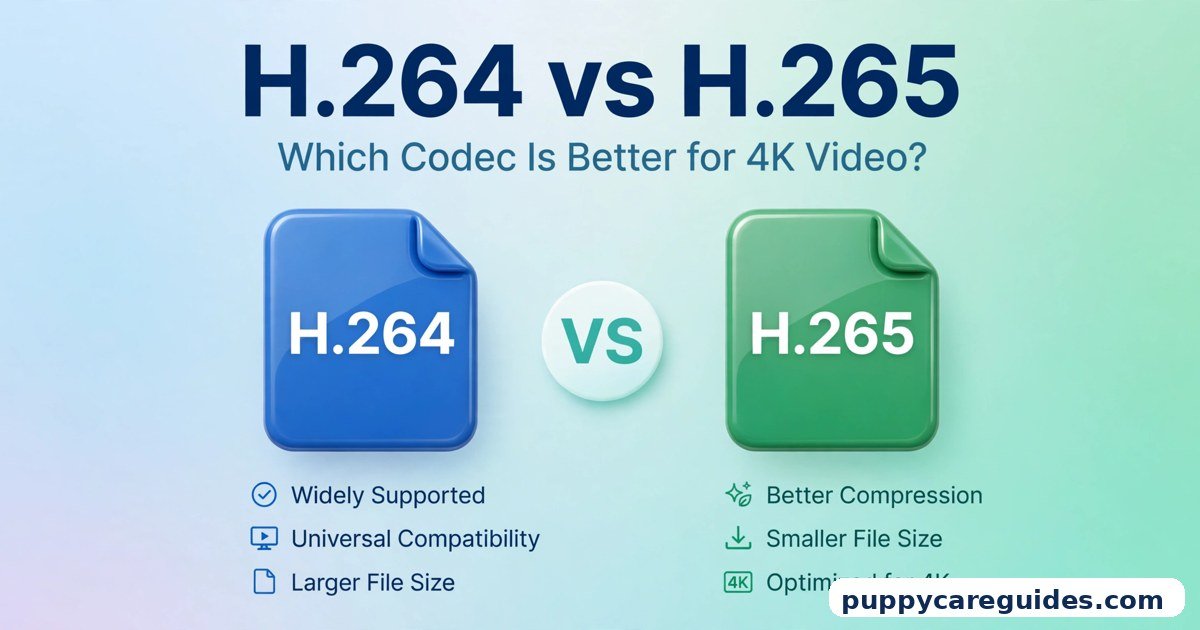
- Choose a good codec and container. Export as MP4 with H.264 for maximum compatibility, or H.265 for smaller files at similar quality — compare them in H.264 vs H.265.
- Use a healthy bitrate. As typical YouTube-friendly ranges: around 8–16 Mbps for 1080p SDR uploads and roughly 35–55 Mbps for 4K SDR uploads, higher for 60fps versions. YouTube re-compresses everything; feeding it a generous file protects your quality.
- Upload and wait for full processing. After upload, YouTube first shows lower qualities while HD and 4K versions process in the background. Check playback later — the sharp version can take a while for long 4K videos — before announcing the link.
- Name and describe properly. Your file’s job ends at upload; the title, description, and chapters (with honest resolution claims) do the rest.
- Test on two screens. Watch the published video once on your phone and once on the biggest screen you have. That is exactly the range your audience sees. Whichever side of 1080p vs 4k you pick, check your upload speed and storage before you commit.
1080p vs 4k: FAQs
Do viewers really notice 4K on YouTube?
On big TVs, yes, clearly. On laptops, a little. On phones, most viewers cannot tell a good 1080p upload from a 4K one. What viewers do notice at every size is clean compression, good light, and stable footage — which is why strong 1080p channels look better than careless 4K ones. This is the core of the 1080p vs 4k debate.
Should I upscale my 1080p videos to 4K before uploading?
It can help modestly: 4K uploads typically receive YouTube’s more efficient VP9 processing, so even the 1080p playback version may look cleaner. The costs are bigger files and longer processing, and the footage gains no real new detail. Many creators find it worthwhile for important videos; for daily uploads on slow internet, plain 1080p is the practical choice. That is 1080p vs 4k in practice.
How much bigger is a 4K upload than 1080p?
At the same frame rate, codec, and quality settings, typically around three to four times larger — the exact figure varies with scene detail and motion. A busy, fast-cut 4K video can be more; a calm talking video, less. That is the 1080p vs 4k difference where it counts.
What resolution is best for YouTube Shorts?
Shorts are vertical (1080 × 1920). Upload them at that full vertical 1080p resolution — there is no benefit to a 4K export for a vertical phone-first format, and the smaller file processes faster. That is 1080p vs 4k in daily use.
Will 1080p look outdated soon?
Not soon. 1080p remains the most-watched resolution class on the platform because phones dominate viewing. 8K exists, but even 4K is still growing into its audience. A well-made 1080p video published today will look perfectly respectable for years. That is the 1080p vs 4k difference that matters most.
1080p vs 4k: Final Verdict
Most creators = 1080p is enough. Detail, big screens, or editing freedom = 4K earns its cost.
Resolution is a tool, not a status symbol. If your screen is a phone and your subjects are faces and ideas, 1080p gives your audience everything they can actually see, with a workflow you can sustain every week. If your pictures are the product — landscapes, products, textures — or you need cropping room in the edit, 4K pays you back visibly. Choose for the screens your viewers own and the workflow you can keep up, and either choice will serve your channel well. That is the 1080p vs 4k choice in short: 4K for big screens and future-proof uploads, 1080p for speed and simplicity.
Related Articles
- 30fps vs 60fps — the other half of your recording settings
- VP9 vs AV1 — the codecs behind YouTube’s video processing
- H.264 vs H.265 — keep your 4K uploads from ballooning in size
- MP4 vs WebM — the containers your videos meet on the web








Leave a Reply