

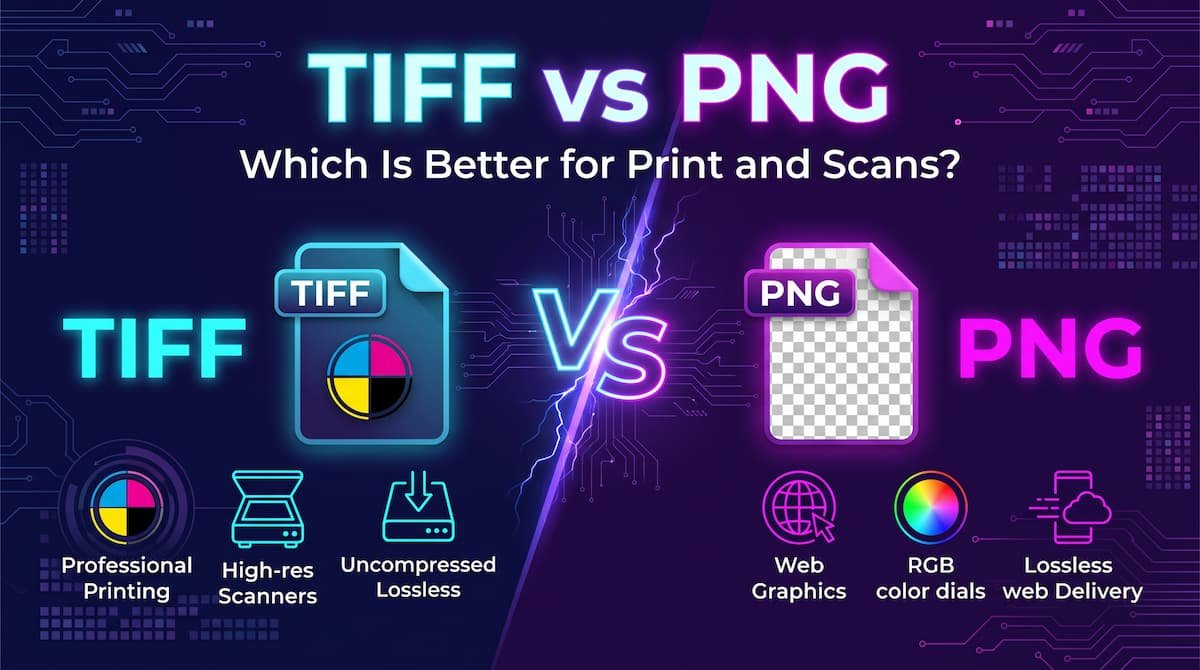
TIFF vs PNG for print and scans: compare quality, file size, pages and browser support, and learn which lossless format fits each job best for you today.
Quick Answer
Use TIFF for scanning, professional printing, and master archive files. Use PNG for websites, sharing, screenshots, and everyday lossless images.
For more technical background, see the TIFF overview on Wikipedia.
That is the short answer to tiff vs png.Table of Contents
Both formats are lossless: neither throws away quality when you save. So why do two formats exist? Because they were built for different worlds.
TIFF is the heavy-duty format of scanners, print shops, and archives. One TIFF file can hold many pages, layers, and professional data, and print systems expect it. Its price is size — files are very large — and the web hates it: browsers cannot display TIFF at all.
PNG is the friendly lossless format of the internet. It opens everywhere, displays in every browser, keeps text razor-sharp, and supports transparency. Its limits appear in the print world: no multi-page files, no CMYK colour mode for professional presses.
Destination decides, not quality. Print and scanning world? TIFF. Anywhere else? PNG.
Introduction
You scan an important document — a certificate, an old family photo, a signed form. The scanner software asks a quiet question most people answer by guessing: “Save as TIFF or PNG?”
Guess wrong one way and your file is enormous, refuses to show in the browser, and gets rejected by the website you upload it to. Guess wrong the other way and the print shop asks, a little disappointed, whether you have the “original” file. Neither file was bad. Both were lossless and sharp. They were simply in the wrong world.
TIFF rules scanners, printing presses, and archives where a file may need to survive fifty years. PNG rules the web, the phone, and the office, where a file must open instantly for anyone.
This guide compares their quality, file size, pages and layers, colour modes, transparency, and support, then covers the mistakes people make with scans and prints, and simple conversion steps. If your real problem is photos for a website, read JPG vs PNG too. If files are going to a printer or coming out of a scanner, stay here. The tiff vs png decision is simpler than it looks once you know what to check first.
tiff vs png: Quick Comparison Table
The table below sums up tiff vs png at a glance.
| Feature | TIFF | PNG |
|---|---|---|
| Full name | Tagged Image File Format | Portable Network Graphics |
| Compression | Lossless (uncompressed and lossy options also exist) | Lossless only |
| Image quality | Perfect — nothing lost on saving | Perfect — nothing lost on saving |
| File size | Very large, especially uncompressed | Large for photos, small for graphics |
| Multiple pages in one file | Yes — ideal for multi-page scans | No — one image per file |
| Layers and extra data | Yes — layers, paths, rich metadata | Very limited — one flat image |
| Colour modes | RGB, CMYK, greyscale, and more | RGB and greyscale; no CMYK |
| Transparency | Supported, but rarely the main use | Yes — smooth transparency, a core strength |
| Browser support | No — browsers cannot display it | Yes — every browser |
| Best for | Scans, print masters, photo archives | Websites, screenshots, sharing |
| Worst for | Websites, email, online uploads | Press work, multi-page archives |
What Is TIFF?
TIFF — Tagged Image File Format — is one of the oldest serious image formats, created in the mid-1980s for scanning and desktop publishing. Other formats were designed to be small or convenient. TIFF was designed to be complete: an image with nothing missing and nothing assumed. The whole tiff vs png story starts here.
Think of TIFF as a shipping container. Inside one file it can carry multiple pages — an entire ten-page scanned document, in order. It can hold layers and versions of an image. It stores RGB for screens, CMYK for presses, and high-bit-depth greyscale for medical and scientific work. It can even carry detailed tags about how the image was scanned and at what resolution.
Its compression is flexible: completely uncompressed (every byte kept, enormous file), lossless with LZW or ZIP (smaller, still perfect), or occasionally lossy. When professionals say “a TIFF”, they almost always mean a lossless or uncompressed one.
Example: A studio restores a damaged family portrait from 1960. They scan it once, carefully, at high resolution, and save the master as TIFF. From that one master come a framed print (printed as TIFF), a copy for the family group chat (exported as JPG), and a web version (exported as PNG). The TIFF never travels. It stays in the archive, ready for whatever the family asks in twenty years.
That is TIFF’s personality: not the file you share, but the file you keep. In any tiff vs png comparison, TIFF stands for maximum quality for print and archiving.
What Is PNG?
PNG — Portable Network Graphics — was created in the mid-1990s as the web’s answer to GIF. We compared it with the web’s newer format in PNG vs WebP. Its mission was simple: a free, open, lossless format any website or program could use without licences. The tiff vs png gap is easiest to understand right here.
PNG packs an image efficiently without discarding a single pixel. Open it, edit it, save it a hundred times — quality never drops. That is the exact opposite of JPG, which loses a little at every save. File size is where tiff vs png gets practical.
PNG became the default for anything that must stay sharp: screenshots full of small text, logos, icons, diagrams, charts, and graphics with transparent backgrounds. Its transparency is smooth and proper — pixels can be partly see-through, so a logo blends cleanly onto any background. For drawn artwork, it pairs naturally with the advice in SVG vs PNG.
Example: You screenshot an error message for a friend. As PNG, every letter stays crisp when they zoom in. As a heavily compressed JPG, the text gets fuzzy halos. That sharpness is PNG’s whole reputation.
Its limits are the print world’s requirements: one image per file, no CMYK, no professional extras. Browsers love it, phones love it — but a high-end print workflow treats it as a guest, not a resident. In any tiff vs png comparison, PNG stands for lossless images that work everywhere on screen.
tiff vs png: Key Differences
1. Multi-Page Files: A Whole Document vs One Picture
This matters most for scanning. Scan a twelve-page contract as TIFF and all twelve pages can live inside one file, in order — a digital stapled document. Archivists, law offices, and libraries depend on this.
PNG has no pages. Twelve pages means twelve files: page-01.png, page-02.png, and so on. For one or two pages, fine. For a fifty-page record book, it is a filing nightmare, and one carelessly renamed file silently scrambles the order.
If the scan is a document whose order matters, TIFF’s multi-page ability is a real professional feature, not a luxury.
2. Colour Modes: CMYK and the Printing Press
Screens and presses speak different colour languages. Screens mix light in RGB (red, green, blue); presses mix ink in CMYK (cyan, magenta, yellow, black). Converting between them shifts colours slightly — bright screen blues and greens are famously hard to print.
TIFF speaks both. A designer can prepare a TIFF in CMYK exactly as the press needs, with the high bit depth that captures subtle tonal detail for large prints. This is a central reason print shops ask for TIFF by name.
PNG speaks RGB only. For home, office, and photo-kiosk printing that is perfectly fine — the printer driver converts automatically. But for offset printing, magazines, or packaging where colour must be controlled precisely, PNG cannot carry what the press requires.
Know your printer: home inkjet — PNG is fine. Professional press — ask the shop, and expect them to say TIFF.
3. File Size: Very Large vs Merely Large
Both formats are lossless, so both dwarf JPG. They are not equal, though.
An uncompressed TIFF can be gigantic: one high-resolution scan may run to tens or even hundreds of megabytes. Even with lossless compression on, TIFFs stay hefty, because they may also carry pages, layers, and tags.
PNG compresses efficiently the images it was made for. Screenshots, documents, and simple graphics contain flat colours and repeated patterns that pack down beautifully, sometimes to surprisingly small files. Photos are its weakness: a detailed photo offers little repetition, so a photo PNG can be several times larger than a good JPG — yet usually far lighter than an uncompressed TIFF master.
Neither price is worth paying for a website photo gallery, which is why JPG vs WebP exists for that job.
4. Browser and Software Support: The Web Cannot Show TIFF
This difference is brutally simple. Every browser displays PNG. No mainstream browser displays TIFF. Upload a TIFF to a website and visitors see a broken image or a download prompt; attach one to an online form and the system usually rejects it.
PNG opens in every photo viewer, phone gallery, office suite, and chat app. TIFF opens in professional tools — Photoshop, scanner software, document systems, good desktop viewers — but some simple apps and phones stumble on multi-page or unusually compressed TIFFs.
TIFF’s support is deep in the professional world and shallow in the everyday one. PNG’s is universal every day and merely acceptable in the professional one. Choose by whose screen your file must survive on.
5. Layers, Versions, and Professional Extras
A TIFF can contain more than the picture you see: layers, clipping paths for cutting a product precisely out of its background, extra channels, multiple resolutions, rich metadata. Print workflows are built on these extras; the file is a small workshop, not just a photograph.
A PNG is deliberately plain: one flat image with basic transparency. For most people, most of the time, plain is a feature — nothing hidden, and every program shows the same thing.
The trap is treating them as interchangeable in professional work. Exporting a TIFF master to PNG for the web is exactly right. But if the only copy of a print project you keep is a flattened PNG, the layers and paths are gone forever. PNG is a delivery format. TIFF is a keeping format.
6. Transparency and Everyday Graphics
Technically, TIFF supports transparency. Practically, almost nobody uses it there, because transparent graphics live on the web and in apps — the places TIFF cannot go.
PNG is the world standard for everyday transparency: logos over coloured headers, product cut-outs, stickers, icons, overlays. Its alpha channel is smooth, its support is total, and its files are manageable. On this feature the “weaker” spec wins completely, because support is the feature. If an image must float over a background and be seen by the public, it is PNG — or SVG for purely vector artwork, as covered in SVG vs PNG. Every tiff vs png difference above comes back to print-grade masters versus screen-friendly files.
tiff vs png: Best Uses of TIFF
- Archival scanning: Certificates, deeds, letters, and records scanned once and kept forever — nothing lost, pages in order, supported by professional systems for decades.
- Professional printing and publishing: Magazines, brochures, packaging, and large prints needing CMYK, high resolution, and predictable colour.
- Photo masters and restoration: Maximum detail, no loss across saves, layers preserved — the source for every future print, the same philosophy behind shooting RAW in RAW vs JPEG.
- Medical, scientific, and technical imaging: High bit depth and metadata where an image is data, not decoration.
- Sending work to print professionals: Designers, printers, and publishers receive it exactly as their workflow expects.
tiff vs png: Best Uses of PNG
- Websites and blogs: Logos, diagrams, tutorial screenshots, and transparent overlays, guaranteed to display sharply for every visitor.
- Screenshots and text: Error messages, receipts, charts, chat captures — if a human must zoom in and read it, PNG keeps it crisp.
- Sharing lossless images with anyone: It opens on their phone, old laptop, and office computer, with no “it won’t open” reply.
- Logos, icons, and transparent graphics: The everyday transparency champion for websites and apps.
- Everyday scans: Forms, IDs, and homework pages meant to be read, emailed, or uploaded — portals accept PNG and reject TIFF.
- Home and office printing: Photos, classroom posters, and meeting charts print cleanly on consumer printers. For web graphics and screenshots, tiff vs png usually ends in PNG’s favour.
Pros and Cons
TIFF — Pros
- Perfect lossless quality; nothing thrown away
- Multi-page files keep whole documents in order
- CMYK and high bit depth for professional presses
- Layers, paths, and metadata for pro workflows
- The accepted standard of print shops and archives
TIFF — Cons
- Very large files, especially uncompressed
- Cannot be displayed in web browsers at all
- Often rejected by online forms and portals
- Some phones and simple apps cannot open it
- Complete overkill for sharing and everyday use
PNG — Pros
- Perfect lossless quality for a single image
- Opens and displays everywhere
- Ideal for text, screenshots, and sharp graphics
- Smooth transparency for logos and overlays
- Efficient compression for documents and graphics. That is the tiff vs png balance in one line.
PNG — Cons
- No multi-page support
- No CMYK mode for professional press work
- Very large for detailed photographs
- No layers or extras: a flat, final image
- Not what print shops ask for on serious jobs. This is where the tiff vs png choice really bites.
tiff vs png: Which Should You Choose?
Beginner
Use PNG for almost everything: screenshots, sharing, home printing, uploads. Choose TIFF only when there is no doubt — scanning precious old photos to preserve forever, or a print shop’s instructions that literally say “TIFF”. If nobody mentioned TIFF, you almost certainly do not need it.
Student
Scan assignments, notes, and certificates as PNG (or PDF when a form wants one file): portals accept them and teachers can open them. Studying design, photography, or printing? Learn TIFF early — your print coursework will assume archived and submitted work in TIFF, and knowing why is a professional advantage.
Creator / Blogger
Your public world runs on web formats — never TIFF on your site or social channels. But keep one TIFF habit behind the scenes: TIFF masters of your most valuable original artwork and photos. Drives are cheap; re-creating a lost original is impossible. It is the same masters-versus-copies habit we recommend in GIF vs WebP.
Professional / Designer
Make the boundary strict. Masters, scans, restoration, and press-bound work: TIFF, in the colour mode and resolution the printer specified, backed up in two places. Everything for screens, inboxes, or the web: exported PNG (or JPG/WebP) — never the TIFF, unless the client is the printer. Label folders “MASTERS — TIFF” and “DELIVERY — PNG”. Most format disasters are really filing disasters. Decide tiff vs png by the destination — a printer or archive, or a screen — and the choice makes itself.
tiff vs png: Common Mistakes
Uploading a TIFF to a website or form
It will not display and will probably be rejected — the most common TIFF mistake of all. Convert to PNG for graphics, or JPG/WebP for photos, before uploading anything.
Scanning precious originals into a tiny or lossy file
The opposite error. Grandparents’ portraits and property papers deserve one high-quality TIFF master. You can always derive a small copy from a big master; you can never derive lost detail back from a small copy.
Emailing TIFFs to ordinary people
Huge attachments bounce off size limits, and many phones cannot open them. Email a PNG or JPG copy; keep the TIFF in the archive.
Assuming PNG and TIFF quality differ
For a single flat image, both are lossless and the pixels are identical. Re-exporting a PNG “into higher-quality TIFF” adds capability, not quality — and cannot restore detail an earlier JPG already lost.
Saving every casual scan as uncompressed TIFF
A shopping list or one-time form does not need a master file. Match format to future: archive-worthy — TIFF; read-and-discard — PNG or PDF.
Forgetting a TIFF can hold many pages
Opening a multi-page TIFF in a simple viewer shows page one, and careless conversion can keep only that page. Check the page count in proper software before converting or sending. Most tiff vs png regrets come from exactly these avoidable errors.
How to Convert
TIFF to PNG (for web, sharing, and uploads)
- Open the TIFF in Photoshop, GIMP (free), IrfanView on Windows, or Preview on Mac.
- If it has multiple pages, note that most tools export the page you are viewing. Export each needed page separately, named in order (
document-page-01.png,document-page-02.png). - If a CMYK TIFF looks dull on screen, convert the mode to RGB (Photoshop: Image → Mode → RGB Color; GIMP: Image → Mode → RGB). The web expects RGB.
- Export As / Save As PNG, using the default lossless settings — PNG options affect size and speed, never quality.
- Open the PNG in your browser to confirm it displays, then upload or send it. Keep the original TIFF untouched.
PNG to TIFF (for a print shop or archive)
- Ask the shop what they need: print size, resolution (commonly 300 DPI for quality print), and colour mode.
- Open the PNG in Photoshop or GIMP and set the resolution. Note honestly: changing the DPI number adds no real detail — if the image has too few pixels for the print size, the shop should tell you.
- If CMYK is required, convert the mode and check colours; expect bright blues and greens to dull slightly.
- Save As TIFF with lossless LZW or ZIP compression — identical print quality to uncompressed, easier to transfer. If the shop said “uncompressed”, follow their word instead.
- If allowed, also send a small JPG preview, so any “file won’t open” problem surfaces before the deadline, not at it.
Batch-converting scans
For a folder of TIFF scans, use a desktop batch tool — IrfanView batch mode or XnConvert. Never upload private documents (identity papers, contracts, medical records) to random online converters; desktop tools keep them on your own machine, where they belong. Whichever side of tiff vs png you pick, keep the original scan or master file saved before you convert.
tiff vs png: FAQs
Should I choose TIFF or PNG when scanning?
It depends on the document’s future. TIFF for archive masters, multi-page records, precious photos, and professional printing — scan once, at high resolution, and keep it. PNG for reading, emailing, uploading, and everyday office use. Many careful people do both: a TIFF master in the archive, a PNG copy for daily work. This is the core of the tiff vs png debate.
Why does my TIFF file not open in the browser?
Because browsers do not support TIFF. Chrome, Edge, Firefox, and Safari all decline to display it — this is normal, not a sign your file is broken. Open it in a desktop editor instead, and convert it to PNG or JPG if it needs to live online. That is tiff vs png in practice.
If I send a PNG to print, will it work?
For home, office, classroom, and photo-kiosk printing, yes, completely — PNG is lossless and prints sharply. For professional press work — magazines, packaging, large commercial runs — usually not as the main file, because the press needs CMYK and controls PNG cannot carry. There, send a TIFF prepared to the shop’s specification. That is the tiff vs png difference where it counts.
Which format has better quality, TIFF or PNG?
For a single flat image, neither — both are lossless, so identical pixels stay identical. TIFF’s advantages are capability, not quality: multiple pages, CMYK, high bit depth, layers, metadata. Quality only drops if a file passed through a lossy format like JPG somewhere along the way. That is tiff vs png in daily use.
Why are TIFF files so big?
Because completeness is their job. An uncompressed TIFF stores every byte, and even compressed TIFFs can include multiple pages, layers, and metadata — and a high-resolution scan is simply a lot of information. Use LZW or ZIP lossless compression to trim size without touching quality, and reserve TIFF for files that deserve the space. That is the tiff vs png difference that matters most.
tiff vs png: Final Verdict
Scans, print, and archives = TIFF. Web, sharing, and everyday lossless = PNG.
Do not choose by asking which format is “better” — for a single image, both are perfectly lossless. Choose by asking where the file is going. Into scanners, presses, publishers, and long-term archives, where pages, CMYK, and completeness matter: TIFF. Into browsers, phones, classrooms, and upload forms, where a file must simply open for everyone: PNG.
Copy the professionals’ habit at any level: keep one TIFF master of anything precious or print-bound, and export PNG copies for the world. Masters at home, copies on the road — nothing important is lost, and nothing important fails to open. That is the tiff vs png choice in short: TIFF for print, scans and archives, PNG for the web and everyday images.








A WordPress Commenter
Hi, this is a comment.
To get started with moderating, editing, and deleting comments, please visit the Comments screen in the dashboard.
Commenter avatars come from Gravatar.