

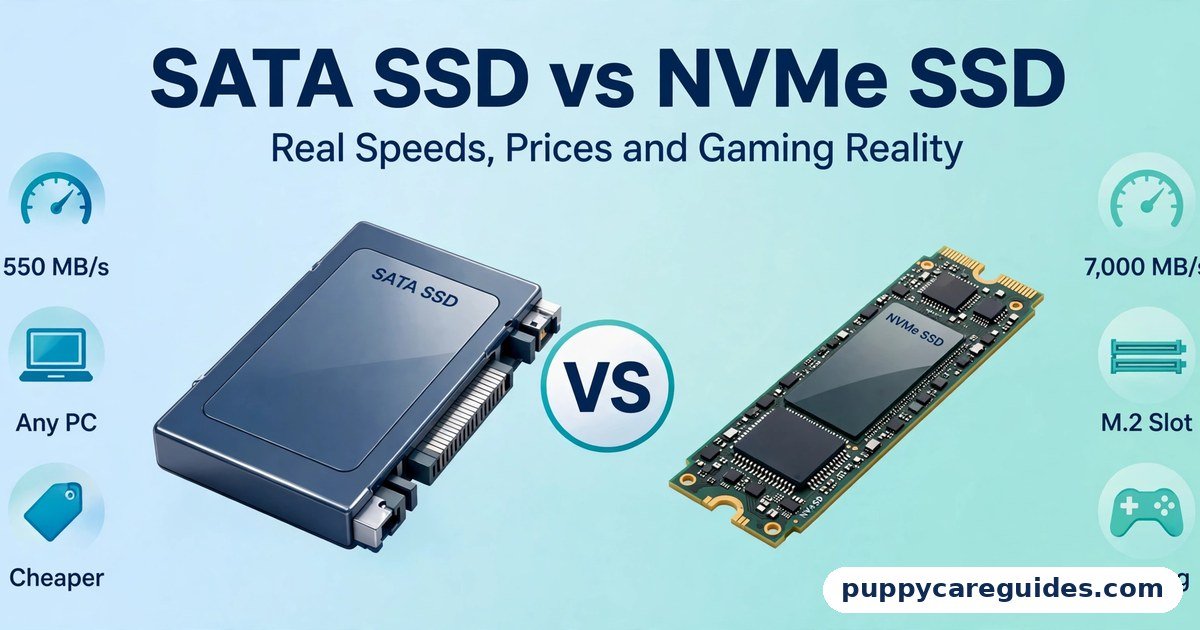
SATA SSD vs NVMe SSD
Quick Answer
If your computer has an M.2 slot that supports NVMe, buy the NVMe SSD — prices have fallen so close to SATA that the faster drive is usually the better value. If you are upgrading an older laptop or PC with only a 2.5-inch drive bay, buy a SATA SSD without a moment’s regret: it will still transform the machine. That is the short answer to SATA SSD vs NVMe SSD.
For more technical background, see the NVMe overview on Wikipedia.
Table of Contents
On paper the gap is enormous: a SATA SSD tops out around 550 MB/s, while an NVMe drive reads at 3,000–7,000 MB/s or more. In everyday life — booting, opening programs, loading games — the felt difference is far smaller, because both are already nearly instant compared with a hard drive. NVMe earns its money in big file copies, video editing, virtual machines, and moving huge projects around. The honest summary: either SSD is a giant leap from an HDD; NVMe is a further, narrower step that some users need and most users will barely notice.
Introduction
You have decided to buy an SSD — the hard part is done. Then the shop page splits into two kinds that look almost identical: slim sticks and small rectangles, both labelled SSD, with the sticks promising speeds of “up to 7,000 MB/s” and the rectangles a mere 550. The sticks cost more. Are they really thirteen times better? And will one even fit in your computer?
SATA and NVMe are not two brands of SSD. They are two different connections and languages between the SSD and the computer. SATA is the older connection, designed in the hard-drive era, and it caps every drive attached to it. NVMe is the modern connection, built specifically for flash memory, and it plugs the SSD almost directly into the computer’s fastest highway, PCIe.
This guide explains the real differences — theoretical speed, real-world speed, compatibility, heat, and price — and the checks to run before you spend anything. If you are still deciding whether to leave your hard drive at all, start with HDD vs SSD; this article assumes you are already sold on solid-state. The SATA SSD vs NVMe SSD decision is simpler than it looks once you know what to check first.
SATA SSD vs NVMe SSD: Quick Comparison Table
The table below sums up SATA SSD vs NVMe SSD at a glance.
| Feature | SATA SSD | NVMe SSD |
|---|---|---|
| Connection | SATA cable / port, AHCI protocol | M.2 slot (or PCIe card), NVMe protocol over PCIe lanes |
| Maximum interface speed | 6 Gb/s | Depends on PCIe generation: ~32 Gb/s (Gen3 ×4) to ~128 Gb/s (Gen5 ×4) |
| Real sequential speed | Up to ~500–550 MB/s | ~3,000–3,500 MB/s (Gen3); ~7,000 MB/s (Gen4); 12,000+ MB/s (Gen5) |
| Random performance (everyday feel) | Very good — ~90,000 IOPS typical | Excellent — several hundred thousand to over 1,000,000 IOPS |
| Typical form | 2.5-inch rectangle (also M.2 sticks in SATA flavour) | M.2 stick (2280 is the common size) |
| Compatibility | Any PC or laptop with a SATA port — nearly everything since ~2005 | Needs an M.2 slot wired for NVMe, or a free PCIe slot and adapter |
| Boot support | Universal | Older motherboards may not boot from NVMe without UEFI support |
| Heat | Runs cool, no heatsink needed | Gen4/Gen5 can run hot and throttle; heatsinks common |
| Price | Slightly cheaper per TB at small sizes | Similar to slightly more; often equal at 1 TB |
| Best for | Upgrading old laptops and desktops; budget builds | New PCs, editing rigs, fast file work, gaming PCs |
Note: “Gen3/Gen4/Gen5” are PCIe generations — each roughly doubles the previous one’s bandwidth. An NVMe drive only runs at the speed of the slowest link: a Gen4 drive in a Gen3 slot performs like a Gen3 drive.
What Is a SATA SSD?
A SATA SSD is flash storage that speaks through the SATA connection — the same port, cable, and AHCI protocol that hard drives have used for two decades. That heritage is its greatest strength and its hard ceiling. The strength: it fits virtually any computer built since the mid-2000s, including laptops whose only storage bay is a 2.5-inch SATA slot. The ceiling: SATA III runs at 6 gigabits per second, which after overhead means no SATA drive — however good its flash — can transfer faster than roughly 550 MB/s. The whole SATA SSD vs NVMe SSD story starts here.
Most SATA SSDs come as 2.5-inch rectangles that drop straight into a hard drive’s old home. Confusingly, some come as M.2 sticks — the same shape as NVMe drives but wired for SATA, with a different notch (key) in the connector. Shape alone does not tell you what a stick is; the label does.
Real example: A 2014 laptop with a failing hard drive gets a 2.5-inch SATA SSD. Boot time falls from over a minute to about twelve seconds, programs snap open, and the machine serves another five years. No NVMe drive on earth could have improved that laptop further in any way its owner would feel — and none would have fitted anyway. In any SATA SSD vs NVMe SSD comparison, a SATA SSD stands for easy upgrades and lower prices.
What Is an NVMe SSD?
NVMe — Non-Volatile Memory Express — is a protocol designed from scratch for flash storage, replacing AHCI, which was designed for spinning discs. Instead of queueing requests one lane deep, NVMe supports up to 65,535 queues with 65,536 commands each (AHCI manages a single queue of 32), letting modern multi-core processors feed the drive properly. The drive connects through PCIe — the same high-speed bus as the graphics card — usually via a small M.2 slot on the motherboard, with the stick screwed down flat like a stick of RAM lying down. The SATA SSD vs NVMe SSD gap is easiest to understand right here.
Speed depends on the PCIe generation both the drive and the slot support: Gen3 drives reach about 3,500 MB/s, Gen4 about 7,000 MB/s, and Gen5 models exceed 12,000 MB/s in sequential transfers, with random performance — the kind everyday computing uses — several times higher than SATA as well. The costs of all this speed are heat (fast controllers throttle themselves when hot, so many Gen4 and Gen5 drives ship with or expect a heatsink) and compatibility (no M.2 NVMe slot, no NVMe drive).
Real example: A video editor scrubs through 4K footage stored on a Gen4 NVMe drive and copies a 100 GB project folder in well under a minute. On the SATA SSD she used before, the same copy took several minutes and the timeline occasionally stuttered on complex sections. For her workload, the paper difference is a daily, billable difference. In any SATA SSD vs NVMe SSD comparison, an NVMe SSD stands for the fastest storage a home PC can take.
SATA SSD vs NVMe SSD: Key Differences Between SATA SSD and NVMe SSD
1. Maximum speed: a real gap with an asterisk
Sequential transfer speed — copying one huge file — is where NVMe humiliates SATA: roughly 3,500 vs 550 MB/s at the entry level, and over 12,000 vs 550 at the top. The asterisk is that daily computing rarely performs huge sequential transfers. Booting Windows, opening apps, and loading games consist of thousands of small, scattered reads, where NVMe’s advantage shrinks to perhaps 20–50% in latency terms — real, but measured in fractions of a second. Buy NVMe for the workloads in difference 3, not for the headline number.
2. The slot decides: compatibility before preference
An NVMe drive needs an M.2 slot wired for PCIe/NVMe. Three traps await: some older laptops have M.2 slots that accept SATA sticks only; some desktop boards share lanes so an M.2 drive disables certain SATA ports; and some older motherboards cannot boot from NVMe at all without a UEFI update or a workaround. A SATA SSD has none of these traps — if the machine has a SATA port or 2.5-inch bay, it works. Check your exact model before ordering; the two stick types even use different connector notches (NVMe is typically M-key, SATA sticks B+M-key) precisely to stop you forcing the wrong one in.
3. Where NVMe actually earns its price
Workloads that move or process huge amounts of data feel NVMe fully: copying tens of gigabytes regularly, editing 4K/8K video from the drive, running several virtual machines, compiling large codebases, working with big databases or scientific datasets, and loading the newest games built for fast streaming storage. If your day includes progress bars, NVMe shortens them. If your day is browser tabs, documents, and email, both drives finish before you can perceive a winner.
4. Gaming: loading yes, frame rate no
An NVMe drive does not increase FPS — the graphics card decides frame rate, and the drive is idle once the level is loaded. What NVMe improves is loading: level starts, fast-travel, and texture streaming. Compared with SATA the gain is usually a second or two per load — nice, not transformative — though the newest games designed around fast storage (and console ports built for the PS5’s NVMe drive) use it more seriously. Gamers should buy NVMe because new PCs have the slot anyway, not because it promises performance it cannot deliver.
5. Heat and throttling: NVMe’s one bad habit
SATA SSDs sip power and stay cool in any enclosure. High-end NVMe controllers, pushing billions of operations through a stick the size of a chewing-gum strip, can exceed 70–80 °C under sustained writes and then throttle — deliberately slowing down to protect themselves, sometimes below the speeds you paid for. Fixes are cheap: most desktop motherboards include an M.2 heatsink, the PS5 requires one for its expansion drive, and laptops usually press the stick against a thermal pad. Sustained-write workloads should budget the few dollars; light users will never meet the problem.
6. Price: closer than you think
Historically NVMe carried a clear premium. Today, mainstream 1 TB NVMe and SATA drives often sit within a few dollars of each other, and at 2 TB NVMe is frequently the same price or cheaper because that is where manufacturing has moved. SATA keeps a small edge at the very budget end (250–500 GB) and in sales of older stock. Given equal prices and an available slot, there is no rational reason to choose SATA for a new build — and equally, no reason to feel short-changed by SATA in an old machine that cannot take anything else. Every SATA SSD vs NVMe SSD difference above comes back to the connection they use.
SATA SSD vs NVMe SSD: Best Uses of SATA SSD
- Upgrading old laptops and desktops with only a 2.5-inch bay — its home turf
- Budget builds and second drives where price per terabyte is the priority
- Office and family PCs whose work is documents, browsing, and media
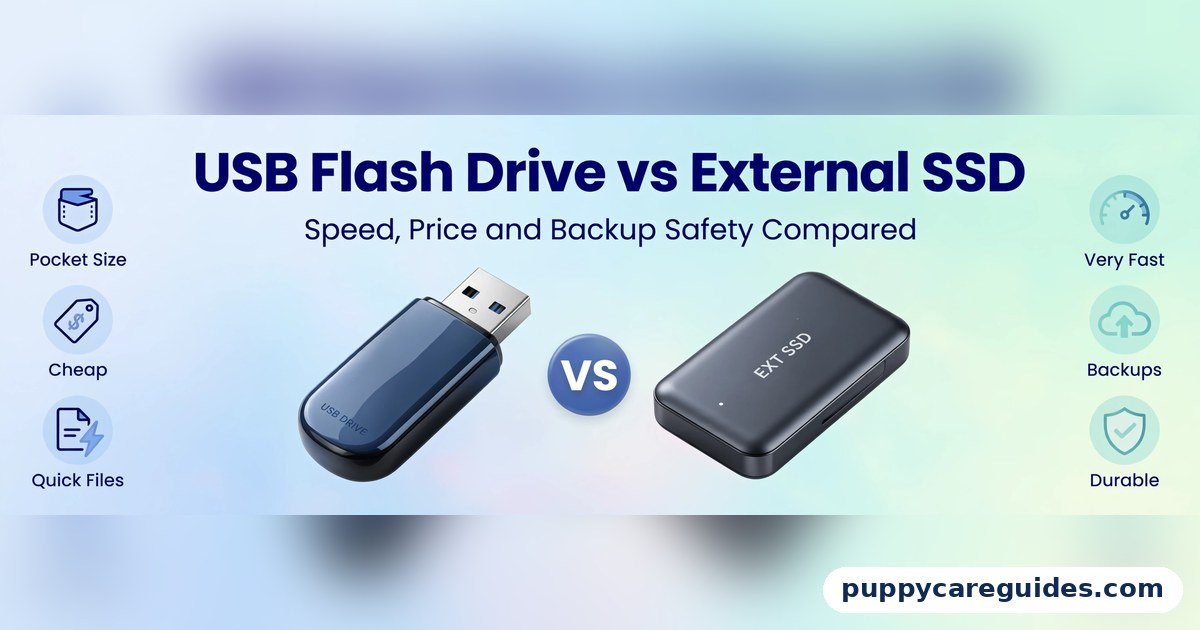
- External enclosures — a SATA SSD in a USB case is a fast, cheap portable drive (see USB Flash Drive vs External SSD)
- Older game consoles (PS4, Xbox One internal upgrades) that were built for SATA. For reviving an old laptop on a budget, the SATA SSD vs NVMe SSD edge goes to SATA.
SATA SSD vs NVMe SSD: Best Uses of NVMe SSD
- New PC builds and modern laptops with an M.2 NVMe slot — the default choice
- Video editing and content creation, especially 4K and above
- Moving large files daily — projects, datasets, disk images, virtual machines
- Gaming PCs and PS5 expansion, where fast loading is the point
- Workstations whose owners are billed by the hour and allergic to progress bars
Pros and Cons
SATA SSD — Pros
- Fits almost any computer from the last twenty years
- Cool, simple, and utterly reliable
- Slightly cheaper at small capacities
- Still a night-and-day upgrade over any hard drive
SATA SSD — Cons
- Hard speed ceiling around 550 MB/s
- Cables and a drive bay needed in desktops — less tidy than a stick
- Being phased out of new designs in favour of M.2
NVMe SSD — Pros
- Far faster — up to 20× SATA’s sequential speed at the top end
- Much better random performance and latency
- Tiny stick form factor; no cables
- Prices now rival SATA at common sizes
NVMe SSD — Cons
- Needs the right slot; older machines are excluded entirely
- Fast models run hot and can throttle without cooling
- Easy to buy the wrong generation or a SATA M.2 stick by mistake
- Everyday speed advantage over SATA is smaller than the numbers suggest. This is where the SATA SSD vs NVMe SSD choice really bites.
SATA SSD vs NVMe SSD: Which Should You Choose?
- Beginner / everyday user: If your computer has an M.2 NVMe slot, buy NVMe; if it only has a drive bay, buy SATA. Either way you win — the slot, not your preference, makes this decision.
- Student: SATA for the ageing laptop you are reviving (it will feel brand new); NVMe if you are buying a current machine that offers the choice at the same price.
- Creator / gamer: NVMe, one PCIe generation matched to your motherboard, with a heatsink for Gen4 or Gen5. Your file sizes justify it daily.
- Professional: NVMe for active work, possibly several; SATA still makes sense for cheap bulk SSD storage and external enclosures where USB, not the drive, is the bottleneck. Decide SATA SSD vs NVMe SSD by what your motherboard supports, and the choice makes itself.
SATA SSD vs NVMe SSD: Common Mistakes
- Buying an M.2 stick without checking whether the slot is SATA or NVMe. The two look alike and are not interchangeable. Your manual’s storage section states which yours accepts — read it before ordering, not after.
- Paying for Gen5 speed on a Gen3 motherboard. The drive politely slows to the slot’s generation. Match the drive to the board, or pay less for the generation your board actually runs.
- Assuming NVMe will raise game FPS. It will not — not one frame. It shortens loading screens. Spend the difference on the graphics card if frames are the goal.
- Skipping the heatsink on a fast drive in a tight case. Sustained copies that start at 7,000 MB/s and sag to a fraction of that are the classic symptom. Use the motherboard’s heatsink or add one.
- Forgetting the tiny screw. M.2 drives are held by one small screw or a tool-less latch, and the screw is famously easy to lose or to have never been included. Check the motherboard box before the drive arrives.
- Judging by the box’s biggest number. “Up to 7,000 MB/s” describes one giant sequential read under ideal conditions. Your boot time and app launches depend on random performance, where good drives of both types are much closer than the boxes imply. Most SATA SSD vs NVMe SSD regrets come from exactly these avoidable errors.
How to Check Whether Your Laptop or PC Supports NVMe
- Find your exact model name. On a laptop it is printed on the base or in Settings > System > About. For a desktop, identify the motherboard model (printed on the board itself, or shown by free tools like CPU-Z).
- Search the manufacturer’s specification page for that model and look for “M.2” in the storage section. You want wording like “M.2 2280 PCIe NVMe” or “PCIe x4.”
- Read the fine print. If the spec says “M.2 SATA only,” an NVMe stick will not work. If it lists both, you are free to choose. Note the supported length too — 2280 (22 mm × 80 mm) is standard.
- Check the PCIe generation the slot offers (Gen3, Gen4, or Gen5) so you buy a matching drive and do not overpay for speed the slot cannot pass.
- For desktops without an M.2 slot, a PCIe adapter card can add one — but confirm your motherboard can boot from it before relying on it as a system drive; on old boards it may work only as a data drive.
- Still unsure? Your current drive bay is the fallback: any machine with a 2.5-inch SATA bay accepts a SATA SSD, which remains an excellent upgrade. Whichever way you decide SATA SSD vs NVMe SSD, always back up your data before you swap a drive.
SATA SSD vs NVMe SSD: FAQs
How do I check if my laptop supports NVMe?
Look up your exact laptop model on the manufacturer’s website and find the storage specification: you need an M.2 slot described as PCIe or NVMe (ideally “M.2 2280 PCIe x4”). If the spec says the M.2 slot is SATA-only, or the laptop only lists a 2.5-inch drive, buy a SATA SSD instead. Physical inspection also works — an empty M.2 slot with a single notch (M-key) suggests NVMe — but the written spec is the authority, because some slots are wired for SATA despite looking the part. This is the core of the SATA SSD vs NVMe SSD debate.
Does NVMe increase FPS in games?
No. Frame rate is produced by the graphics card and processor; the storage drive’s job ends when the game’s data is loaded. NVMe shortens loading screens, level transitions, and fast-travel waits — usually by a second or two versus a SATA SSD, and by a lot versus a hard drive. A small number of very new games, designed for the fast storage in current consoles, stream world data during play and genuinely prefer NVMe, but even there it affects smoothness of loading, not raw FPS. That is SATA SSD vs NVMe SSD in practice.
Is the lifespan of SATA and NVMe SSDs the same?
Essentially, yes. Lifespan is governed by the flash memory’s write endurance (TBW — terabytes written), and comparable SATA and NVMe drives using similar flash carry similar ratings; a typical 1 TB drive of either type is rated around 300–600 TBW, far beyond what normal use writes in the machine’s lifetime. The interface — SATA or NVMe — does not wear the flash out faster. Heat is the one NVMe-specific caution: a chronically hot drive ages faster, which is another reason to use the heatsink. That is the SATA SSD vs NVMe SSD difference where it counts.
Can I use both a SATA SSD and an NVMe SSD together?
Yes, and many people do: NVMe as the fast system and work drive, SATA SSD (or a large HDD) as bulk storage. Two checks first: on some motherboards, populating an M.2 slot disables one or two SATA ports (the manual’s storage chart says which), so plug the SATA drive into a port that stays alive; and in Windows, simply assign the second drive its own letter in Disk Management. Our MBR vs GPT guide covers the partition-style choice you will meet while setting the new drive up. That is the SATA SSD vs NVMe SSD difference in daily use.
My NVMe drive starts copies fast, then slows down. Is it broken?
Almost certainly not. Two normal behaviours look like this: the drive’s fast write cache fills during a long copy, dropping speed to the flash’s native rate; or the controller overheats and throttles. Both are common on slim sticks in warm cases. A motherboard heatsink or better airflow fixes the heat cause; the cache cause is simply how consumer SSDs are built, and it affects SATA models too — just less noticeably, because they start slower. That is the SATA SSD vs NVMe SSD difference that matters most.
SATA SSD vs NVMe SSD: Final Verdict
Have the slot? NVMe. Only have the bay? SATA — happily.
SATA SSDs are the universal upgrade: compatible with everything, cool, cheap, and fast enough to resurrect almost any computer. NVMe SSDs are the same idea without the 1990s ceiling — dramatically faster where workloads can use it, at prices that now make them the default for any machine with the slot. The one unforgivable choice is staying on a hard drive while debating the two. Pick the one your computer accepts, and if both fit, let your workload decide: files and editing say NVMe; everything else says either. That is the SATA SSD vs NVMe SSD choice in short: SATA for compatibility, NVMe for speed.
Next: MBR vs GPT: Which Partition Style Should You Use? — the one setting you must choose before any of these drives can be used.
Related Articles
- HDD vs SSD — the upgrade decision that comes before this one
- MBR vs GPT — setting up your new SSD the right way
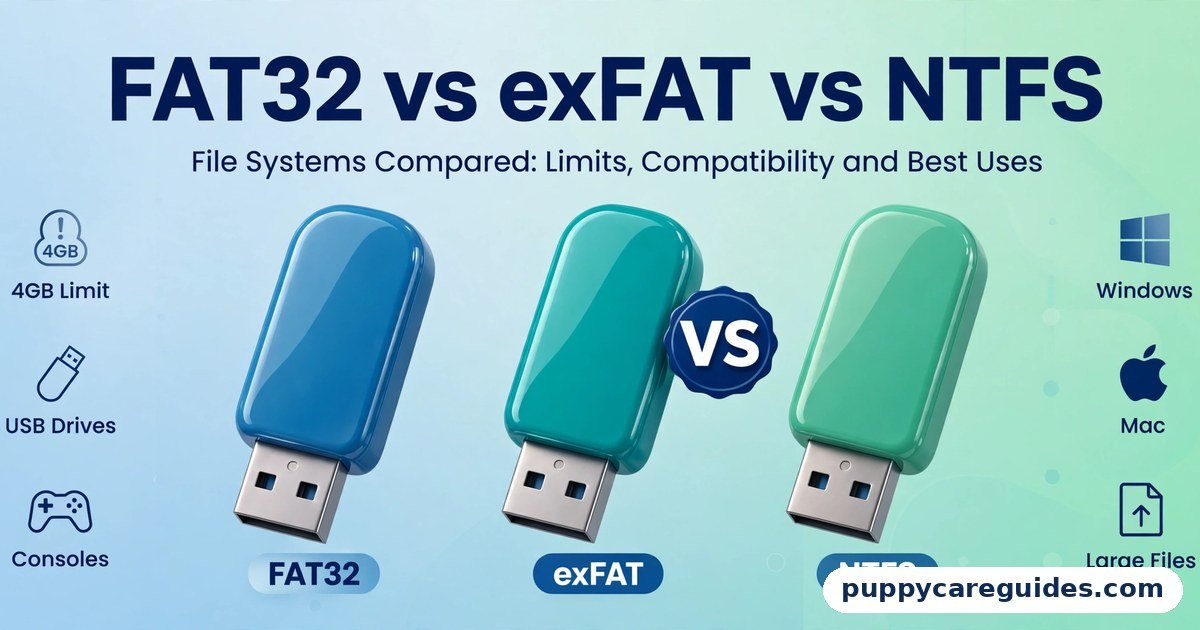
- FAT32 vs exFAT vs NTFS — formatting external drives and cards
- USB Flash Drive vs External SSD — taking SSD speed on the road
- 1080p vs 4K — the footage that fills fast drives, and what it demands of them
- PNG vs WebP — another “newer is faster, mostly” technology story
- FLAC vs MP3 — when file quality is worth the storage it eats







Leave a Reply