


HDD vs SSD
Quick Answer
Use an SSD for your computer’s main drive — Windows, programs, and games. It is the single upgrade that makes an old computer feel new. Use an HDD for cheap bulk storage — movie archives, photo collections, CCTV footage, and backups where capacity matters more than speed. That is the short answer to HDD vs SSD.

For more technical background, see the SSD overview on Wikipedia.
Table of Contents
The difference is not subtle. A typical hard drive reads data at around 100–160 MB per second and takes tens of seconds to find it; a basic SSD reads at around 500 MB per second and finds data almost instantly. In daily life that turns a one-minute boot into fifteen seconds and a ten-second program launch into two. But hard drives still win one contest decisively: price per gigabyte. An HDD gives you roughly three to five times more storage for the same money, which is why most smart setups use both — a fast SSD to work from and a big HDD to store on.
Introduction
Every slow computer tells the same story. You press the power button, go to make tea, and come back to a desktop that is still thinking. You click a program and watch a spinning circle. The processor and memory in that machine are probably fine. The bottleneck, nine times out of ten, is a mechanical hard drive doing its best with technology from the 1950s: spinning metal discs and a moving needle, like a tiny record player reading your files.
An SSD — solid-state drive — stores the same files on memory chips, with no moving parts at all. That one mechanical difference cascades into everything: speed, durability, noise, power use, and price. This guide compares HDD vs SSD with real numbers, honest prices, and a clear verdict for laptops, desktops, gamers, and anyone hoarding a decade of photos. And once you have decided on an SSD, the natural follow-up is which kind — our SATA SSD vs NVMe SSD guide covers that choice. The HDD vs SSD decision is simpler than it looks once you know what to check first.
HDD vs SSD: Quick Comparison Table
The table below sums up HDD vs SSD at a glance.
| Feature | HDD (Hard Disk Drive) | SSD (Solid-State Drive) |
|---|---|---|
| How it stores data | Magnetic spinning platters, read by a moving head | Flash memory chips, no moving parts |
| Typical read/write speed | 80–160 MB/s (fast desktop drives up to ~200 MB/s) | ~500 MB/s (SATA); 3,000–7,000+ MB/s (NVMe) |
| Time to find data (latency) | Several milliseconds — the head must physically move | Under 0.1 ms — effectively instant |
| Typical Windows boot time | 30–60+ seconds | 10–15 seconds |
| Price per GB | Lowest — roughly a few cents per GB at large sizes | Roughly 3–5× the HDD price per GB |
| Common capacities | 500 GB – 20 TB+ | 250 GB – 8 TB |
| Durability | Moving parts; a drop while running can destroy it | No moving parts; shrugs off drops and vibration |
| Noise | Audible spinning and clicking | Completely silent |
| Power use | Higher — a motor spins constantly | Lower — better laptop battery life |
| Lifespan measure | Mechanical wear; often 3–5+ years of service | Write endurance (TBW); often 5–10 years of service |
| Data recovery after failure | Often possible — platters may survive | Difficult — frequently impossible |
| Best for | Bulk archives, backups, CCTV, cheap capacity | Operating system, programs, games, laptops |
Note: speeds are typical real-world figures for consumer drives, not laboratory records. Exact prices move constantly; the ratio between the two — HDD storage costing a fraction of SSD storage per gigabyte — has held for years.
What Is an HDD?
A hard disk drive stores your files as magnetic patterns on spinning metal platters. A tiny read/write head floats a fraction of a hair’s width above the surface, darting back and forth as the platters spin at 5,400 or 7,200 revolutions per minute. It is, mechanically, a record player the size of a paperback book, and it has been the default storage of computing since the 1980s. The whole HDD vs SSD story starts here.
This design has real virtues. Magnetic platters are extremely cheap to make at enormous sizes — consumer HDDs reach 20 TB and beyond — and they hold data for years without power, which suits archives. The design’s weaknesses are equally physical: the head must wait for the right part of the disc to spin underneath it, so finding data takes milliseconds that add up to very visible delays; and anything that interrupts the mechanics — a drop, a knock, worn bearings — threatens the data itself.
Real example: A family PC with a 1 TB hard drive holds Windows, ten years of photos, and a movie collection without breaking a sweat or the bank. It also takes a full minute to boot and grumbles audibly while doing it. Cheap and vast, slow and fragile — that is the HDD bargain. In any HDD vs SSD comparison, HDD stands for the most storage for the least money.
What Is an SSD?
A solid-state drive stores files in flash memory — the same fundamental technology as a USB stick or phone storage, but built to a far higher standard, with a smart controller chip that manages where data goes, spreads wear evenly across the cells, and corrects errors. There are no platters, no heads, and nothing to spin up. When the computer asks for a file, the SSD simply reads the relevant chips, which is why data arrives in a fraction of a millisecond instead of after a mechanical journey. The HDD vs SSD gap is easiest to understand right here.
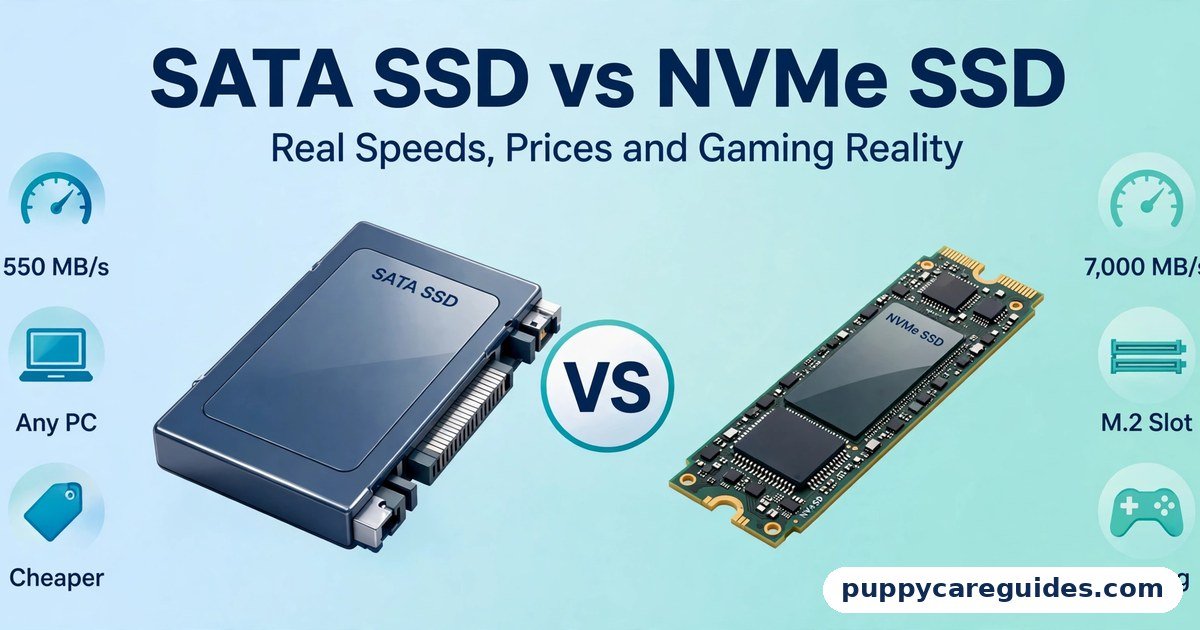
SSDs come in two main families. SATA SSDs use the same connector and protocol as hard drives and top out around 500–550 MB/s. NVMe SSDs plug directly into the motherboard’s fast PCIe lanes and run from about 3,000 MB/s to well past 7,000 MB/s on current models. Both feel dramatically faster than any HDD in daily use, because the everyday bottleneck was never raw transfer speed — it was the near-instant access time. If you are weighing the two SSD families against each other, see SATA SSD vs NVMe SSD.
Real example: The same family PC, cloned onto a modest SATA SSD, now boots before the kettle is even picked up, opens the browser in a blink, and stays silent. Nothing else changed — same processor, same memory. The drive was the whole problem. In any HDD vs SSD comparison, SSD stands for speed you can feel in every click.
HDD vs SSD: Key Differences Between HDD and SSD
1. Speed: not a small gap, a different world
An HDD reads and writes at roughly 80–160 MB/s in real use, and — more importantly — needs several milliseconds to locate each piece of data. An SSD reads at 500 MB/s (SATA) to several thousand MB/s (NVMe) and locates data in under a tenth of a millisecond. Translated into life: Windows boots in 10–15 seconds instead of 30–60 or more; a heavy program like Photoshop opens in a couple of seconds instead of ten; game levels load in a third of the time; copying 10 GB takes seconds instead of minutes. Of all upgrades, this is the one people describe as “a new computer,” and it is not an exaggeration — the storage was the bottleneck all along.
2. Price per gigabyte: the HDD’s last kingdom
Hard drives remain far cheaper per gigabyte. As a general range in recent years, large HDDs work out to roughly one-and-a-half to two-and-a-half cents per gigabyte, while consumer SSDs land around five to eight cents per gigabyte — in plain terms, a 4 TB hard drive commonly costs about what a 1 TB SSD costs. Prices fluctuate, but the ratio is stubborn. This is why a 500 GB SSD is an easy recommendation and a 20 TB SSD is a fantasy for most budgets: for pure capacity, spinning discs have no rival.
3. Durability: drops, knocks and vibration
An HDD that is dropped or knocked while running can suffer a head crash — the read/write head touches the platter and physically damages the surface and the data on it. Even switched off, hard drives dislike shocks. An SSD has nothing to crash; the same drop that kills an HDD is a non-event for an SSD, which is why every modern laptop, phone, and rugged field drive is solid-state. For a desktop that never moves, this matters less. For anything portable, it matters enormously.
4. Lifespan: they age in different ways
HDDs wear mechanically — motors, bearings, and heads degrade — and typically give three to five-plus years of service, often with warning signs (new clicking sounds, slowing, errors) before failure. SSDs wear by writing: each memory cell tolerates a limited number of writes, measured as TBW (terabytes written).
A typical 1 TB consumer SSD is rated around 300–600 TBW, while a normal user writes perhaps 10–30 TB a year — so the rating would take decades to reach, and in practice SSDs usually outlive the computer around them. One honest caveat: an SSD left unpowered for years can slowly lose its stored charge, so for cold, shelf-style archiving, an HDD (or two) is the safer medium. We return to this in the mistakes section.
5. Noise and power: silence and battery life
A hard drive hums, spins, and clicks — audible in a quiet room and in recordings, which is why streamers and podcasters banish them from the desk. It also draws more power to keep its motor spinning. An SSD is silent and sips power, which in a laptop translates directly into longer battery life and less heat. Small things, but you notice them every single day.
6. Data recovery: the HDD’s quiet advantage
When an HDD fails mechanically or electronically, recovery specialists can often rescue the data from the intact platters — expensive, but possible. When an SSD fails, its controller and encryption usually make recovery impractical even for specialists. This is not a reason to choose an HDD as your main drive; it is a reason to back up either drive properly, because the SSD’s convenience comes with a harder cliff edge. Every HDD vs SSD difference above comes back to moving parts versus flash memory.
HDD vs SSD: Best Uses of HDD
- Bulk media archives — movie, music, and photo collections measured in terabytes
- Backup storage, especially a second or third copy kept offline
- CCTV and surveillance recording, which writes constantly and values cheap capacity
- NAS and home servers where several large drives work together
- The “D” drive in a desktop combo — big files that do not need speed
- Cold storage of data you will not touch for years. For bulk storage and backups on a budget, the HDD vs SSD edge goes to HDD.
HDD vs SSD: Best Uses of SSD
- The main drive of any laptop or desktop — operating system, programs, everyday files
- Reviving an old laptop — the highest-value upgrade that exists for one
- Gaming, for dramatically shorter loading screens
- Photo and video editing, where large files open and save constantly
- Any portable or travel machine, thanks to shock resistance and low power use
- Quiet setups — recording, streaming, and bedroom PCs
Pros and Cons
HDD — Pros
- By far the cheapest storage per gigabyte
- Huge capacities — up to 20 TB and beyond in one drive
- Holds data for years without power; good for archives
- Failed drives often allow professional data recovery
HDD — Cons
- Slow: long boots, long loads, constant small delays
- Fragile while running — drops and knocks can destroy data
- Noisy, heavier, and uses more power
- Mechanical wear gives a finite, sometimes unpredictable life
SSD — Pros
- Dramatically faster at everything — boots, launches, loads, copies
- No moving parts: drop-resistant, silent, low power
- Long practical lifespan under normal use
- Small and light; fits any modern laptop
SSD — Cons
- Costs roughly 3–5× more per gigabyte than an HDD
- Very large capacities remain expensive or unavailable
- Data recovery after failure is usually impossible
- Not ideal for years-long unpowered archive storage. This is where the HDD vs SSD choice really bites.
HDD vs SSD: Which Should You Choose?
- Beginner / everyday user: An SSD as your only drive, sized for your files (500 GB–1 TB suits most people). This single choice removes most of the waiting in your computing life.
- Student: SSD in the laptop, no question — speed, battery, and drop resistance are exactly what campus life demands. Keep coursework backed up to the cloud or a cheap external HDD.
- Creator / gamer: A fast SSD (NVMe if your machine supports it) for the system, games, and current projects, plus a large HDD for finished work and raw footage archives. This combo is the professional standard for a reason.
- Professional / archivist: SSDs for everything active; HDDs — at least two, in different places — for the archive, where their cheap capacity and unpowered data retention win. Decide HDD vs SSD by what the drive will hold, and the choice makes itself.
HDD vs SSD: Common Mistakes
- Blaming the processor for a slow PC. An old laptop with an HDD feels slow no matter how good its CPU is. Check the drive first; the SSD upgrade is cheaper than a new machine and usually more effective.
- Buying a huge cheap HDD as a laptop’s only drive. You save a little money and pay for it in boot times, battery life, and drop risk every day. In a laptop, SSD is not a luxury.
- Using an SSD as a years-long cold archive. Flash cells slowly leak charge when unpowered, especially as the drive ages. Archive to HDDs (two copies), and refresh them every few years.
- Filling any drive to 100%. SSDs in particular slow down and wear faster when nearly full, and Windows itself needs breathing room. Keep at least 10–15% free.
- Assuming a new drive removes the need for backup. SSDs fail suddenly and resist recovery; HDDs fail mechanically. Either way, the only copy is a countdown, not a collection.
- Judging an SSD by its biggest number. The headline sequential speed is the least relevant figure for everyday feel; access time and random performance are what you actually notice — which is why even a basic SATA SSD transforms a PC. Most HDD vs SSD regrets come from exactly these avoidable errors.
How to Upgrade from HDD to SSD (Overview)
- Check what your machine accepts. Most laptops and desktops take a 2.5-inch SATA SSD as a direct replacement; newer machines may have an M.2 slot for a faster NVMe drive — the manual or a quick search of your exact model settles it.
- Buy enough capacity. Match or exceed the space you actually use now; 500 GB is the sensible minimum for a main drive, 1 TB is comfortable.
- Back up your important files to an external drive or cloud storage before touching anything.
- Choose your method: clone the old drive to the new SSD with free cloning software (keeps Windows, programs, and files exactly as they are), or install Windows fresh on the SSD and copy your files across (cleaner, more work).
- Swap the drives — on most laptops this is a few screws on the bottom panel; on desktops, two cables. Keep the old HDD safe until the new setup has run perfectly for a week or two.
- Reuse the old HDD in a cheap USB enclosure as a backup or archive drive. Nothing wasted.
- Verify the improvement — time the boot, open your heaviest program, and enjoy the difference you paid for. Whichever way you decide HDD vs SSD, always back up your data before you swap a drive.
HDD vs SSD: FAQs
Is putting an SSD in an old laptop really worth it?
Yes — it is the best-value upgrade in all of computing. If the laptop has at least 8 GB of memory and a working screen and keyboard, an SSD typically cuts boot time to a quarter, makes programs open almost instantly, and adds battery life, for a fraction of a new laptop’s price. Machines written off as “too slow” routinely get years of extra life from this one change. The exceptions are laptops that are also short on memory or have a failing battery — fix those too, or the bottleneck just moves. This is the core of the HDD vs SSD debate.
How long does an SSD actually last?
Longer than most people fear. SSD lifespan is rated in terabytes written (TBW); a typical 1 TB drive is rated around 300–600 TBW, and an average user writes roughly 10–30 TB per year, so the rating alone suggests decades. In practice, other components usually retire the computer first. Modern SSDs also warn you through health-monitoring software as they age. The realistic rule: expect five to ten years of normal service, and keep backups regardless — any drive can fail early, SSD or HDD. That is HDD vs SSD in practice.
Which is easier for data recovery, HDD or SSD?
The HDD, clearly. Its data sits as magnetic patterns on platters that often survive the failure of the motor or electronics, so specialists can frequently recover files — at a price. An SSD’s data is scrambled by its controller and often encrypted, and failed controllers rarely surrender anything. Neither outcome is a backup plan: recovery is expensive and uncertain on HDD and usually impossible on SSD, so the correct strategy is a second copy, not optimism. That is the HDD vs SSD difference where it counts.
Can I use an SSD and an HDD together?
Absolutely — it is the most popular desktop setup in the world. The SSD holds Windows, programs, and games for speed; the HDD holds documents, media, and downloads for cheap capacity. Many laptops support the same trick with an internal SSD plus an external HDD. Windows makes it painless: just save big, rarely-used files to the HDD’s drive letter. You get SSD speed where you feel it and HDD prices where you don’t. That is the HDD vs SSD difference in daily use.
Why is my new SSD not much bigger in benchmarks but the PC feels transformed?
Because everyday computing is mostly thousands of tiny reads — system files, program pieces, caches — not one giant transfer. HDDs are dreadful at tiny reads because the head must physically travel for each one; SSDs fetch them almost instantly. Benchmarks that showcase maximum sequential speed actually understate the real-world difference you feel at the keyboard. That is the HDD vs SSD difference that matters most.
HDD vs SSD: Final Verdict
Speed and everyday life = SSD. Cheap terabytes = HDD.
This is not a fair fight on performance: the SSD wins boot times, program launches, game loads, noise, durability, and battery life by margins you feel within minutes. The HDD wins exactly one category — price per gigabyte — and wins it so completely that it remains the right answer for archives, backups, and bulk media. The mature setup uses each where it is strong: an SSD under your hands, an HDD under your history. If your computer still boots from a hard drive, upgrading it is the closest thing computing has to a free lunch. That is the HDD vs SSD choice in short: SSD for your system, HDD for your archive.
Next: SATA SSD vs NVMe SSD: How Much Faster Is NVMe, Really? — both are SSDs, so why does one cost more, and who should pay it?
Related Articles
- SATA SSD vs NVMe SSD — the two SSD families, honestly compared
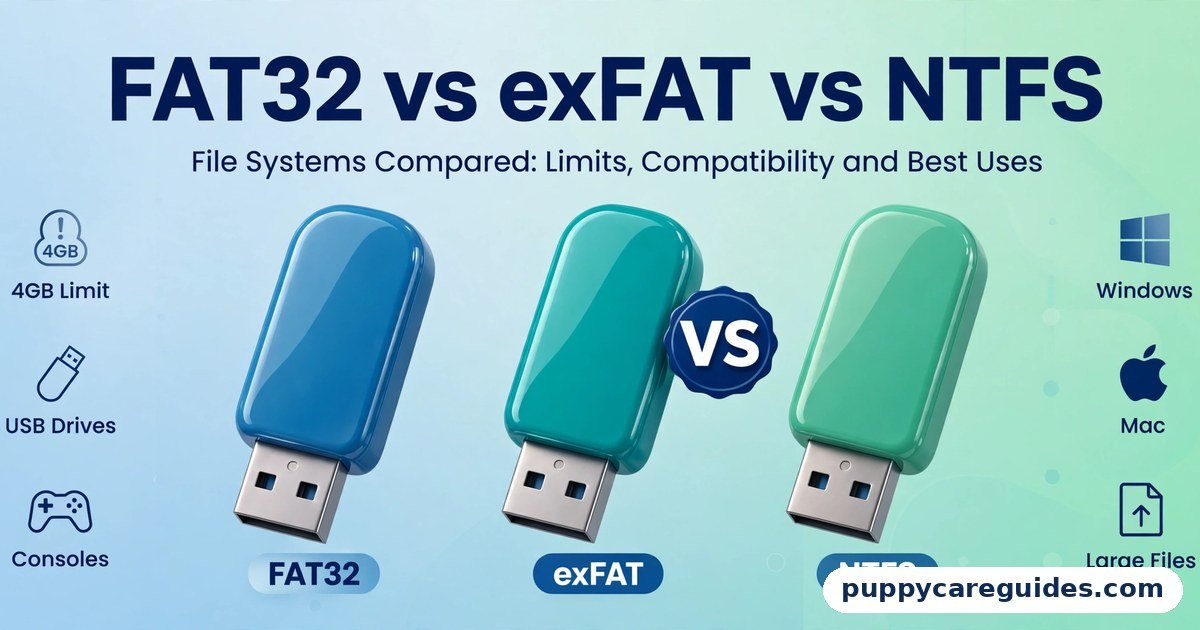
- FAT32 vs exFAT vs NTFS — how to format whichever drive you choose
- MBR vs GPT — the partition style decision that comes with a new drive
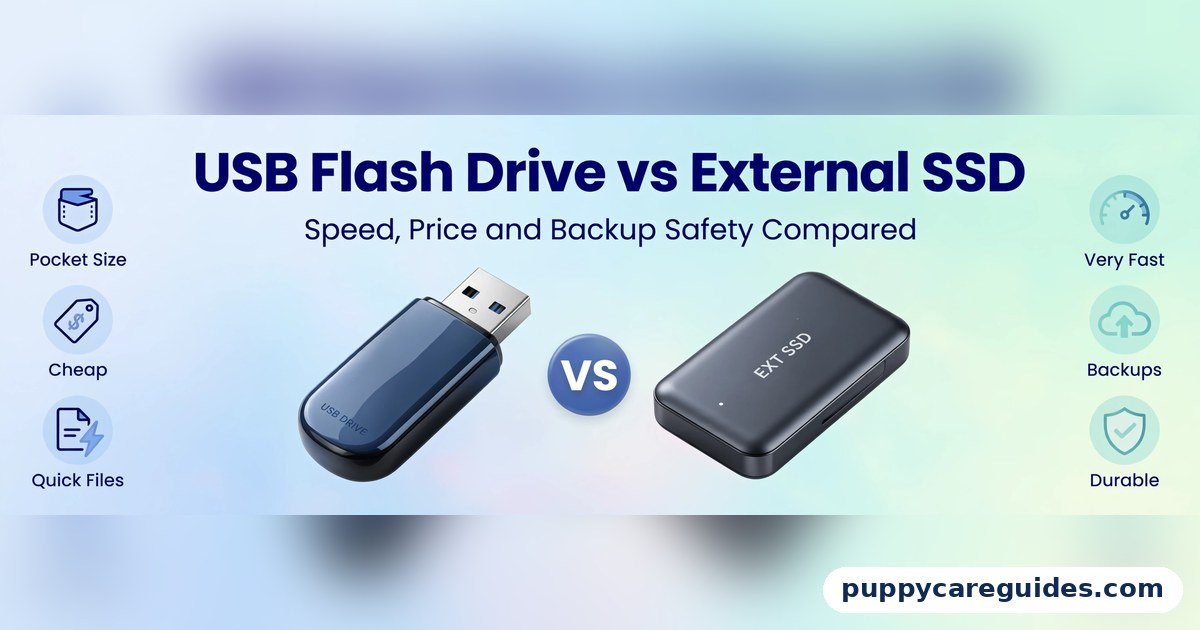
- USB Flash Drive vs External SSD — the same speed-versus-price fight, in portable form
- MP4 vs MKV: Which Is Better for Videos? — storing a movie collection? Start with the right files
- JPG vs PNG — the format choice behind the photos filling your archive
- MP3 vs Opus — shrink a music archive without hearing the difference






Leave a Reply