


PNG vs WebP compared: file size, quality, transparency and browser support. Find which is better for websites today, and when PNG is still the safer pick.
Quick Answer
Use WebP for images on your website and PNG for editing, printing, archiving, and sending files to other people. That is the short answer to png vs webp.
For more technical background, see the WebP overview on Wikipedia.
Table of Contents
WebP gives almost the same visible quality as PNG in a file that is typically 25–35% smaller. That is a typical range across many images, not a guaranteed result for every file. Smaller files load faster and use less mobile data. PNG keeps every pixel exactly, opens in every program, but produces much larger files — which is why it slows websites down.
Introduction
Images are usually the heaviest part of a web page — one large photo can weigh more than all your text and code combined. That is why the PNG vs WebP choice matters for bloggers, website owners, and online stores. PNG is the trusted graphic format of the last three decades. WebP is the newer format Google built to make web images lighter.
This is not a fight between a good format and a bad one. It is about using the right tool for the right job. Below, we compare them side by side, show where each shines with real examples, list the mistakes people keep making, and help you choose correctly for every image. If the basic formats are still fuzzy, read JPG vs PNG first — this guide picks up where that one ends. The png vs webp decision is simpler than it looks once you know what to check first.
The table below sums up png vs webp at a glance.
png vs webp: Quick Comparison Table
| Feature | PNG | WebP |
|---|---|---|
| Main purpose | Lossless graphics, perfect quality | Small, fast images for the web |
| Compression type | Lossless only | Lossy and lossless — both modes |
| File size (same visible quality) | Large | Typically 25–35% smaller than PNG |
| Photo use | Perfect quality, huge files | Nearly identical look, much lighter |
| Transparency | Yes | Yes |
| Animation | No (standard PNG does not animate) | Yes |
| Browser support | Every browser, old and new | All modern browsers; very old ones may fail |
| Editing support | Opens in every editor and viewer | Most modern editors; some old tools do not |
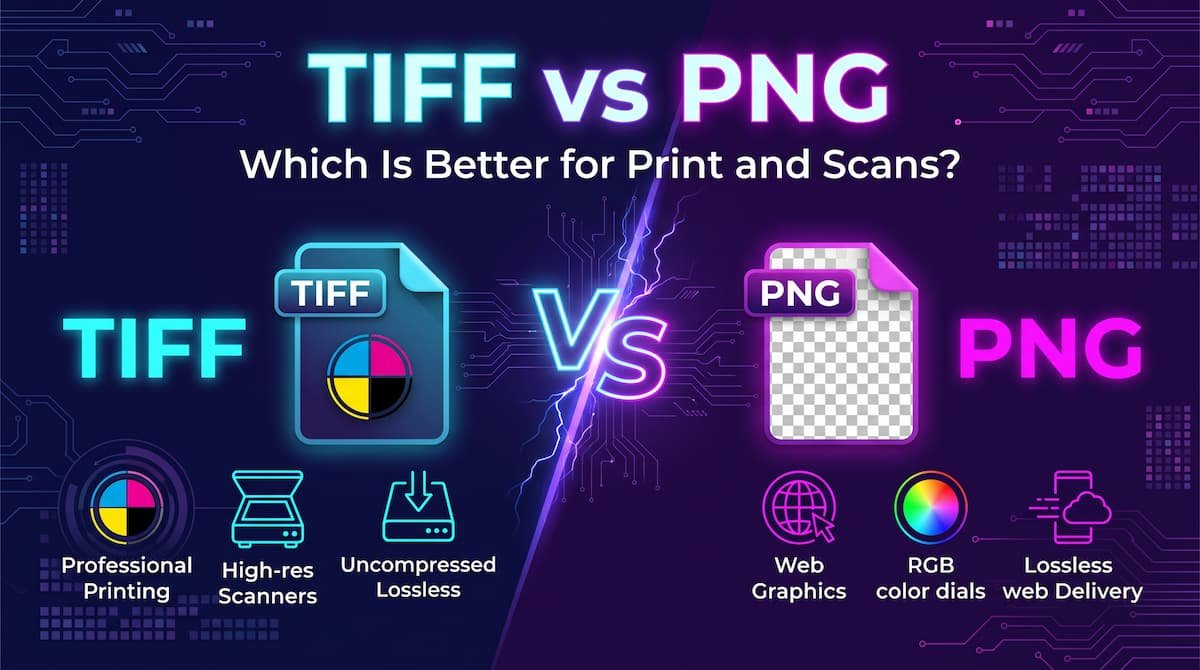
| Printing | Widely accepted | Rarely accepted — convert first |
| Best for | Editing, logos, screenshots, print, archive | Websites, blogs, online stores, speed |
What Is PNG?
PNG (Portable Network Graphics) is a lossless image format created in the 1990s, and it has stayed popular because it does one thing perfectly: it keeps your image exactly as you made it. The whole png vs webp story starts here.
Lossless means no detail is thrown away. Open, edit, and save a PNG fifty times, and the fiftieth copy looks exactly like the first. Text stays sharp and flat colours stay flat — which is why screenshots look best as PNG. PNG also supports transparency, so a logo can sit on any background without a white box around it.
A real example: a designer sends you your coffee shop’s logo as a transparent PNG. You drop it onto your website, menu, and poster, and it looks clean everywhere. That reliability is PNG at its best.
The catch is size. Because PNG refuses to discard detail, photos saved as PNG become several megabytes. On your computer that is fine; on a website, visitors pay for it with waiting time and mobile data. In any png vs webp comparison, PNG stands for lossless quality that works everywhere.
What Is WebP?
WebP is an image format Google released in 2010 to do the jobs of JPG, PNG, and GIF in one format — with smaller files. The png vs webp gap is easiest to understand right here.
Its big advantage is choice. Lossy WebP works like JPG: it removes a little detail your eyes will not miss, and the file shrinks a lot — ideal for photos. Lossless WebP works like PNG: every pixel is kept, but smarter compression usually still makes a smaller file. WebP also supports transparency like PNG and animation like GIF, a combination no older format offers (see GIF vs WebP). Page speed is where png vs webp gets practical.
A real example: a food blogger saves a recipe photo as PNG and the page crawls on mobile data. Exported as WebP, the photo looks the same to readers, but the file is typically about a quarter to a third smaller, and the page opens quickly.
WebP now works in all modern browsers, including Chrome, Firefox, Edge, and Safari. For most websites, it is the sensible default. In any png vs webp comparison, WebP stands for much smaller files for the web.
png vs webp: Key Differences Between PNG and WebP
1. File size: typically 25–35% smaller
At the same visible quality, WebP files are typically 25–35% smaller than PNG. Treat this as a typical range, not a measured promise: a simple three-colour logo may save almost nothing, while a detailed photo can save more. It matters because pages hold many images — a shop page with forty product photos can become hundreds of kilobytes lighter, which visitors on weak mobile connections feel immediately.
2. Compression: one mode vs two modes
PNG is lossless only. That is perfect for editing, but you can never trade a tiny, invisible amount of quality for a much smaller photo file — the option does not exist. WebP lets you decide per image: lossless for diagrams and logos, lossy for photos. This flexibility is the main reason websites have switched, and it also sits at the heart of JPG vs WebP.
3. Browser support: PNG never fails, WebP almost never fails
PNG works everywhere — every browser, phone, smart TV, and old school laptop. WebP works in every modern browser (Safari joined in 2020), so the remaining risk is only genuinely old software. Good image plugins handle even that: they serve a PNG or JPG fallback to the rare visitor whose browser cannot show WebP.
4. Editing and everyday software
PNG opens in everything: Photoshop, free editors, Microsoft Office, email previews, and every phone’s photo app. Nobody ever has to think about it. WebP opens in most modern editors, including current Photoshop versions, but some older programs and office tools still do not recognise it. Download a WebP, try to drop it into an old document, and you may get an error. That small daily friction is the biggest reason PNG remains better for files that travel between people.
5. Transparency and animation
For static transparent graphics — logos, icons, stickers, product cut-outs — both formats work well. WebP will usually be smaller; PNG will be more compatible. Handing a logo file to someone else? PNG is friendlier. Showing it only on your own site? WebP is fine. (For simple logo shapes, a vector can beat both — see SVG vs PNG.) Animation is a clean split: a standard PNG cannot move at all, while WebP animates in full colour, usually far smaller than an equivalent GIF.
6. Printing and long-term storage
Print shops and office printers are built around familiar formats, and PNG is one of them; many print workflows will not accept WebP at all. The same logic applies to your archive. The master copy you keep for ten years should open anywhere, forever, without a converter hunt. That is PNG. WebP is a delivery format — brilliant at its job, but not the file to bet your only copy on. Every png vs webp difference above comes back to universal lossless files versus smaller web-first ones.
png vs webp: Best Uses of PNG
- Editing and design work — repeated saves never reduce quality, so PNG is the safe working format.
- Logos you share with others — a transparent PNG works for partners, printers, and freelancers with zero explanation.
- Screenshots and text-heavy images — tutorials, charts, and diagrams stay sharp and readable.
- Printing — handouts, posters, and shop printing are all safer from PNG.
- Master copies and archives — store the “original” as PNG and produce any other format from it later.
- Clients with older software — PNG removes every doubt about whether the file will open.
png vs webp: Best Uses of WebP
- Blog post images — photos and graphics inside articles load faster, so readers stay instead of waiting.
- Hero images and banners — the largest, first-seen images benefit most from shrinking.
- Online store product photos — galleries hold many images per page; WebP keeps shop pages quick on phones.
- Thumbnails and galleries — dozens of small images add up, and WebP cuts the total weight.
- Animated website graphics — short loops and demos are far lighter as WebP than as GIF.
- Any image viewed only in a browser — if an image’s whole life is on your site, WebP is the better default. For website images, png vs webp usually ends in WebP’s favour.
Pros and Cons
PNG Pros
- Perfect lossless quality that never degrades on re-saving
- Supports transparent backgrounds
- Opens in every browser, editor, device, and office program
- Text, logos, and screenshots stay perfectly sharp
PNG Cons
- Photo files are very large compared with WebP
- Slows down websites, especially on mobile connections
- Uses more of your visitors’ mobile data
- No animation support
WebP Pros
- Typically 25–35% smaller files than PNG at the same visible quality
- Faster pages and less data used by visitors
- Lossy and lossless modes in a single format
- Supports transparency and animation together. That is the png vs webp balance in one line.
WebP Cons
- Very old browsers and some older software cannot open it
- Rarely accepted for printing
- Can be awkward to insert into documents or share as a file
- Not ideal as your only long-term master copy. This is where the png vs webp choice really bites.
png vs webp: Which Should You Choose?
Beginner / everyday user: PNG for files on your computer and files you send to people; WebP for pictures you put on a website. Do not convert your whole photo library — there is no benefit, only compatibility headaches.
Student: PNG for diagrams, charts, and screenshots in assignments, because teachers may use any device, including old school computers. For a personal blog or portfolio, upload WebP copies so the site loads fast.
Creator / blogger: Make WebP your website standard for post images, banners, and product photos, with a plugin providing fallbacks for old browsers. Keep editing and storing originals as PNG or JPG, and export WebP as the final step before publishing.
Professional / designer: Match the destination. Web delivery: WebP. Print delivery and client handovers: PNG. Keep masters in PNG or your design tool’s native format, and generate WebP copies automatically during export. Decide png vs webp by where the image will live — on a web page or everywhere else — and the choice makes itself.
png vs webp: Common Mistakes
Uploading huge PNG photos straight to a blog. A camera photo saved as PNG can be several megabytes; ten of them make a post painfully slow. Resize to the display size first, then export as WebP.
Assuming WebP always looks worse. Any format looks bad at low quality settings. WebP at a sensible quality looks almost identical to PNG for photos — lossy compression is a dial, not a switch.
Deleting the PNG after converting. If your only copy is WebP and a tool refuses to open it, you are stuck. Storage is cheap; a lost original cannot be recreated.
Sending WebP files to clients and printers. The reply will be “the file won’t open.” For anything that leaves your website, PNG — or JPG for photos — is the professional choice.
Expecting miracles from tiny logos. A simple logo may already be a few kilobytes as PNG, so conversion saves almost nothing. WebP pays off on photos and large graphics.
Forgetting the transparency check. Some converters flatten a transparent background to white or black. After converting, open the WebP and confirm the background is still transparent before using it on your site. Most png vs webp regrets come from exactly these avoidable errors.
How to Convert PNG to WebP (and Back)
- Protect the original. Copy your PNG into a folder called “Originals” before you start.
- Open a free converter. Browser tools like Squoosh work without installing anything; Photoshop and most modern editors can also export WebP.
- Load the PNG. Most tools show the original and the converted version side by side.
- Choose the mode. Lossless for text, logos, and sharp lines; lossy at quality 80–90 for photographs.
- Check at full size. Zoom in on faces, text, and edges. If anything looks smudged, raise the quality and convert again.
- Compare the file sizes. The WebP should be clearly smaller. If it is not — rare, but possible with very simple graphics — simply keep the PNG.
- Upload the WebP to your site and keep the PNG in your archive. Whichever side of png vs webp you pick, keep the original PNG saved before you convert.
Converting back works the same way in reverse: open the WebP and export it as PNG. This restores compatibility, but it cannot restore detail a lossy WebP already removed — one more reason to keep originals. In WordPress, the easiest route is an image optimisation plugin: enable WebP conversion and it handles new uploads automatically and can process your existing library in bulk.
png vs webp: Frequently Asked Questions
Is WebP quality lower than PNG?
Not in any way most people can see. Lossless WebP matches PNG exactly, pixel for pixel. Lossy WebP at a good setting looks almost identical on photographs — you would have to zoom in and hunt for differences. Heavy compression softens any format, so export at a sensible quality instead of avoiding WebP. This is the core of the png vs webp debate.
How do I use WebP in WordPress?
WordPress has accepted WebP uploads since version 5.8, so you can add them to your media library like any other image. To convert existing JPG and PNG files automatically, use a free image optimisation plugin. A good one converts new uploads, serves WebP to browsers that support it, and keeps a fallback for those that do not. That is png vs webp in practice.
Does Google prefer WebP for SEO?
Google gives no ranking bonus for the WebP name itself. What it rewards is a fast, pleasant page — and smaller images are one of the easiest ways to get one. So WebP helps indirectly: faster pages keep visitors longer and can perform better in search. That is the png vs webp difference where it counts.
Why won’t a WebP file open on my computer?
Usually because the program is old — it was written before WebP existed. Update it if you can, open the image in a modern browser instead, or convert that copy to PNG for everyday use. That is png vs webp in daily use.
Should I convert every PNG on my website to WebP?
For photos and large graphics, yes; that is where the real savings are. For tiny icons and simple logos, the saving may be only a few kilobytes. The practical approach is to let a plugin convert everything automatically, keep your PNG originals stored safely, and spend your own time on content instead. That is the png vs webp difference that matters most.
png vs webp: Final Verdict
Website = WebP. Editing, printing, and compatibility = PNG.
PNG is the dependable all-rounder: perfect quality and total compatibility whenever a file must be edited, printed, stored, or handed to someone else. WebP is the specialist built to make web pages lighter, and it does that job better than anything older. Used together they cover everything — keep images as PNG, publish them as WebP. That is the png vs webp choice in short: PNG for graphics that must work everywhere, WebP for fast websites.
WebP already has a newer challenger, though. See WebP vs AVIF for when the newest format wins.
Related Articles
- Previous: JPG vs JPEG — are these two names really the same format?
- Start here: JPG vs PNG — the basic choice between photos and graphics
- Next: JPG vs WebP — which format is better specifically for photos
- Also read: WebP vs AVIF — the newest format, and when it beats WebP






Leave a Reply