

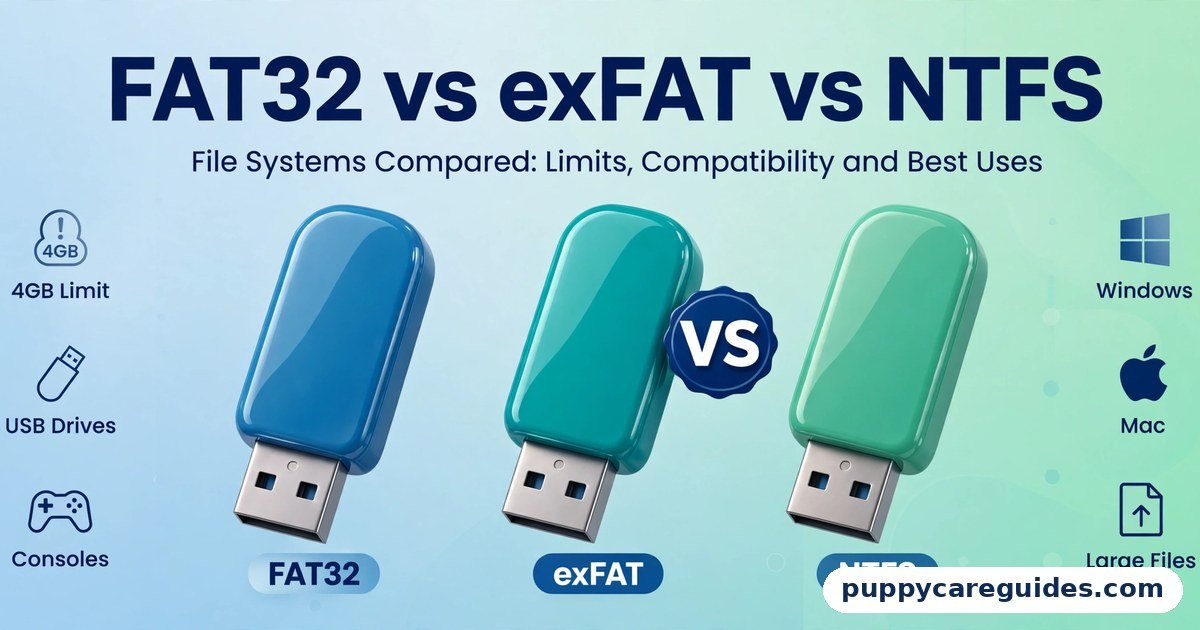
FAT32 vs exFAT vs NTFS
Quick Answer
Use exFAT for USB drives and memory cards that move between Windows, Mac, TVs and cameras — it has no 4 GB file limit. Use NTFS for Windows internal drives and PC-only external drives. Use FAT32 only when an older device demands it — a car stereo, an old console, or a camera that accepts nothing else. That is the short answer to FAT32 vs exFAT vs NTFS.
For more technical background, see the file system overview on Wikipedia.
Table of Contents
The single most important fact in this whole comparison: a FAT32 drive cannot store any single file larger than 4 GB. That one limit is why video copies fail, why game files refuse to transfer, and why exFAT exists. NTFS removes every size limit and adds security and data-safety features, but Apple computers cannot write to it without extra software, and most TVs and consoles ignore it. exFAT is the deliberate middle ground: big files, both major computer platforms, no fancy features.
Introduction
You plug in a brand-new 128 GB USB drive, drag a 6 GB video file onto it — and Windows stops you: “The file is too large for the destination file system.” The drive is almost empty. Nothing is broken. You have simply met the FAT32 limit, a rule written into a file system designed in the 1990s.
Every time you format a USB stick, memory card, or external drive, Windows offers you a choice between FAT32, exFAT, and NTFS, and most people pick whatever is preselected. That choice quietly decides the biggest file you can store, which devices can read the drive, and how safe your data is if the power cuts mid-copy.
This guide explains all three file systems in plain language, with the exact limits for each, so the next time that format dialog appears you will know precisely which one your situation needs. If you are also choosing the drive itself, our HDD vs SSD guide covers the hardware side of the same decision. The FAT32 vs exFAT vs NTFS decision is simpler than it looks once you know what to check first.
FAT32 vs exFAT vs NTFS: Quick Comparison Table
The table below sums up FAT32 vs exFAT vs NTFS at a glance.
| Feature | FAT32 | exFAT | NTFS |
|---|---|---|---|
| Full name | File Allocation Table 32 | Extended File Allocation Table | New Technology File System |
| Introduced | 1996 (Windows 95 era) | 2006 (for flash storage) | 1993 (Windows NT) |
| Max single file size | 4 GB (minus 1 byte) | 16 EB theoretical; no practical limit | 16 TB or more, depending on cluster size |
| Max drive (volume) size | 2 TB (Windows format tool offers only 32 GB) | 128 PB recommended maximum | 256 TB |
| Windows support | Full read and write | Full read and write | Full read and write — the native Windows system |
| Mac support | Full read and write | Full read and write | Read only by default; writing needs extra software |
| Linux support | Full | Built into modern kernels | Good via built-in drivers |
| TV, console and car support | Excellent — almost everything reads it | Very good — most modern devices read it | Poor — most TVs and consoles ignore it |
| Security and permissions | None | None | Yes — file permissions, encryption, quotas |
| Journaling (crash protection for the file index) | No | No | Yes |
| Best for | Old devices, small drives, maximum compatibility | USB drives, SD cards, drives shared between Windows and Mac | Windows internal drives, PC-only external drives, backups |
Note: “EB” is exabytes and “PB” is petabytes — millions of gigabytes. The exFAT limits are so large that no drive you can buy today comes anywhere near them.
What Is FAT32?
FAT32 is the oldest of the three, an update of the FAT file system that Microsoft shipped with Windows 95 in 1996. It organises a drive using a simple table that records where each file’s pieces live. That simplicity is its superpower: virtually every device built in the last twenty-five years can read FAT32. Game consoles, smart TVs, car stereos, cameras, routers, media players, old and new computers — FAT32 is the closest thing storage has to a universal language. The whole FAT32 vs exFAT vs NTFS story starts here.
Its limits are equally famous. No single file can exceed 4 GB (technically 4,294,967,295 bytes — one byte short of 4 GB). The largest drive it can manage is 2 TB, and Windows’ own format tool refuses to create FAT32 drives larger than 32 GB, a leftover restriction from another era; other tools can format up to the real 2 TB ceiling. FAT32 also has no journaling, no file permissions, and no encryption. It was designed when a big hard drive held 2 GB and a “large file” meant a photo, not a 4K movie.
Real example: Your car stereo happily plays music from a FAT32 USB stick, because songs are small and the stereo’s simple software speaks FAT32 fluently. The same stick refuses the 5 GB video of your road trip — not because the stick is full, but because FAT32 cannot hold a file that size at all. In any FAT32 vs exFAT vs NTFS comparison, FAT32 stands for maximum compatibility with older devices.
What Is exFAT?
exFAT — Extended File Allocation Table — is the file system Microsoft created in 2006 specifically to fix FAT32’s problems on flash storage: USB drives and memory cards. It keeps FAT’s simplicity and wide readability, but raises the limits to levels that will never matter in practice: files up to 16 exabytes in theory, drives up to 128 petabytes in Microsoft’s recommended maximum. For any drive you can buy, exFAT effectively has no size limits. The FAT32 vs exFAT vs NTFS gap is easiest to understand right here.
Because it was built for removable storage, exFAT became the official format of SDXC memory cards — every SD card larger than 32 GB is sold formatted as exFAT. Windows and macOS both read and write it natively, which makes it the only one of the three that works fully on both platforms with zero extra software. Modern TVs, PlayStation and Xbox consoles, cameras, and Android phones generally support it too. What exFAT deliberately leaves out is the heavy machinery: no journaling, no permissions, no encryption. It is a light, portable filing system, not a vault.
Real example: A photographer copies a day’s shoot — including several 8 GB video clips — onto an exFAT external drive at a Windows PC, then plugs the same drive into a Mac at the studio and keeps working. No reformatting, no split files, no extra software. That seamless trip is exactly what exFAT was designed for.
What Is NTFS?
NTFS, the New Technology File System, has been Windows’ internal standard since Windows XP took over in the early 2000s. It is by far the most capable of the three. Its practical file-size limit is 16 terabytes or higher (it grows with cluster size, and modern Windows versions support volumes up to 256 TB), so size is never a concern.
Where NTFS really separates itself is safety and control. It keeps a journal — a log of changes it intends to make — so if the power fails mid-write, the drive’s index can repair itself instead of corrupting. It supports per-file and per-folder permissions (which user accounts may read or change a file), built-in encryption (EFS, plus BitLocker at the drive level), file compression, disk quotas, and shadow copies for backups. Windows itself needs several of these features, which is why your PC’s internal drive is always NTFS. On a Windows PC, the FAT32 vs exFAT vs NTFS winner is usually NTFS.
The cost is portability. macOS can read NTFS drives but cannot write to them without paid third-party software. Most TVs, media boxes, and consoles do not support NTFS for media playback at all. NTFS is a superb home base and a poor traveller.
Real example: Your Windows laptop’s internal drive is NTFS, so Windows can encrypt it with BitLocker, keep separate user accounts private from each other, and recover cleanly after a forced shutdown. Plug that same drive into a TV to watch a film, though, and the TV will likely pretend the drive does not exist. In any FAT32 vs exFAT vs NTFS comparison, NTFS stands for the full-featured Windows standard.
FAT32 vs exFAT vs NTFS: Key Differences Between FAT32, exFAT and NTFS
1. The 4 GB wall: the limit that decides most real cases
FAT32’s maximum file size is 4 GB minus one byte. This sounds generous until you meet modern files: a 4K video recorded at a typical phone bitrate crosses 4 GB in roughly ten to twenty minutes, a single game installation file or disc image is often 10–50 GB, and a system backup image can exceed 100 GB. Any one of those hitting a FAT32 drive produces the confusing “file too large” error on a drive with plenty of free space. exFAT and NTFS have no such wall at any size you will ever own.
If a drive will ever hold videos, disc images, virtual machines, or backups, FAT32 is disqualified on this point alone — this is also why action cameras split long recordings into 4 GB chunks on FAT32 cards.
2. Mac support: NTFS is the odd one out
Windows reads and writes all three. macOS reads and writes FAT32 and exFAT natively, but offers NTFS as read-only: you can copy files off an NTFS drive onto a Mac, but you cannot copy anything onto it, edit files in place, or save to it, unless you install third-party NTFS driver software. For a drive that shuttles between a Windows PC and a Mac — the classic student, office, and photographer scenario — exFAT is the only correct answer of the three.
3. TVs, consoles and cars: the simpler, the better
Living-room and in-car devices run simple software and support a short list of formats. FAT32 is supported by essentially all of them. exFAT is supported by most modern ones — current smart TVs, PlayStation 4 and 5, Xbox One and Series consoles, and recent car systems (PlayStation even requires exFAT or FAT32 for its USB extended storage). NTFS is the one most likely to be ignored completely. Before formatting a drive for a specific TV or console, check its manual: when in doubt, exFAT for big modern devices, FAT32 for old or stubborn ones.
4. Data safety: only NTFS keeps a journal
FAT32 and exFAT write file information directly, with no safety log. Pull the drive out mid-copy or lose power, and the file index can end up inconsistent — usually fixable, occasionally losing the file being written. NTFS writes its intentions to a journal first, so after a crash it can roll the index back to a consistent state. This does not make NTFS indestructible, and you should still eject removable drives properly, but for a drive holding important working files on a Windows machine, journaling is a real, practical advantage. Neither FAT32 nor exFAT should be the only home of anything irreplaceable.
5. Security features: NTFS is in a different class
Only NTFS offers file and folder permissions, encryption, compression, and user quotas — features that matter on a shared office PC, a drive with private documents, or any Windows installation. FAT32 and exFAT treat every file as open to anyone holding the drive. For a USB stick that only carries movies to a TV, that openness is fine. For a backup drive with tax records and family documents, NTFS (ideally with BitLocker) is the responsible choice.
6. Speed: a smaller factor than people think
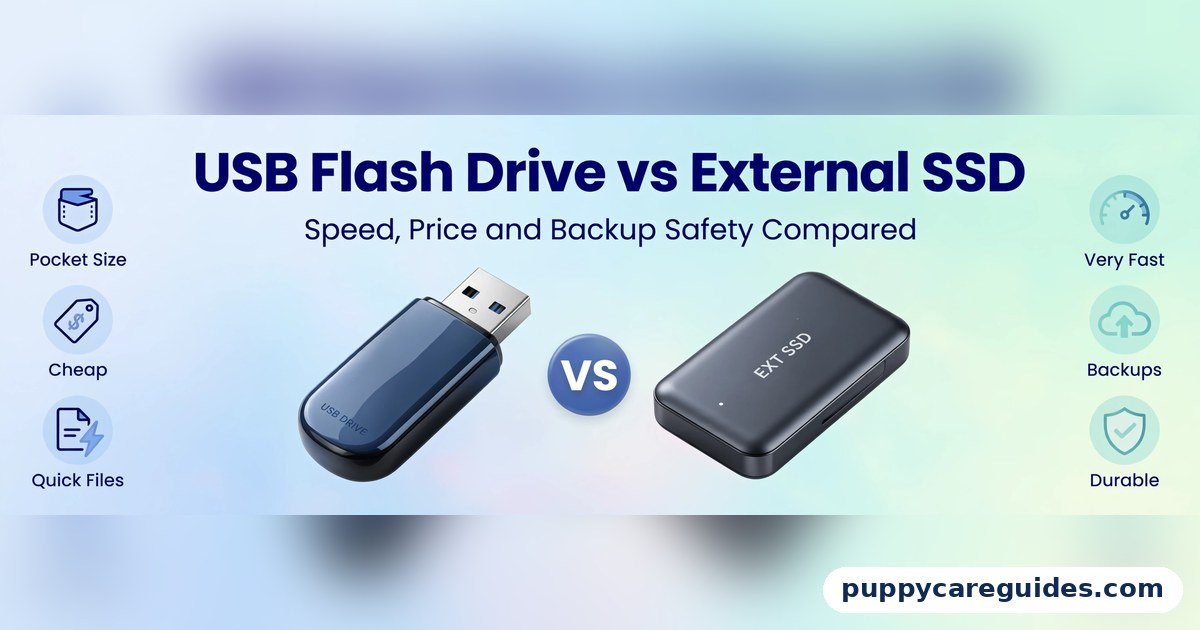
The file system itself adds only a small overhead. NTFS’s journaling and security checks cost a little performance on very small, slow flash drives, and exFAT was tuned to be light on flash media, which is why it is the SD card standard. In everyday copying, the drive’s own hardware — covered in our USB Flash Drive vs External SSD comparison — matters ten times more than which of these three formats it carries. Choose the file system for compatibility and limits, not speed. Every FAT32 vs exFAT vs NTFS difference above comes back to file-size limits and compatibility.
FAT32 vs exFAT vs NTFS: Best Uses of FAT32
- Car stereos and older media players that accept nothing else
- Old game consoles and retro devices with short supported-format lists
- Small USB sticks (32 GB and under) carrying documents and music
- Bootable installer and recovery drives, where instructions specifically say FAT32 — many firmware and UEFI tools expect it
- Any device whose manual lists FAT32 only — when a manufacturer insists, believe them
FAT32 vs exFAT vs NTFS: Best Uses of exFAT
- USB drives and external drives shared between Windows and Mac — the default recommendation for portable storage
- SDXC memory cards (over 32 GB) in cameras, drones, and phones — it is their factory standard
- Drives carrying large video files to TVs, consoles, and media players
- Photographer and videographer shuttle drives that must work on any computer they meet
- Any removable drive bigger than 32 GB that is not dedicated to one Windows PC. For USB drives shared between Windows and Mac, the FAT32 vs exFAT vs NTFS edge goes to exFAT.
FAT32 vs exFAT vs NTFS: Best Uses of NTFS
- Windows internal drives — required for the Windows installation itself
- External drives used only with Windows PCs, especially for backups and large working files
- Drives needing permissions or encryption — shared computers, sensitive documents, BitLocker
- Game library drives on a Windows PC, where files are huge and the drive never leaves the desk
- Any drive where crash-safe journaling matters more than cross-device travel
Pros and Cons
FAT32 — Pros
- Works on virtually every device made in the last 25 years
- Simple and fast enough for small drives and small files
- No software or drivers needed anywhere
FAT32 — Cons
- No file larger than 4 GB — the deal-breaker for video and backups
- 2 TB maximum drive size, and Windows’ own tool stops at 32 GB
- No journaling, permissions, or encryption
exFAT — Pros
- No practical file-size or drive-size limits
- Full native read/write support on both Windows and macOS
- The standard format for large SD cards; widely supported by TVs and consoles
exFAT — Cons
- No journaling — eject properly to avoid index damage
- No permissions or encryption
- A few very old devices and some older Android phones do not support it
NTFS — Pros
- Huge size limits and full journaling for data safety
- Permissions, encryption, compression, and backup features
- The native, best-supported system on Windows
NTFS — Cons
- Macs cannot write to it without paid software
- Most TVs, consoles, and car systems cannot read it
- More overhead than a tiny flash drive needs. This is where the FAT32 vs exFAT vs NTFS choice really bites.
FAT32 vs exFAT vs NTFS: Which Should You Choose?
- Beginner / everyday user: exFAT for every USB stick and external drive you own. It works on your Windows PC, a friend’s Mac, and the TV — and never stops a copy at 4 GB.
- Student: exFAT for the drive that travels between your laptop, university computers, and printers. Keep your Windows laptop’s internal drive NTFS, as it already is.
- Creator / photographer / videographer: exFAT on cards and shuttle drives (it is the card standard anyway), NTFS on the Windows workstation drives where your projects live, so journaling protects work in progress.
- Professional / IT use: NTFS wherever Windows and data safety rule; exFAT strictly for interchange; FAT32 only where a device’s documentation demands it. Decide FAT32 vs exFAT vs NTFS by where the drive will be used, and the choice makes itself.
FAT32 vs exFAT vs NTFS: Common Mistakes
- Blaming the drive when a copy stops at 4 GB. The drive is fine and has space — the FAT32 file-size limit is the cause. Reformat to exFAT.
- Formatting a drive without backing up first. Formatting erases everything on the drive. Every time. Copy the contents somewhere safe before you change any file system.
- Using NTFS for a TV or Mac shuttle drive. It will read as read-only on a Mac and may not appear at all on a TV. exFAT exists precisely for this job.
- Expecting Windows to offer FAT32 for a big drive. The built-in format tool caps FAT32 at 32 GB even though the real limit is 2 TB. If a device truly needs a large FAT32 drive, a third-party format tool is required — but check whether the device accepts exFAT first, because most modern ones do.
- Yanking out an exFAT or FAT32 drive mid-copy. With no journal, an interrupted write can corrupt the file index. Use “Eject” and wait the extra two seconds.
- Formatting a camera card in the computer instead of the camera. Cards work best formatted in the device that uses them, which will choose the right system (FAT32 up to 32 GB, exFAT above) automatically. Most FAT32 vs exFAT vs NTFS regrets come from exactly these avoidable errors.
How to Format a USB Drive in Windows
- Back up everything on the drive to your computer or another drive. Formatting deletes all of it.
- Insert the drive and open File Explorer. Right-click the drive and choose Format.
- In the File system dropdown, choose:
- exFAT for a general-purpose USB or external drive (the right choice for most people)
- NTFS only if the drive will be used exclusively with Windows PCs
- FAT32 only if a specific old device requires it (note: Windows will not offer it for drives over 32 GB)
- Leave Allocation unit size on its default, give the drive a clear name under Volume label (for example, “Shuttle Drive”), and keep Quick Format ticked for a healthy drive.
- Click Start, confirm the warning, and wait for “Format Complete.”
- Copy a test file larger than 4 GB onto the drive to confirm the new file system works as expected, then copy your files back.
On a Mac instead: open Disk Utility, select the drive, click Erase, and choose ExFAT (shown as “ExFAT”) for a cross-platform drive — the same backup-first warning applies. Whichever way you decide FAT32 vs exFAT vs NTFS, always back up the drive before you format it.
FAT32 vs exFAT vs NTFS: FAQs
Why can’t I copy a file larger than 4 GB to my USB drive?
Because the drive is formatted as FAT32, which cannot store any single file of 4 GB or more — no matter how much free space the drive shows. Back up the drive’s contents, reformat it as exFAT, and the same file will copy without complaint. This is the single most common file-system problem in the world, and the fix takes two minutes. This is the core of the FAT32 vs exFAT vs NTFS debate.
Which format is best for an Android phone’s SD card?
Let the phone format the card itself (Settings > Storage > SD card > Format), and it will pick correctly: FAT32 for cards of 32 GB or less, exFAT for larger SDXC cards, since exFAT is the official standard for those. One caution: a few older or very cheap Android phones lack exFAT support and will ask to reformat a large card their own way — another reason to format in the phone, not the computer. That is FAT32 vs exFAT vs NTFS in practice.
Does formatting a drive delete everything on it?
Yes. Formatting rewrites the drive’s file index and, in the process, makes all existing files inaccessible — a quick format leaves data technically present but effectively gone to ordinary tools. Always copy everything you need to another location before formatting, and double-check you selected the correct drive before clicking Start. Selecting the wrong drive letter is a classic and painful mistake. That is the FAT32 vs exFAT vs NTFS difference where it counts.
Can a Mac really not use NTFS at all?
A Mac can open and copy files from an NTFS drive perfectly well — reading works out of the box. What it cannot do by default is write: no saving, editing in place, or copying files onto the drive. Third-party NTFS drivers add writing for a fee, and they work fine, but if the drive is yours to format, exFAT gives you full read/write on both platforms for free, which is why it is the standard recommendation. That is the FAT32 vs exFAT vs NTFS difference in daily use.
Is exFAT safe for my only backup?
It is acceptable but not ideal. exFAT has no journaling, so an interrupted write or an unplugged cable can damage the file index, and it offers no encryption. For a Windows backup drive that stays at your desk, NTFS is the safer choice. And whichever system you pick, one backup is not a backup strategy — keep important files in at least two places, a rule we return to in USB Flash Drive vs External SSD. That is the FAT32 vs exFAT vs NTFS difference that matters most.
FAT32 vs exFAT vs NTFS: Final Verdict
Travelling drive = exFAT. Windows-only drive = NTFS. Stubborn old device = FAT32.
These three are not rivals so much as tools for different journeys. FAT32 is the universal language with a 1990s vocabulary — it talks to everything but cannot carry a modern file. exFAT kept the universality and removed the limits, which is why it owns USB sticks and memory cards. NTFS is the full-featured home system: journaling, permissions, and encryption for drives that live on Windows. If you remember only one line, make it this: when a copy fails at 4 GB, the format is FAT32 — and exFAT is the fix. That is the FAT32 vs exFAT vs NTFS choice in short: FAT32 for old devices, exFAT for USB drives, NTFS for Windows disks.
Next: HDD vs SSD: Is an SSD Worth It? — the hardware half of the storage decision, and why it changes your computer more than any other upgrade.
Related Articles
- HDD vs SSD — spinning rust vs flash: speed, price and lifespan compared
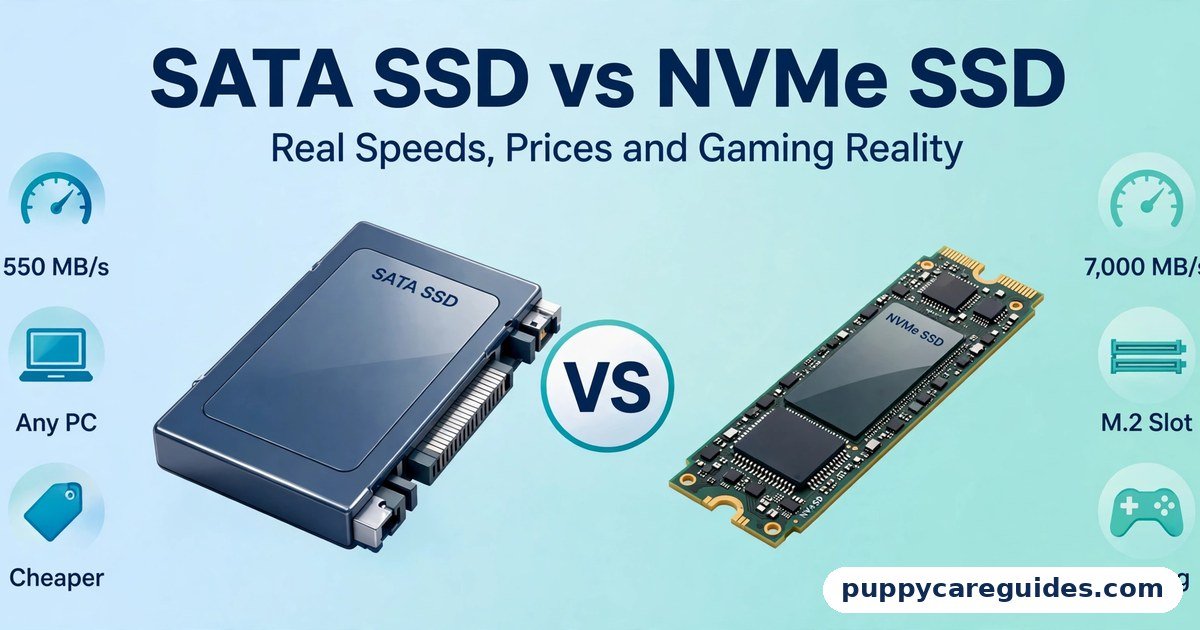
- SATA SSD vs NVMe SSD — why one SSD costs more, and who actually needs it
- MBR vs GPT — the partition style you must pick when setting up a drive
- USB Flash Drive vs External SSD — the portable half of this decision
- MP4 vs MKV: Which Is Better for Videos? — the files you will copy onto these drives, explained
- MP3 vs WAV — another size-versus-quality trade-off, this time for audio
- HEIC vs JPG — the phone photos filling your drive, and how to shrink them



Leave a Reply