

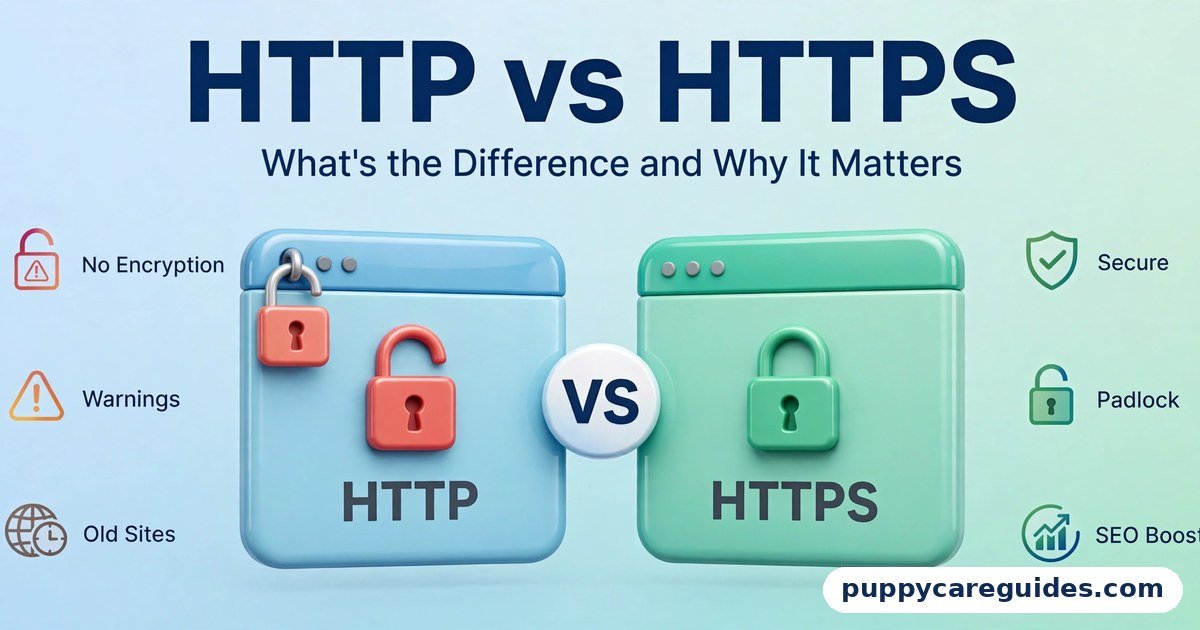
HTTP vs HTTPS: What’s the Difference and Why It Matters
Quick Answer
Use HTTPS on every website, without exception. Use HTTP for nothing on the public internet — it survives only in old systems and local testing. That is the short answer to HTTP vs HTTPS.
For more technical background, see the HTTPS overview on Wikipedia.
Table of Contents
HTTPS is simply HTTP with encryption added. When a site uses HTTPS, everything travelling between the visitor’s browser and the website — passwords, card numbers, contact-form messages — is scrambled so that nobody in between can read or change it. HTTP sends all of that as plain, readable text. Browsers now label HTTP pages “Not Secure,” Google gives HTTPS sites a small ranking advantage, and a basic HTTPS certificate is free. There is no longer any good reason for a website to run on plain HTTP.
Introduction
Look at the address bar of any website and you will see one of two beginnings: http:// or https://. That single extra letter — the “s” — is one of the most important differences on the modern web, and most people scroll straight past it.
It decides whether the password you just typed travelled across the internet readable by anyone listening, or sealed inside an encrypted tunnel. It decides whether your browser shows a reassuring padlock-style icon or a blunt “Not Secure” warning next to your site’s name. And if you run a website or blog yourself, it decides whether visitors — and Google — trust you.
This guide compares HTTP vs HTTPS in plain language: what each one actually does, how the encryption works, what it costs (usually nothing), and the exact steps to switch your own site over. If you also want to protect your own connection when you browse — not just the websites you visit — our VPN vs Proxy guide covers the tools for that side of the equation. The HTTP vs HTTPS decision is simpler than it looks once you know what to check first.
HTTP vs HTTPS: Quick Comparison Table
The table below sums up HTTP vs HTTPS at a glance.
| Feature | HTTP | HTTPS |
|---|---|---|
| Full name | Hypertext Transfer Protocol | Hypertext Transfer Protocol Secure |
| Encryption | None — data travels as plain text | Yes — TLS encryption scrambles all data |
| Default port | 80 | 443 |
| Browser display | “Not Secure” warning in Chrome and others | Padlock / tune icon, no warning |
| Data safety | Passwords and payments can be read or altered in transit | Data cannot be read or silently changed in transit |
| SEO effect | Small disadvantage; Google prefers HTTPS | Confirmed (small) Google ranking signal since 2014 |
| Speed | Older, simpler, but no modern speed features | Equal or faster in practice thanks to HTTP/2 and TLS 1.3 |
| Certificate needed | No | Yes — free from Let’s Encrypt, or paid for extended validation |
| Cost | Free | Free for standard certificates; paid options exist for businesses |
| Trust | Visitors are actively warned away | The expected normal state of a website |
| Best for | Local testing and legacy systems only | Every website: blogs, shops, logins, portfolios — everything |
Note: the “s” in HTTPS does not mean a website is honest or high quality. It means the connection to it is encrypted. A scam site can use HTTPS too — more on that in the FAQs.
What Is HTTP?
HTTP — Hypertext Transfer Protocol — is the set of rules browsers and web servers have used since the early 1990s to request and deliver web pages. When you type an address, your browser sends an HTTP request (“send me this page”), and the server answers with the page’s text, images, and code. The whole HTTP vs HTTPS story starts here.
The problem is how it travels. An HTTP conversation is like a postcard: every computer, router, and provider that handles it along the way can read the whole thing. That includes the page you asked for — and everything you send back, such as a login password, a comment with your email address, or your card details at checkout.
When the web was mostly static university pages, that was acceptable. The moment shopping, banking, and private accounts moved online, a postcard system for sending secrets became dangerous. Anyone sharing the same coffee-shop Wi-Fi, or sitting anywhere along the connection path, could quietly read or even modify the traffic — a classic “man-in-the-middle” attack.
Real example: You log in to a forum over HTTP on hotel Wi-Fi. Another guest running simple sniffing software can capture your username and password as they cross the network, because nothing about them is hidden. The site worked perfectly. The connection betrayed you. In any HTTP vs HTTPS comparison, HTTP stands for the original, unencrypted way websites load.
What Is HTTPS?
HTTPS is the same protocol wearing armour. The “S” stands for Secure, and it means the HTTP conversation runs inside an encrypted connection created by a technology called TLS (Transport Layer Security — you will still hear its older name, SSL, everywhere, and “SSL certificate” remains the common term). The HTTP vs HTTPS gap is easiest to understand right here.
Before any page data moves, the browser and server perform a quick “handshake”: the server presents a digital certificate proving it really is the website it claims to be, and the two sides agree on secret keys. From then on, everything is encrypted. A snoop on the network sees only scrambled noise. If anyone tampers with the data in transit, the tampering is detected and the connection fails instead of delivering altered content. The padlock in your browser bar is the HTTP vs HTTPS difference made visible.
That certificate is issued by a trusted organisation called a Certificate Authority. For most websites the certificate comes from Let’s Encrypt, a free, automated authority that has issued billions of certificates and is the main reason HTTPS became the default across the web. Browsers trust it, it costs nothing, and most hosting companies install and renew it automatically.
Real example: The same hotel Wi-Fi, the same forum — but now the site uses HTTPS. The snooper’s software captures only encrypted gibberish. Your password crosses the same hostile network completely unreadable. That is the entire point of the “s.” In any HTTP vs HTTPS comparison, HTTPS stands for the encrypted connection every modern site should use.
HTTP vs HTTPS: Key Differences Between HTTP and HTTPS
1. Security: postcard vs sealed envelope
This is the difference that matters most. HTTP sends logins, payment details, and personal messages as plain text that can be read and modified in transit. HTTPS encrypts everything and guarantees the data arrives unchanged. For any page that asks for input — a login form, a checkout, even a newsletter signup — HTTPS is not a nice extra. It is the minimum standard of care for your visitors’ information.
2. Browser warnings: “Not Secure” vs quiet confidence
Since 2018, Chrome has marked every HTTP page “Not Secure” in the address bar, and other browsers have followed with their own warnings. Firefox and Safari both flag HTTP login pages. To an ordinary visitor, that warning reads as “this site is dodgy” — many simply leave. HTTPS sites get the neutral padlock-style icon (Chrome now shows a “tune” settings icon there, but the absence of a warning is what visitors register). If you run a business or blog, an HTTP address is actively scaring away the people you worked to attract.
3. Speed: the old myth is backwards
HTTPS used to carry a small performance cost because of the handshake. That era is over. Modern HTTPS connections use TLS 1.3, which sets up encryption faster than ever, and HTTPS unlocks HTTP/2 — a newer, quicker version of the protocol that loads pages with many images and files noticeably faster. In real-world use, a well-configured HTTPS site is as fast as, or faster than, the same site on HTTP. Speed is no longer an argument for staying insecure.
4. SEO: a small but real ranking signal
Google confirmed back in 2014 that HTTPS is a ranking signal — a tiebreaker that can nudge a secure page above an identical insecure one. It is a lightweight signal, not a magic boost, but it points only one direction. There is a second, quieter SEO cost too: when a visitor moves from an HTTPS site to your HTTP site, analytics tools lose the referral information, so your traffic reports undercount where visitors came from. Secure sites simply measure and rank better.
5. Cost: the excuse that expired
The last practical argument for HTTP was price. Certificates once cost real money every year. Today, domain-validated certificates from Let’s Encrypt are free, most hosts include them in the control panel as a one-click option, and services like Cloudflare add free HTTPS in front of a site as well. Paid certificates still exist — mainly for companies that want extended organisation validation or warranties — but no ordinary website needs one. Cost is no longer a reason to run HTTP.
6. Trust and identity: what the certificate actually proves
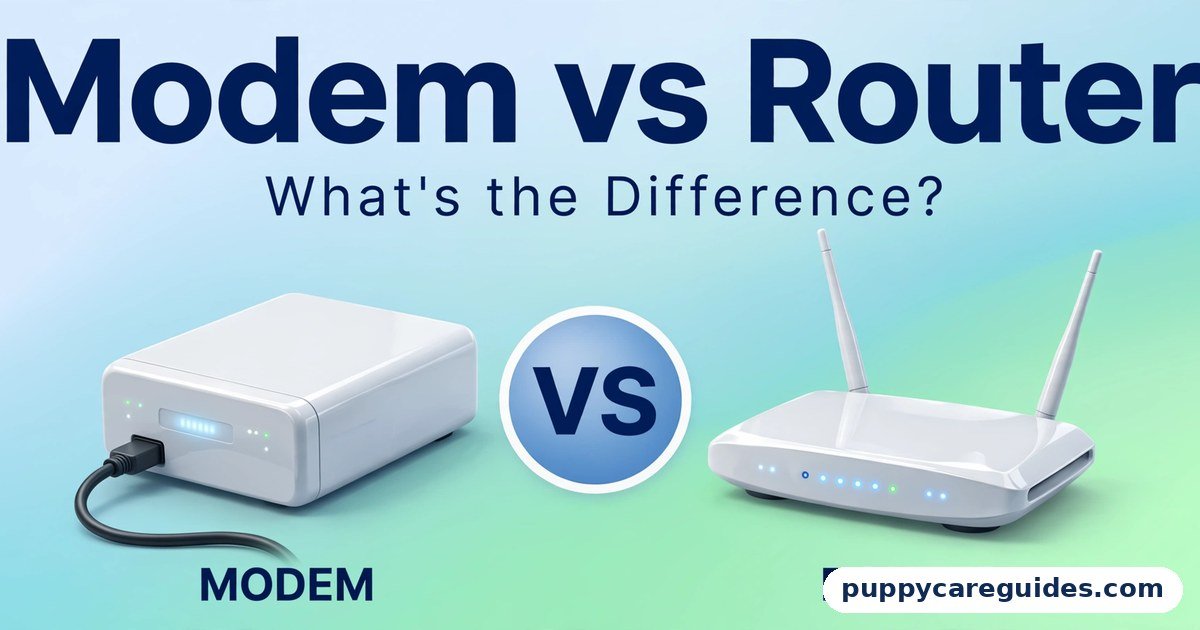
A standard HTTPS certificate proves one thing: you are connected, privately, to the owner of that domain name. It does not prove the owner is honest. That distinction matters, and scammers exploit the confusion — a large share of phishing sites now use HTTPS precisely because people have been taught “padlock means safe.” Treat HTTPS as “this conversation is private,” never as “this website is good.” Our Modem vs Router guide makes a similar point about home networks: the right equipment helps, but understanding what each piece does is what keeps you safe. Every HTTP vs HTTPS difference above comes back to encryption.
HTTP vs HTTPS: Best Uses of HTTP
- Local development and testing on your own computer or private network, where no real data crosses a public connection
- Legacy equipment and old internal systems that predate modern encryption and are being phased out
- Nothing else. If a page is reachable by the public and collects any input at all, HTTP is the wrong choice
HTTP vs HTTPS: Best Uses of HTTPS
- Every public website — blogs, portfolios, news sites, and landing pages, even with no login at all
- Online shops and payment pages, where card data must be encrypted by rule as well as by sense
- Login pages and user accounts of any kind
- Contact forms and newsletter signups, which carry personal data like names and email addresses
- Business websites, where a “Not Secure” label directly costs enquiries and sales. For logins, payments and any personal data, the HTTP vs HTTPS edge is entirely with HTTPS.
Pros and Cons
HTTP — Pros
- Slightly simpler to set up, with no certificate to install or renew
- Still understood by every device ever made, including ancient hardware
HTTP — Cons
- All data readable and changeable by anyone along the connection
- Browsers warn visitors the site is “Not Secure”
- Small SEO disadvantage and broken referral data in analytics
- Completely unsuitable for logins, payments, or forms
- Looks unprofessional and outdated to every modern visitor
HTTPS — Pros
- Encrypts passwords, payments, and personal data in transit
- Detects tampering — data cannot be silently altered
- No browser warnings; visitors see a normal, trustworthy address bar
- Small confirmed Google ranking signal
- Enables faster modern protocols like HTTP/2
- Free to implement for the vast majority of websites. That is the HTTP vs HTTPS balance in one line.
HTTPS — Cons
- Requires a certificate and occasional renewal (usually automated by the host)
- A badly configured switch can cause temporary “mixed content” warnings until fixed
- The padlock can give visitors false confidence in dishonest sites. This is where the HTTP vs HTTPS choice really bites.
HTTP vs HTTPS: Which Should You Choose?
- Website or blog owner: HTTPS, today, before you write another post. If your host offers a free Let’s Encrypt certificate in the control panel, enabling it is usually a ten-minute job — the steps are below.
- Online shop or anyone taking payments: HTTPS is mandatory, full stop. Payment providers and basic customer trust both demand it.
- Ordinary internet user: Prefer HTTPS sites, treat “Not Secure” pages as read-only — never type a password, card number, or personal detail into one. Check for the
https://before logging in anywhere. - Developer testing locally: HTTP on your own machine is fine. The moment the project touches the real internet, it goes HTTPS. Decide HTTP vs HTTPS by whether any data travels, and the choice makes itself.
HTTP vs HTTPS: Common Mistakes
- Installing a certificate but never forcing HTTPS. If both versions of your site still load, many visitors and links keep landing on the insecure one. Redirect every HTTP address to its HTTPS version permanently.
- Forgetting internal links and images. After switching, old posts often still point to
http://image addresses, triggering “mixed content” warnings and broken padlock icons. Update internal links and media URLs to HTTPS. - Letting the certificate expire. An expired certificate produces a full-page browser warning that turns away nearly everyone. Use a host or system that renews automatically, and set a calendar reminder to check.
- Believing HTTPS means a site is safe to trust. Encryption protects the connection, not your judgement. A phishing page with a padlock is still a phishing page — check the domain name itself.
- Typing sensitive data into “Not Secure” pages. A login form on HTTP is the single easiest credential to steal on a public network. Leave, or at minimum never reuse that password anywhere else.
- Buying an expensive certificate you do not need. For a normal website, the free certificate provides identical encryption. Paid certificates add validation paperwork, not stronger scrambling. Most HTTP vs HTTPS regrets come from exactly these avoidable errors.
How to Get Free HTTPS on Your Website
Using Let’s Encrypt, the free certificate authority most hosts support:
- Log in to your hosting control panel (cPanel, Plesk, or your host’s dashboard) and look for SSL/TLS, Let’s Encrypt, or AutoSSL — most hosts place it under a “Security” section.
- Select your domain and click Issue or Install. The certificate is created and applied automatically, usually within a minute or two.
- Visit your site with
https://typed manually in the address bar and confirm the page loads with no warning. - Turn on Force HTTPS / HTTPS Redirect in the same panel (or in your CMS settings) so every
http://visit is sent to the secure version automatically. - Update your site’s address in your CMS settings (for example, WordPress Address and Site Address) to the
https://version. - Walk through your most important pages — homepage, login, contact form, checkout — and fix any “mixed content” warnings by updating old
http://image and link addresses. - Update your URL in Google Search Console and analytics so your SEO data follows the secure version, and confirm auto-renewal is switched on for the certificate.
No control panel option? A free Cloudflare account placed in front of your site can provide HTTPS as well, and most hosts will install a Let’s Encrypt certificate on request if you open a support ticket. Whichever way you decide HTTP vs HTTPS, always look for the padlock before typing a password.
HTTP vs HTTPS: FAQs
Is an HTTPS website 100% safe?
No — and this is the most important misunderstanding about HTTPS. It guarantees the connection between you and the site is private and untampered. It says nothing about whether the site itself is honest, competent, or free of malware. Always judge the site and its domain name separately from the padlock. This is the core of the HTTP vs HTTPS debate.
How do I put free SSL on my own blog?
Through Let’s Encrypt, which your hosting company almost certainly supports: open the SSL section of your control panel, issue the free certificate for your domain, then switch on the setting that forces all visitors onto HTTPS. The full step-by-step is in the section above. The whole job typically takes under fifteen minutes and costs nothing. That is HTTP vs HTTPS in practice.
What does a “mixed content” warning mean?
It means the page itself loaded over HTTPS, but something inside it — usually an image, script, or stylesheet — was still fetched over plain HTTP, weakening the protection. Browsers may block those items or drop the secure icon. The fix is to update the offending addresses in your pages to https://. That is the HTTP vs HTTPS difference where it counts.
Does HTTPS slow a website down?
Not in any way a visitor can feel, and often the opposite. The modern TLS 1.3 handshake is extremely fast, and HTTPS unlocks HTTP/2, which loads typical pages faster than the older protocol HTTP sites are stuck with. The “HTTPS is slow” idea is a decade out of date. That is the HTTP vs HTTPS difference in daily use.
Can a website work with both HTTP and HTTPS?
Technically yes, but it is a mistake to leave it that way. Visitors, bookmarks, and other websites will keep using whichever version they find first, splitting your traffic and your search rankings between two addresses. Pick HTTPS as the single version and redirect everything else to it. That is the HTTP vs HTTPS difference that matters most.
HTTP vs HTTPS: Final Verdict
HTTPS is not an upgrade — it is the baseline. HTTP is history.
Every argument that once protected HTTP has expired: certificates are free, browsers punish insecure pages in front of your visitors, Google rewards the secure version, and modern HTTPS is just as fast. If your website still loads on HTTP, switching is the highest-value fifteen minutes you can spend on it. If you are a visitor, the rule is simpler still: no padlock, no passwords. That is the HTTP vs HTTPS choice in short: HTTPS for every real website today, HTTP only as history.
Next: VPN vs Proxy: Which One Actually Protects You? — HTTPS secures your connection to one website; these two tools promise to secure your whole connection. They are not the same thing.
Related Articles
- VPN vs Proxy: Which One Actually Protects You? — hiding and protecting your connection, explained honestly
- Wi-Fi vs Ethernet: Which Is Better for Gaming and Work? — the other connection decision every home network faces
- Modem vs Router: What’s the Difference? — the two boxes that bring the internet into your home
- MP4 vs WebM: Which Is Better for Websites? — the video formats your HTTPS pages will be serving






Leave a Reply