


USB-C vs Thunderbolt: What’s the Difference?
Quick Answer
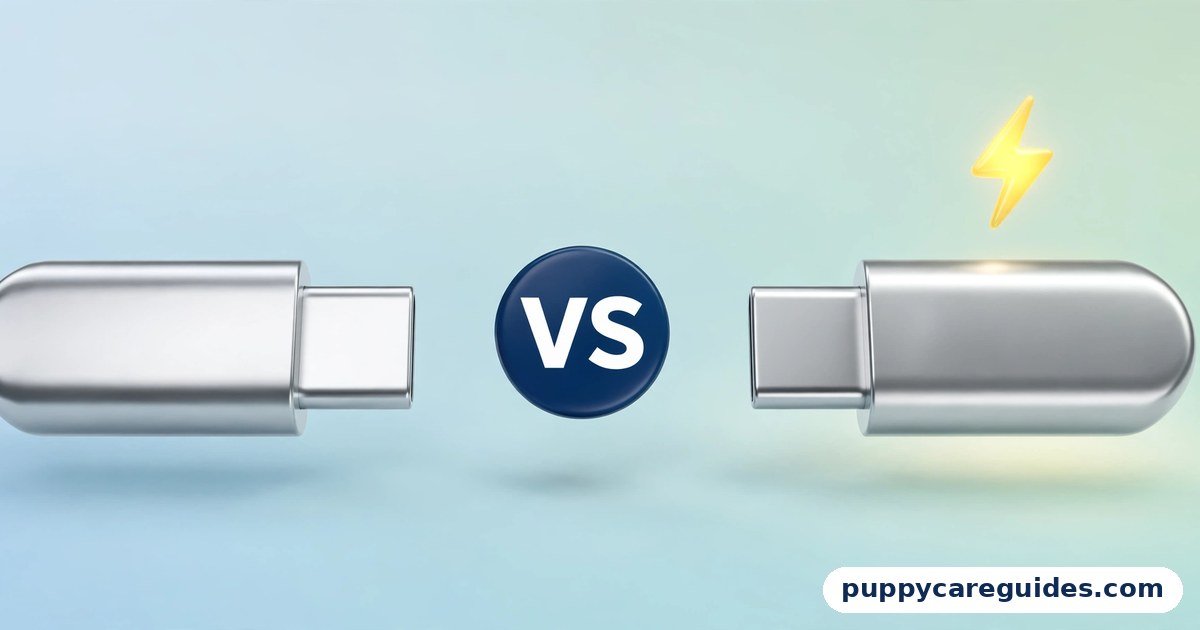
USB-C is the plug. Thunderbolt is one of the technologies that can run through it. Every Thunderbolt port is a USB-C port, but not every USB-C port is Thunderbolt — and that one sentence explains almost all the confusion. That is the short answer to USB-C vs Thunderbolt.
For more technical background, see the Thunderbolt overview on Wikipedia.
Table of Contents
A plain USB-C port might transfer data as slowly as 480 Mbps (USB 2.0 speed), carry no video at all, and charge modestly. A Thunderbolt port guarantees a premium package: up to 40 Gbps data on Thunderbolt 3 and 4 (80 Gbps on Thunderbolt 5), video output for external monitors, high-speed connections for external SSDs and docks, and charging up to 100W (240W on Thunderbolt 5). The ports look identical because they share the same oval connector — the difference is entirely in the electronics behind it. The quick tell: a lightning-bolt logo beside the port means Thunderbolt. No logo means check the spec sheet, because a bare USB-C port can be almost anything.
Introduction
Here is a puzzle that frustrates laptop buyers every day. Two laptops sit side by side, each with the same small oval port. On one, that port drives two 4K monitors, charges the laptop at full speed, and copies files to an external SSD at 3,000 MB/s. On the other, the identical-looking port cannot output video at all and copies files forty times slower. The port shape told you nothing. The logos and spec sheet told you everything.
The confusion exists because “USB-C” names a connector — the physical plug designed by the USB group in 2014: small, oval, and reversible, so it fits either way up. “Thunderbolt” names a technology — a high-performance standard developed by Intel in collaboration with Apple — that adopted the USB-C connector from its third generation onward. Think of USB-C as the shape of a doorway and Thunderbolt as one particularly capable thing that can walk through it, alongside plain USB data, DisplayPort video, and charging power.
This guide separates the two cleanly: what each one guarantees and does not, how their speeds and features compare generation by generation, where buyers get tricked when choosing cables, and how to check what your own ports actually support. If your puzzle is about phone cables instead, our USB-C vs Lightning guide covers Apple’s changeover. The USB-C vs Thunderbolt decision is simpler than it looks once you know what to check first.
USB-C vs Thunderbolt: Quick Comparison Table
The table below sums up USB-C vs Thunderbolt at a glance.
| Feature | USB-C (plain) | Thunderbolt (3 / 4 / 5) |
|---|---|---|
| What it is | A connector shape | A technology standard that uses the USB-C connector |
| Connector | Oval, reversible, 24-pin | Identical oval USB-C connector |
| Data speed | Varies wildly: 480 Mbps (USB 2.0) to 40 Gbps (USB4) | Guaranteed: 40 Gbps (TB3/TB4); 80 Gbps (TB5) |
| Video output | Optional — only if DisplayPort Alt Mode is included | Always included — TB3/4: up to two 4K displays; TB5: up to three 4K at 144Hz |
| Charging | Optional USB PD, varies by device | Up to 100W required (TB4); up to 240W (TB5) |
| External SSD speed | Depends on the USB version behind the port | Up to ~3,000 MB/s real-world (PCIe tunnelling) |
| Daisy-chaining | No | Yes — up to 6 devices in a chain |
| Found on | Phones, tablets, laptops, accessories of every price | Higher-end laptops (all modern Macs, many Windows ultrabooks), pro docks and drives |
| Logo beside the port | “SS” / “SS10” or nothing | Lightning bolt (with a small 3, 4 or 5 on newer gear) |
| Best for | Charging and everyday data on a budget | Fast SSDs, docks, multi-monitor desks, one-cable setups |
Note: Thunderbolt 3 and 4 run at 40 Gbps; Thunderbolt 4’s improvements are mostly guaranteed minimums (see below). Thunderbolt 5, arriving on premium laptops from 2024–25, doubles the base rate to 80 Gbps.
What Is USB-C?
USB-C — formally USB Type-C — is a connector, nothing more and nothing less. Introduced in 2014, it fixed the old USB plugs’ worst habits: it is small enough for phones, strong enough for laptops, and reversible, ending the three-attempts-to-plug-it-in ritual forever. Inside are 24 pins capable of carrying data, video signals, and serious electrical power. The whole USB-C vs Thunderbolt story starts here.
The critical thing to understand is that the connector itself guarantees almost none of that capability. Behind a USB-C port, a manufacturer can wire up:
- Data at USB 2.0 speed (480 Mbps — still common on phones, including the base iPhone 15 and 16), or USB 3.x at 5, 10, or 20 Gbps, or USB4 at up to 40 Gbps
- Video via DisplayPort Alt Mode — or not at all
- Charging via USB Power Delivery, anywhere from a basic 15W up to 240W on the latest spec
This freedom is why USB-C is simultaneously the best and most confusing connector ever made. It lets a budget phone and a professional workstation share one cable drawer — but it also means two ports with the same shape can have almost nothing in common. The port’s spec sheet, not its shape, is the truth.
Real example: A mid-range Android phone’s USB-C port runs at USB 2.0 speed and offers no video output. Copying a 10 GB video from it takes about five minutes, and plugging it into a monitor does nothing. The port was never broken — the maker simply wired the connector to the cheapest electronics, because the connector standard allows exactly that. In any USB-C vs Thunderbolt comparison, USB-C stands for the connector shape almost every new device uses.
What Is Thunderbolt?
Thunderbolt is a performance standard created by Intel and Apple that, since Thunderbolt 3 (2015), uses the USB-C connector. Where plain USB-C says “anything goes,” Thunderbolt says “everything is guaranteed.” A port with the lightning-bolt logo must deliver the full package: The USB-C vs Thunderbolt gap is easiest to understand right here.
- Fast data: 40 Gbps on Thunderbolt 3 and 4; 80 Gbps on Thunderbolt 5 (which can boost to 120 Gbps in one direction for displays)
- PCIe tunnelling: part of that bandwidth works like an internal expansion slot carried outside the computer — this is why Thunderbolt SSDs reach around 3,000 MB/s and why external graphics docks exist
- Video: DisplayPort signals are always included — Thunderbolt 3/4 drive up to two 4K displays (or one 8K on TB4); Thunderbolt 5 drives up to three 4K displays at 144Hz
- Charging: up to 100W on TB3/TB4 ports (TB4 makes host charging support mandatory); Thunderbolt 5 raises the ceiling to 240W
- Daisy-chaining: up to six Thunderbolt devices in a line, such as laptop → dock → drive → monitor
- Full USB compatibility: a Thunderbolt port also works as a USB-C port for ordinary devices
The difference between Thunderbolt 3 and 4 is subtle: same 40 Gbps headline speed, but Thunderbolt 4 raised the minimums — where a TB3 laptop could legally offer only 16 Gbps of PCIe bandwidth and support for one display, a TB4 laptop must offer 32 Gbps of PCIe and two 4K displays, plus wake-from-sleep by dock accessories. Thunderbolt 5 then doubled the raw numbers. All generations remain cross-compatible; the connection runs at the best the whole chain supports. At a desk with two monitors, the USB-C vs Thunderbolt difference is obvious at a glance.
Real example: A video editor plugs one Thunderbolt cable from a laptop into a dock. That single cable charges the laptop at 90W, drives two 4K monitors, connects a Thunderbolt SSD copying footage at roughly 3,000 MB/s, and runs the keyboard, network, and audio — because the port guarantees every one of those abilities at once. A plain USB-C port guarantees none of them individually. In any USB-C vs Thunderbolt comparison, Thunderbolt stands for the fastest data and display power through that same plug.
USB-C vs Thunderbolt: Key Differences Between USB-C and Thunderbolt
1. The core rule: every Thunderbolt is USB-C, not every USB-C is Thunderbolt
This is the point the whole comparison hangs on. Thunderbolt is a superset: it adopted the USB-C connector and then demanded high-end electronics behind it. USB-C is merely the doorway. So a Thunderbolt cable works in any USB-C port (falling back to plain USB behaviour), and a Thunderbolt port accepts any USB-C accessory — but a cheap USB-C port will never gain Thunderbolt abilities from an expensive cable. When shopping, the question is never “is it USB-C?” (everything is) but “what is behind the USB-C port?”
2. Speed: guaranteed fast vs could-be-anything
A Thunderbolt 3/4 port promises 40 Gbps, full stop. A plain USB-C port promises nothing: the same shape hides 480 Mbps on many phones (eighty times slower than Thunderbolt), 10 Gbps on most mid-range laptops, 20 Gbps on a few, and 40 Gbps only when the port is USB4 or Thunderbolt. For external SSDs the gap is brutal — a Thunderbolt enclosure reads at roughly 3,000 MB/s while the same drive in a USB 2.0-speed phone port crawls at 40 MB/s. Our USB 2.0 vs USB 3.0 guide shows how that slow end of the scale feels in real copy times.
3. Video and docks: the desk-setup divide
Thunderbolt always carries DisplayPort video, and Thunderbolt docks are built on the guarantee: one cable, monitors plus charging plus peripherals. Plain USB-C may carry video if the maker included DisplayPort Alt Mode — most laptops do, many phones and tablets do not. This is why “my USB-C to HDMI cable doesn’t work with my phone” is such a common complaint: the cable is fine; the phone’s port simply has no video wired to it. For monitor connections generally, our HDMI vs DisplayPort comparison covers the screen side of the story.
4. Where the cable trap springs
Because all these cables share one plug, cable shopping is where people get caught. A passive Thunderbolt 3/4 cable delivers its full 40 Gbps only up to 0.8 metres; the longer 2-metre USB-C charge cable in many laptop boxes is typically wired for USB 2.0 speed (480 Mbps) — wonderful for charging, dreadful for drives. Cheap no-name USB-C cables may also cap charging at 60W, because cables rated above 60W require a tiny “e-marker” chip declaring their capacity. Rules of thumb: buy cables by their printed ratings (Gbps and watts), keep fast cables short, and treat any unlabelled cable as slow until proven otherwise.
5. Why your phone’s USB-C is slow — and why that is (mostly) fine
Phone makers wire USB-C ports to USB 2.0 electronics because it is cheaper, thinner on the motherboard, and — for most owners who charge nightly and sync through the cloud — unnoticeable. It becomes noticeable the day you copy 50 GB of 4K video over a cable (twenty minutes instead of one) or try to mirror the phone to a TV. Pro models break the pattern: the iPhone 15 Pro and 16 Pro lines offer 10 Gbps USB 3 speeds over their USB-C ports, though notably the cable in the box is still a USB 2.0-speed cable — you must buy the faster cable separately. Every USB-C vs Thunderbolt difference above comes back to plug shape versus protocol power.
USB-C vs Thunderbolt: Best Uses of Plain USB-C
- Charging phones, tablets, and laptops — one connector for the whole bag
- Everyday data transfer where 5–10 Gbps is plenty (documents, photos, music)
- Budget accessories — hubs, earbuds, card readers that do not need guarantees
- Travel setups — a single USB-C PD charger can serve phone, tablet, and laptop
- Devices that only need the connector, not the performance — the majority of gadgets
USB-C vs Thunderbolt: Best Uses of Thunderbolt
- Fast external SSDs — video editing, photo libraries, and backups at ~3,000 MB/s
- One-cable desk setups — a dock driving monitors, power, network, and peripherals
- Multi-monitor workstations, including daisy-chained displays
- Professional audio and video interfaces that need PCIe-level connections
- External GPU docks (on compatible Intel systems) and high-end capture gear
- Future-proof laptops — if you keep a machine five years, Thunderbolt ports age well. For docks, fast drives and multiple monitors, the USB-C vs Thunderbolt edge clearly goes to Thunderbolt.
Pros and Cons
USB-C (plain) — Pros
- One reversible connector for nearly every modern device
- Scales from the cheapest phone to the fastest workstation
- USB PD charging up to 240W on the latest specification
- Cables and accessories are cheap and sold everywhere
USB-C (plain) — Cons
- The shape guarantees nothing about speed, video, or charging
- Two identical ports can differ in speed by a factor of 80
- Cable ratings are a minefield (length, e-marker chips, silent USB 2.0 wiring)
- You must read spec sheets to know what you actually bought
Thunderbolt — Pros
- Guaranteed 40 Gbps (TB3/4) or 80 Gbps (TB5) with PCIe tunnelling
- Video, charging, data, and daisy-chaining in every port, always
- The best docks and fastest external SSDs are built on it
- Backward compatible with all USB-C devices and earlier Thunderbolt gear. That is the USB-C vs Thunderbolt balance in one line.
Thunderbolt — Cons
- Found mostly on premium laptops; absent from most phones and budget PCs
- Cables and docks cost more than plain USB-C equivalents
- Full-speed passive cables are short (0.8 m for 40 Gbps)
- Version differences (TB3 vs TB4 minimums) still require a spec check. This is where the USB-C vs Thunderbolt choice really bites.
USB-C vs Thunderbolt: Which Should You Choose?
- Phone buyer: Plain USB-C is fine — you are charging and occasionally copying photos. Choose a Pro-tier phone only if you shoot lots of video you will transfer by cable.
- Student / everyday laptop user: USB-C covers you. If the laptop also has Thunderbolt, treat it as a bonus that makes any future dock or fast drive purchase painless.
- Creator / video editor: Thunderbolt is close to mandatory. Your SSDs, docks, and monitors all assume it, and the time saved on transfers pays for the premium quickly.
- Desk-setup perfectionist: Thunderbolt, for the one-cable dream: plug in a single cable and get power, two monitors, and every peripheral. Verify your laptop’s port has the bolt logo before buying the dock.
- Bargain hunter: Buy the laptop you like; then check its ports. If it has USB-C at 10 Gbps with DisplayPort Alt Mode, a modest USB-C dock still gives you a tidy desk — just not Thunderbolt speeds. Decide USB-C vs Thunderbolt by what you plug in, and the choice makes itself.
USB-C vs Thunderbolt: Common Mistakes
- Assuming a USB-C port must be fast. Shape is not speed. Phones with 480 Mbps ports are the standing counterexample.
- Buying a Thunderbolt dock for a laptop without Thunderbolt. The dock will not work at all or will fall back badly. Match the bolt logo on the dock to a bolt logo on the laptop.
- Using the long charge cable for data. That 2-metre cable is usually USB 2.0 inside. For drives, use the short rated cable that came with the device.
- Expecting any USB-C cable to charge at 100W+. Above 60W requires an e-marked cable rated for it; unmarked cables silently cap the wattage.
- Plugging a monitor cable into the wrong USB-C port. Many laptops have two USB-C ports with different abilities — one may lack video or Thunderbolt. If the screen stays black, try the other port before returning the cable.
- Judging by the plug in product photos. Sellers photograph the connector, not the capability. The specification list (Gbps, watts, “Thunderbolt” by name) is the only evidence that counts. Most USB-C vs Thunderbolt regrets come from exactly these avoidable errors.
How to Tell What Your USB-C Port Actually Supports
- Look for the lightning bolt. A bolt symbol beside the port (sometimes with a tiny 3, 4, or 5) means Thunderbolt. An “SS” or “SS10” marking means USB SuperSpeed at 5 or 10 Gbps. Nothing printed means you must check the specs.
- Find the model’s official spec page. Search the exact laptop or phone model plus “specifications” and read the ports line: it will say “Thunderbolt 4,” “USB 3.2 Gen 2 (10 Gbps),” or similar. This is the ground truth.
- On Windows, open Device Manager and look for a “Thunderbolt Controller” entry; its presence confirms Thunderbolt hardware. On a Mac, System Information → Thunderbolt lists the bus and its speed — every Apple silicon Mac has Thunderbolt/USB4 ports.
- Test video cheaply. Connect the port to a monitor with a known-good USB-C or DisplayPort cable. A picture proves DisplayPort Alt Mode exists; a black screen on a phone usually proves it does not.
- Test data speed with a big file. Copy a 5 GB file to a fast SSD and time it. Roughly 40 MB/s means USB 2.0 wiring; ~350–450 MB/s means 5 Gbps; ~1,000 MB/s means 10 Gbps; multiple GB/s means Thunderbolt or USB4.
- Write it down. Once you know each port’s abilities, a small label or a note saves you from repeating the detective work every time you rearrange the desk. Whichever way you decide USB-C vs Thunderbolt, always check the port’s logo and your laptop’s spec sheet.
USB-C vs Thunderbolt: FAQs
Will a Thunderbolt cable work with a regular USB-C device?
Yes. Thunderbolt 3, 4, and 5 cables use the standard USB-C connector and work in any USB-C port for charging and data. The connection simply runs at whatever the device and port support — plug a Thunderbolt cable into a USB 2.0-speed phone and you get USB 2.0 speed, because the phone is the limit, not the cable. The reverse also works with a caveat: a plain USB-C cable in a Thunderbolt port works, but may cap speed or charging if the cable is only rated for USB 2.0 or 60W. This is the core of the USB-C vs Thunderbolt debate.
What does the lightning-bolt symbol on my laptop port mean?
It means that port is Thunderbolt. The bolt is the official Thunderbolt logo: behind that port you are guaranteed high-speed data (40 Gbps on versions 3 and 4, 80 Gbps on 5), DisplayPort video output, PCIe tunnelling for fast external drives and docks, daisy-chaining, and strong charging support. Newer devices print a small number with the bolt — 3, 4, or 5 — naming the generation. A port with no bolt may still be a decent USB-C port, but it carries no such guarantees. That is USB-C vs Thunderbolt in practice.
Why doesn’t my cheap USB-C cable fast-charge my laptop?
Probably wattage, not the charger. USB Power Delivery negotiates the highest rate that charger, cable, and laptop all support. Cables rated only to 60W — including many bundled and bargain cables — silently cap the negotiation there, and cables capable of 100W or more must contain an e-marker chip announcing it. If your 96W charger delivers only 60W, swap in a cable explicitly rated “100W” or “240W.” Cable length and damage can also play a part, but the rating is the first suspect. That is the USB-C vs Thunderbolt difference where it counts.
Is Thunderbolt worth paying extra for?
If you use an external SSD, a dock, or more than one monitor, yes — Thunderbolt turns a laptop into a workstation through one port and keeps that ability useful for years. If you charge devices and copy the occasional document, plain USB-C at 5 or 10 Gbps does everything you need, and the money is better spent on storage or memory. The deciding question is simple: will you ever plug in something whose speed matters? If yes, get the bolt. That is the USB-C vs Thunderbolt difference in daily use.
Can I connect a Thunderbolt drive to a non-Thunderbolt USB-C port?
Usually not — and this surprises many buyers. Most Thunderbolt-only external SSDs do not work at all on plain USB-C ports, because they rely on PCIe tunnelling that only Thunderbolt provides. Some drives are dual-mode (Thunderbolt plus USB) and work on both, at USB speed on the plain port. Check the drive’s specifications for “USB” support before buying if your machines are a mix. This is the one place where the two standards genuinely fail to interoperate. That is the USB-C vs Thunderbolt difference that matters most.
USB-C vs Thunderbolt: Final Verdict
USB-C is the plug for everything. Thunderbolt is the guarantee for demanding things.
Stop asking whether a device “has USB-C” — they all do now — and start asking what stands behind the port. For charging and everyday files, plain USB-C in any of its speeds is the most convenient connector ever made. For fast external drives, serious docks, and multi-monitor desks, Thunderbolt’s guarantees are worth real money, and the lightning-bolt logo is your shortcut to certainty. Match the port to the job, buy cables by their printed ratings, and the identical-looking ports will never fool you again. That is the USB-C vs Thunderbolt choice in short: USB-C is the plug, Thunderbolt is the premium power inside it.
Next: USB-C vs Lightning: Which iPhone Cable Is Better? — how Apple moved the iPhone to USB-C, and what happens to your drawer of Lightning cables.
Related Articles
- USB-C vs Lightning: Which iPhone Cable Is Better? — Apple’s cable changeover, explained
- USB 2.0 vs USB 3.0: What’s the Real Speed Difference? — the older speed gap hiding in the same ports
- HDMI vs DisplayPort: Which Is Better for Your Monitor or TV? — the display side of your dock setup
- JPG vs PNG: Which Is Better for Photos and Logos? — the files you will move across these connections
- MP3 vs AAC: Which Sounds Better? — another “same container, different capability” story







Leave a Reply