

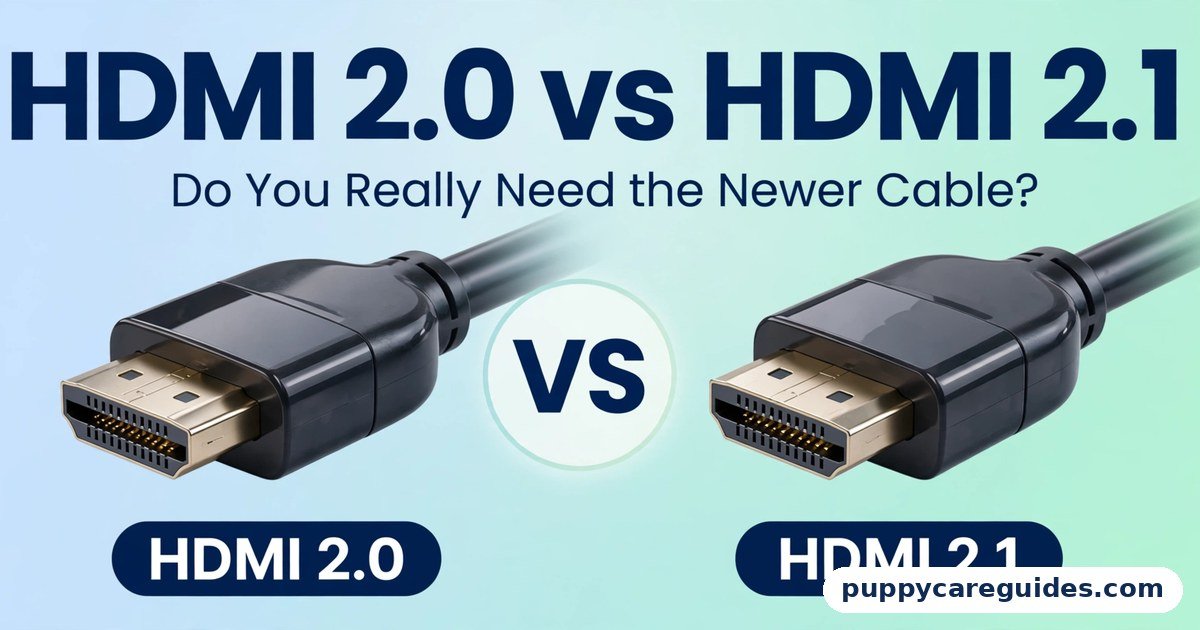
HDMI 2.0 vs HDMI 2.1: Do You Really Need the Newer Cable?
Quick Answer
If you only watch films and TV at 4K, HDMI 2.0 is enough — it handles 4K at 60Hz with HDR perfectly well. If you game on a PS5, Xbox Series X, or a modern gaming PC and want 4K at 120Hz, HDMI 2.1 is mandatory. That is the short answer to hdmi 2.0 vs hdmi 2.1.
For more technical background, see the HDMI overview on Wikipedia.
Table of Contents
The difference is bandwidth: HDMI 2.0 carries 18 Gbps, HDMI 2.1 carries 48 Gbps — nearly three times as much. That extra capacity is what unlocks 4K at 120Hz, 8K at 60Hz, uncompressed soundbar audio through eARC, and automatic gaming features like VRR and ALLM. But there is a catch that catches thousands of buyers: an HDMI 2.1 cable does nothing unless the ports on both devices are also HDMI 2.1, and the version printed on a product box is not always honest. This guide explains what each version actually does, how to check what you already own, and when paying for 2.1 is money well spent versus money wasted.
Introduction
The plugs look identical. The ports look identical. Yet one HDMI cable runs your PS5 at a smooth 120 frames per second while another quietly limits the same console to 60 — and the only difference is a version number most people never check.
HDMI versions are generations of the same standard. Each generation raised the amount of data the connection can carry, and each new wave of TVs, consoles, and features was built on that extra capacity. HDMI 2.0 arrived in 2013 and powered the entire first era of 4K. HDMI 2.1 arrived in 2017 and exists mainly for two audiences: gamers who want high frame rates at 4K, and home-theatre owners who want the best possible audio from a soundbar.
So do you need it? The honest answer depends on three things: what you watch, what you play, and what your TV’s ports actually support. By the end of this guide you will be able to check all three in about two minutes. And if you are still deciding between cable families rather than versions, start with our HDMI vs DisplayPort comparison. The hdmi 2.0 vs hdmi 2.1 decision is simpler than it looks once you know what to check first.
hdmi 2.0 vs hdmi 2.1: Quick Comparison Table
The table below sums up hdmi 2.0 vs hdmi 2.1 at a glance.
| Feature | HDMI 2.0 | HDMI 2.1 |
|---|---|---|
| Bandwidth | 18 Gbps | 48 Gbps |
| Max 4K refresh rate | 60Hz | 120Hz |
| 8K support | No (4K is the practical ceiling) | Yes — 8K at 60Hz |
| 10K support | No | Yes, for commercial/industrial use |
| HDR | Yes — static HDR10 (from 2.0a) | Yes — plus Dynamic HDR, scene by scene |
| Audio return | ARC — compressed 5.1 at best | eARC — uncompressed 5.1/7.1, Dolby Atmos, DTS:X |
| Gaming features | None standardised | VRR, ALLM, QFT, QMS |
| Cable label to buy | “High Speed” / “Premium High Speed” | “Ultra High Speed” (certified, with QR code) |
| Typical devices | 4K TVs up to ~2019, PS4, older PCs | PS5, Xbox Series X, gaming TVs, RTX 40-series PCs |
| Price of a good cable | Low | Low — slightly more, certification included |
Note: the version must match at every link in the chain — source device, cable, and TV port. One HDMI 2.0 link anywhere limits the whole connection to HDMI 2.0 behaviour.
What Is HDMI 2.0?
HDMI 2.0 (with its small updates 2.0a and 2.0b) was the standard that made 4K mainstream. Its 18 Gbps of bandwidth carries 4K at 60Hz — exactly what films, TV broadcasts, streaming services, and the PS4 generation of consoles needed. Version 2.0a added HDR support, so an HDMI 2.0 connection delivers 4K HDR movies from Netflix, Disney+, or a 4K Blu-ray player without any compromise at all. The whole hdmi 2.0 vs hdmi 2.1 story starts here.
It also brought 21:9 ultrawide support, up to 32 audio channels, and HDCP 2.2 copy protection, which streaming services require for 4K playback. Its audio return channel, plain ARC, sends sound from the TV back to a soundbar, limited to compressed 5.1 formats such as standard Dolby Digital — fine for most soundbars, short of the best for high-end systems.
In short, HDMI 2.0 is not an old failure. It is a complete, capable standard for everything the streaming era asks of it — as long as frame rates stay at 60Hz and below.
Real example: You watch a 4K HDR film on Netflix through a 2018 4K TV, with a soundbar connected by ARC. Every part of that experience — the resolution, the HDR, the frame rate of the film, the sound — fits comfortably inside HDMI 2.0. Upgrading the cable to 2.1 would change absolutely nothing. In any hdmi 2.0 vs hdmi 2.1 comparison, HDMI 2.0 stands for everything most viewers actually need.
What Is HDMI 2.1?
HDMI 2.1 nearly tripled the bandwidth to 48 Gbps and spent that capacity on the things 2.0 could not do. The headline is 4K at 120Hz — double the frame rate for games — plus 8K at 60Hz for the few 8K TVs that exist. It added Dynamic HDR, which adjusts brightness scene by scene or even frame by frame instead of using one setting for a whole film. The hdmi 2.0 vs hdmi 2.1 gap is easiest to understand right here.
For gamers it added a toolkit that matters more than raw resolution: VRR (Variable Refresh Rate) lets the TV match the console’s frame rate moment by moment, removing screen tearing and stutter; ALLM (Auto Low Latency Mode) switches the TV into game mode automatically when a console is detected; QFT (Quick Frame Transport) trims input lag; and QMS (Quick Media Switching) removes the black screen pause when switching between video frame rates. For gamers, the hdmi 2.0 vs hdmi 2.1 difference shows up the moment a game passes 60 frames per second.
For audio, eARC replaced ARC. Where ARC tops out at compressed 5.1, eARC has the bandwidth for uncompressed 7.1 audio and object-based formats like Dolby Atmos and DTS:X sent from the TV to a soundbar or receiver at full quality — essential if your console or Blu-ray player plugs into the TV and the sound travels onward.
One warning belongs in this definition, because it confuses more buyers than everything else combined: in 2021 the HDMI Licensing Administrator allowed manufacturers to label devices “HDMI 2.1” even when they only implement HDMI 2.0 features, since 2.1 technically superseded the 2.0 specification. A “2.1” logo alone therefore proves nothing. The features — 4K/120, eARC, VRR — must be listed individually. Check for the features, not the version sticker.
Real example: You connect an Xbox Series X to a 2023 gaming TV with a certified Ultra High Speed cable. The console’s settings screen lights up green ticks for 4K 120Hz, VRR, and Dolby Atmos. Swap in your old HDMI 2.0 cable and several ticks disappear — the console falls back to 4K at 60Hz. Same console, same TV, different cable generation. In any hdmi 2.0 vs hdmi 2.1 comparison, HDMI 2.1 stands for 4K at 120Hz and next-gen gaming features.
hdmi 2.0 vs hdmi 2.1: Key Differences Between HDMI 2.0 and HDMI 2.1
1. Bandwidth: 18 Gbps vs 48 Gbps
Everything else follows from this single number. A 4K picture at 60Hz with HDR fits in 18 Gbps. Double the frame rate to 120Hz and it does not fit anymore — you need HDMI 2.1’s 48 Gbps pipe (or picture compromises like reduced colour depth, which is how some devices cheat). Bandwidth is also why 8K exists only on 2.1, and why eARC’s uncompressed audio needs 2.1. When in doubt, ask one question: does what I want fit in 18 Gbps? If yes, 2.0 serves you. If no, only 2.1 will do.
2. 4K at 120Hz: the gamer’s dividing line
Films are shot at 24 frames per second and TV shows at 25–60, so viewers never meet this limit. Gamers do. The PS5 and Xbox Series X can output selected games at 120fps, and gaming PCs go higher still. On an HDMI 2.0 connection, a PS5 at 4K is capped at 60Hz; ask it for 120Hz and it drops the resolution to 1080p instead. Only a full HDMI 2.1 chain — console port, certified cable, and a 2.1 port on a 120Hz TV — delivers 4K and 120Hz together. This single feature is the reason most people buy 2.1, and our 30fps vs 60fps guide explains why frame rate changes how a game feels.
3. eARC: soundbars grow up
If your setup is TV speakers or a basic soundbar, ARC on HDMI 2.0 is fine. If you own a Dolby Atmos soundbar or an AV receiver and your sources plug into the TV, eARC matters: it is the only way to pass full-quality, uncompressed Atmos audio from the TV onward. With plain ARC the TV must compress the audio, and some formats are downmixed or dropped entirely. Home-theatre owners are the second big audience for HDMI 2.1 — for the sound, not the picture.
4. For ordinary TV and movies, 2.0 is genuinely enough
Streaming tops out at 4K 60Hz, and almost all of it is 24–30fps content wearing a 60Hz container. A 4K Blu-ray is the same. Sports broadcasts are 50/60Hz. None of it touches HDMI 2.0’s ceiling, which is why owners of older 4K TVs lose nothing by keeping their cables. The upgrade pressure around HDMI 2.1 comes from gaming and high-end audio — if neither describes you, save your money with a clear conscience.
5. The cable label: “Ultra High Speed” is the tell
HDMI cables are not officially sold as “HDMI 2.0 cables” or “HDMI 2.1 cables” — they are sold by speed categories. For 2.0, look for High Speed or Premium High Speed. For 2.1, look for Ultra High Speed, ideally the certified kind with the QR-code hologram on the packaging that you can verify in the HDMI certification app. A cable that says only “4K” or “HDMI cable” in big letters, with no speed category, is a gamble — and at 48 Gbps, length matters too: certified passive Ultra High Speed cables are typically 1–3 metres; longer runs need active or fibre-optic designs. Every hdmi 2.0 vs hdmi 2.1 difference above comes back to bandwidth.
hdmi 2.0 vs hdmi 2.1: Best Uses of HDMI 2.0
- Streaming 4K HDR films and series on any TV — Netflix, Disney+, Prime Video, Apple TV+
- 4K Blu-ray players and older media boxes
- PS4, Xbox One, and Nintendo Switch (the Switch tops out at 1080p anyway)
- Office and everyday PC use at 4K 60Hz or 1440p
- Basic soundbars using ARC for TV audio
- Any setup where the TV itself is HDMI 2.0 — a 2.1 cable cannot add features the ports lack
hdmi 2.0 vs hdmi 2.1: Best Uses of HDMI 2.1
- PS5 and Xbox Series X at 4K 120Hz with VRR on a 120Hz gaming TV
- Gaming PCs with HDMI 2.1 graphics cards (RTX 30/40-series and newer) connected to TVs or 4K 144Hz monitors
- Dolby Atmos soundbars and AV receivers using eARC for uncompressed audio
- 8K TVs — the only way to feed them a native 8K signal
- Future-proofing a wall-mounted or in-wall cable run you do not want to redo
- Mixed setups where ALLM and QMS remove daily friction (instant game mode, no black-screen pauses). For PS5, Xbox Series X and gaming PCs, the hdmi 2.0 vs hdmi 2.1 edge clearly goes to 2.1.
Pros and Cons
HDMI 2.0 — Pros
- Handles all streaming, broadcast, and Blu-ray content perfectly
- Cables are the cheapest and already in most homes
- Every 4K TV from the last decade supports it
- Zero benefit is lost for movie and TV watching
HDMI 2.0 — Cons
- Caps consoles and PCs at 4K 60Hz (or 1080p at 120Hz)
- ARC compresses audio; no uncompressed Atmos passthrough
- No VRR, ALLM, or other gaming features
- No 8K support
HDMI 2.1 — Pros
- 4K at 120Hz and 8K at 60Hz headroom
- VRR and ALLM make console gaming visibly smoother and simpler
- eARC passes uncompressed 5.1/7.1, Dolby Atmos, and DTS:X
- One cable standard covers gaming, cinema, and future devices. That is the hdmi 2.0 vs hdmi 2.1 balance in one line.
HDMI 2.1 — Cons
- Useless extra cost if your TV or source is only HDMI 2.0
- “2.1” labelling is unreliable — some labelled devices lack the features
- Certified cables in longer lengths cost noticeably more
- Many TVs offer only one or two 2.1 ports, forcing choices. This is where the hdmi 2.0 vs hdmi 2.1 choice really bites.
hdmi 2.0 vs hdmi 2.1: Which Should You Choose?
- Movie and series watcher: HDMI 2.0, confidently. Keep the cables you own. Spend the savings on the streaming subscription, not the wire.
- PS5 / Xbox Series X owner with a 120Hz TV: HDMI 2.1 is not optional if you want 4K at 120Hz — one certified Ultra High Speed cable, plugged into the TV port marked 4K/120 or eARC as appropriate.
- Console owner with a 60Hz TV: HDMI 2.0 is fine today; your TV is the ceiling. Buy 2.1 when you replace the TV, or buy one Ultra High Speed cable now since it is backward compatible and cheap insurance.
- Atmos home-theatre owner: HDMI 2.1 (for eARC) between the TV and the soundbar or receiver, even if you never game.
- PC gamer using a TV as a monitor: HDMI 2.1 end to end — graphics card port, certified cable, TV port — for 4K 120Hz with VRR. On a desk monitor, DisplayPort may serve you better instead. Decide hdmi 2.0 vs hdmi 2.1 by the screen and console you own, and the choice makes itself.
hdmi 2.0 vs hdmi 2.1: Common Mistakes
- Buying a 2.1 cable for a 2.0 TV and expecting 120Hz. The cable is never the only link. Ports decide the ceiling; the cable can only fail to reach it.
- Trusting the “HDMI 2.1” label on a monitor or TV. Because of the labelling rules, some “2.1” products implement only 2.0 features. Verify “4K 120Hz” and “eARC” in the spec list, not the version badge.
- Plugging the console into the wrong TV port. Many TVs reserve full 2.1 bandwidth for one or two ports (often labelled “4K 120Hz” or “eARC”). The other ports may be 2.0. Read the tiny print beside each socket.
- Judging a cable by “4K” printed on the packet. 4K at 30Hz is an HDMI 1.4 trick from 2009. The only meaningful words are the speed category: Ultra High Speed for 2.1.
- Running a long passive cable at 48 Gbps. Beyond roughly 3 metres, passive Ultra High Speed cables become unreliable — expect dropouts and black screens. Use certified active or fibre-optic cables for long runs.
- Forgetting the PS5’s own limit. The PS5’s HDMI output is capped at 32 Gbps, so on some TVs you must disable a “deep colour” style setting or accept 4K 120Hz with slightly reduced colour depth. This is normal behaviour, not a faulty cable. Most hdmi 2.0 vs hdmi 2.1 regrets come from exactly these avoidable errors.
How to Tell If Your Existing Cable Supports HDMI 2.1
- Read the jacket. Most cables have their category printed along the length in small text. “Ultra High Speed” means 48 Gbps — you are set. “High Speed” or “Premium High Speed” means 18 Gbps — HDMI 2.0 level. No printing usually means an old, slow cable.
- Check the packaging if you still have it. Certified Ultra High Speed cables carry a QR-code hologram label you can scan with the official HDMI Cable Certification app to verify authenticity.
- Ask the console. On a PS5, go to Settings → Screen and Video → Video Output Information: it lists the resolution, refresh rate, and features available through the current cable and port. On Xbox Series X, the “4K TV details” screen shows green ticks for each supported mode — a cable or port problem shows up here immediately.
- Test 120Hz directly. Enable 120Hz output in the console or PC settings and open a game that supports it. If the TV’s info banner reports 4K at 120Hz, the whole chain is 2.1. If it drops to 1080p or refuses, one link is 2.0.
- Check eARC in the TV menu. If the TV offers an eARC setting (not just ARC) and your soundbar reports Dolby Atmos from a TV app, the TV side supports 2.1 audio. The cable between TV and soundbar must be at least High Speed with Ethernet — Ultra High Speed removes all doubt.
- When in doubt, replace the one cable. A short certified Ultra High Speed cable is inexpensive and backward compatible with everything. It eliminates the cable as a variable in one step. Whichever way you decide hdmi 2.0 vs hdmi 2.1, always check the port labels on your TV before you buy a cable.
hdmi 2.0 vs hdmi 2.1: FAQs
How can I tell if my old cable is HDMI 2.1?
Look for “Ultra High Speed” printed on the cable jacket or its packaging — that category is the 48 Gbps one, and certified versions carry a scannable QR hologram. If it says “High Speed” or “Premium High Speed,” it is an 18 Gbps (2.0-level) cable. If it says nothing at all, treat it as too slow for 4K 120Hz and verify with the console test described above: plug it into a PS5 or Xbox, and the system’s own display report will tell you exactly which modes the cable allows. This is the core of the hdmi 2.0 vs hdmi 2.1 debate.
What happens if I use an HDMI 2.0 cable with my PS5?
The console works fine, but within 2.0 limits: at 4K you get a maximum of 60Hz, and if you enable 120Hz mode the console drops to 1080p to fit the bandwidth. You also lose VRR in many TV combinations and eARC-quality audio. Nothing is damaged — the system simply negotiates the best the cable allows. For films and 60fps games you may never notice; for 120fps gaming you need the Ultra High Speed cable. That is hdmi 2.0 vs hdmi 2.1 in practice.
Why does my soundbar need eARC?
Because of where the audio starts. If your console, Blu-ray player, or the TV’s own apps produce the sound and it must travel from the TV to the soundbar, plain ARC compresses it to basic 5.1 — Dolby Atmos from streaming may survive in compressed form, but uncompressed 5.1/7.1 and full Atmos from a Blu-ray or console cannot pass. eARC, part of HDMI 2.1, has the bandwidth to carry those formats untouched. If all your sources plug directly into the soundbar or receiver instead, eARC matters much less. That is the hdmi 2.0 vs hdmi 2.1 difference where it counts.
Is an HDMI 2.1 cable worth it for a regular 4K TV?
If the TV’s ports are HDMI 2.0 — true of most 4K TVs sold before 2020 — the cable adds nothing today, because the ports set the ceiling. It is still not a foolish purchase: Ultra High Speed cables are backward compatible, cost little more, and will be the right cable when you eventually upgrade the TV or add a console. Just do not expect any picture improvement from the swap alone. That is the hdmi 2.0 vs hdmi 2.1 difference in daily use.
Can HDMI 2.0 do 120Hz at all?
Yes — at lower resolutions. HDMI 2.0’s 18 Gbps handles 1080p at 120Hz (and even 240Hz in some configurations) and 1440p at 120Hz in many PC setups. What it cannot do is 4K at 120Hz. This is why a PS5 on a 2.0 cable offers you a choice between 4K/60 and 1080p/120: the bandwidth budget forces the trade. That is the hdmi 2.0 vs hdmi 2.1 difference that matters most.
hdmi 2.0 vs hdmi 2.1: Final Verdict
No 120Hz gaming and no Atmos soundbar? HDMI 2.0 is enough. Chasing either one? HDMI 2.1 is mandatory.
HDMI 2.1 is not a picture-quality upgrade — a 4K film looks identical through both. It is a headroom upgrade: more frames for games, more audio for soundbars, more automation for daily use. Buy it when a device you own can actually spend that headroom, verify features instead of version stickers, and remember that the console, the cable, and the TV port must all be 2.1 before any of it switches on. Choose correctly and this is a one-time, inexpensive decision you never think about again. That is the hdmi 2.0 vs hdmi 2.1 choice in short: 2.0 for watching, 2.1 for gaming.
Next: USB 2.0 vs USB 3.0: What’s the Real Speed Difference? — the other cable drawer mystery: why one port copies a film in four minutes and the other takes fifty.
Related Articles
- HDMI vs DisplayPort: Which Is Better for Your Monitor or TV? — the cable-family question, answered
- USB-C vs Thunderbolt: What’s the Difference? — identical-looking ports, very different speeds
- 1080p vs 4K: Which Resolution Is Better for YouTube? — what 4K actually adds over 1080p
- 30fps vs 60fps: Which Frame Rate Is Better for Video? — why frame rates decide your cable needs
- MP4 vs MKV: Which Is Better for Videos? — the files you will be sending over these cables







Leave a Reply