


HDMI vs DisplayPort: Which Is Better for Your Monitor or TV?
Quick Answer
Use HDMI for TVs, game consoles, and home theatre. Use DisplayPort for a gaming PC and a high-refresh monitor. That is the short answer to HDMI vs DisplayPort.

For more technical background, see the DisplayPort overview on Wikipedia.
Table of Contents
At the same resolution and refresh rate, the picture quality is identical — both carry a digital signal, so there is no “sharper” cable. The real differences are bandwidth headroom, extra features, and where each port actually exists. TVs and consoles are HDMI territory: most TVs have no DisplayPort at all, and neither the PlayStation nor the Xbox offers one. PC monitors are the opposite: their DisplayPort input usually unlocks the panel’s full refresh rate, while the HDMI port on the same monitor is often a slower version that caps you at 60Hz. If both your device and your screen offer both ports and you are not chasing high refresh rates, either cable works — pick the one you already own.
Introduction
You unbox a new monitor and find two cables in the box and two matching ports on the back of your PC. One is HDMI, the other is DisplayPort. They look similar, both carry picture and sound, and both seem to “work.” So which one should you actually plug in — and does it matter?
It matters more than most people realise, just not for the reason they expect. The cable itself will not make colours richer or text sharper. What it decides is the ceiling: the maximum resolution and refresh rate your screen can run at, whether your TV can send audio back to a soundbar, and whether you can daisy-chain a second monitor. Pick the wrong port and a 144Hz gaming monitor quietly behaves like a 60Hz office screen. Pick the right one and everything you paid for simply works.
This guide compares HDMI vs DisplayPort in plain language: what each standard is, where each one wins, the version trap that catches almost everyone, and a simple rule for choosing. If your confusion is really about which HDMI version you need, our HDMI 2.0 vs HDMI 2.1 guide goes deeper on that specific question. The HDMI vs DisplayPort decision is simpler than it looks once you know what to check first.
HDMI vs DisplayPort: Quick Comparison Table
The table below sums up HDMI vs DisplayPort at a glance.
| Feature | HDMI | DisplayPort |
|---|---|---|
| Full name | High-Definition Multimedia Interface | DisplayPort |
| Managed by | HDMI Licensing Administrator | VESA |
| Latest common version | HDMI 2.1 | DisplayPort 1.4 (2.1 is newer and rarer) |
| Max bandwidth | 48 Gbps (HDMI 2.1) | 32.4 Gbps (DP 1.4); up to 80 Gbps (DP 2.1) |
| Max resolution / refresh | 4K at 120Hz, 8K at 60Hz (2.1) | 4K at 120Hz, 8K at 60Hz with DSC (1.4); 4K at 240Hz (2.1) |
| Audio support | Yes — plus ARC/eARC return channel for soundbars | Yes — multichannel audio, but no return channel |
| Where you find it | TVs, consoles, laptops, monitors, projectors | PC monitors, graphics cards, docks, USB-C ports |
| Daisy-chaining monitors | No | Yes — Multi-Stream Transport (MST) |
| Adaptive sync | VRR in HDMI 2.1; FreeSync over HDMI | FreeSync and G-Sync native territory |
| Locking connector | No — friction fit (rare locking variants exist) | Yes — latching connector on full-size plugs |
| Cable price / availability | Very cheap, sold everywhere | Cheap, but mostly sold for PC use |
| Best for | TV, console, home theatre, everyday use | Gaming PC, high-refresh and multi-monitor setups |
Note: maximum figures depend on the version of the port on BOTH ends and the cable. An HDMI 2.1 cable plugged into an HDMI 1.4 port still runs at HDMI 1.4 speeds.
What Is HDMI?
HDMI is the universal connection of the living room. Introduced in 2003, it replaced a tangle of separate video and audio cables with one plug that carries both. Today it is the standard port on TVs, game consoles, streaming sticks, Blu-ray players, soundbars, laptops, and projectors — billions of devices. The whole HDMI vs DisplayPort story starts here.
HDMI’s superpower is not raw speed; it is the ecosystem around it. Two features explain why TVs belong to HDMI. ARC and eARC (Audio Return Channel) let a TV send its sound back down the same cable to a soundbar or AV receiver, so one cable handles picture in and audio out. CEC lets one remote control everything: press power on your console remote and the TV and soundbar wake up too. No DisplayPort device offers either trick.
HDMI comes in versions, and the version decides the ceiling. HDMI 1.4 manages 1080p at 120Hz or 4K at 30Hz. HDMI 2.0 raised that to 4K at 60Hz. HDMI 2.1 — the current top standard — jumps to 48 Gbps, enough for 4K at 120Hz and 8K at 60Hz, plus gaming features like Variable Refresh Rate (VRR) and Auto Low Latency Mode (ALLM). The catch, covered in the mistakes section below, is that the port on your device may be any of these versions while looking exactly the same.
Real example: You connect a PlayStation 5 to a 4K TV. HDMI is not merely the best choice — it is the only choice. The console has no DisplayPort, the TV has no DisplayPort, and the HDMI cable also lets the TV send game audio to your soundbar through eARC. One cable, picture and sound, everything controlled by one remote. In any HDMI vs DisplayPort comparison, HDMI stands for the cable every TV and console already uses.
What Is DisplayPort?
DisplayPort was created by VESA, the standards body behind PC monitor technology, and launched in 2006 specifically for connecting computers to monitors. Where HDMI was designed for the living room, DisplayPort was designed for the desk — and for pushing the highest resolutions and refresh rates a PC can produce. The HDMI vs DisplayPort gap is easiest to understand right here.
Its headline talents are refresh rate and flexibility. DisplayPort 1.4, the version on most graphics cards and gaming monitors today, delivers 32.4 Gbps — enough for 1440p at 240Hz, or 4K at 120Hz and even 8K using DSC, a visually lossless compression trick. The newer DisplayPort 2.1 raises the ceiling to 80 Gbps, enough for 4K at 240Hz without breaking a sweat. DisplayPort also supports MST daisy-chaining: one cable from your PC to the first monitor, a second short cable from that monitor to the next, and both screens work — something HDMI simply cannot do. At a gaming desk, the HDMI vs DisplayPort difference shows up in refresh rate first.
Two more desk-friendly details: full-size DisplayPort plugs latch into the port and need a squeeze to release, so they never slip out when you tilt a monitor; and DisplayPort travels happily over USB-C (called DisplayPort Alt Mode), which is how a single USB-C cable from a laptop drives an external monitor. DisplayPort is also royalty-free for manufacturers, one reason monitor makers include it so generously.
Real example: You build a gaming PC with a 1440p 240Hz monitor. The monitor’s box includes both cables. Plug in HDMI and Windows caps the screen at 144Hz — or lower — because the monitor’s HDMI port is version 2.0. Plug in DisplayPort and the full 240Hz appears. Same monitor, same PC, different ceiling. In any HDMI vs DisplayPort comparison, DisplayPort stands for the highest refresh rates on PC monitors.
HDMI vs DisplayPort: Key Differences Between HDMI and DisplayPort
1. High-refresh gaming: DisplayPort leads on PC
For PC gaming, DisplayPort is the safer default. Gaming monitors are built around it: the DisplayPort input almost always supports the panel’s maximum refresh rate, while the HDMI input is frequently a slower version added for convenience. Graphics cards reinforce this — most offer one HDMI port and three DisplayPorts. Features like NVIDIA G-Sync were born on DisplayPort, and AMD FreeSync works over both, but the monitor’s best mode is nearly always on the DisplayPort input.
2. TVs and home theatre: HDMI is the only game in town
Televisions simply do not have DisplayPort inputs. Consoles do not have DisplayPort outputs. And only HDMI offers eARC for soundbars and CEC for one-remote control. In the living room there is no contest to judge: HDMI wins by being present. If you are connecting anything to a TV, stop deliberating and use HDMI — just make sure it is the right version, as our HDMI 2.0 vs HDMI 2.1 comparison explains.
3. Picture quality: identical, and here is why
Both standards send a digital signal — a stream of numbers. At the same resolution, refresh rate, and colour depth, the numbers are the same, so the picture is the same. There is no analogue fuzz to clean up and no quality magic in either plug. When people see a “better picture” after switching cables, what actually changed is the settings the new connection unlocked: a higher refresh rate, full-range RGB instead of limited range, or 10-bit colour instead of 8-bit. DisplayPort sometimes enables more of those settings on PC monitors — but it enables them; it does not enhance them.
4. Multi-monitor setups: DisplayPort daisy-chains
With DisplayPort MST, a laptop with one port can drive two monitors in a chain, and docking stations use the same trick to run two or three screens over one cable. HDMI has no equivalent: each HDMI screen needs its own port or a splitter that merely copies the same image. For tidy desk setups and laptops, this alone can settle the choice.
5. Why one monitor has both ports
Monitor makers include HDMI because the wider world speaks HDMI — laptops, consoles, streaming sticks, cameras. They include DisplayPort because PC graphics cards and high refresh rates speak DisplayPort. The ports are not duplicates; they are doors for different guests. A common and sensible setup is a PC on DisplayPort and a console on HDMI, sharing one monitor through its input button.
6. The version matters more than the name
“HDMI” on a spec sheet might mean 1.4, 2.0, or 2.1 — a threefold difference in bandwidth. “DisplayPort” might mean 1.2, 1.4, or 2.1. The port shapes never changed, so the only way to know your ceiling is to check the version numbers in the manual or spec page for both the device and the screen, then use a cable rated for the higher of the two. The weakest link sets the speed for the whole chain. Every HDMI vs DisplayPort difference above comes back to living room versus desk.
HDMI vs DisplayPort: Best Uses of HDMI
- Connecting a console (PS5, Xbox, Switch dock) to a TV — the only option, and the right one
- Home theatre with a soundbar or AV receiver — eARC sends full-quality audio back from the TV
- Laptop to TV or projector for films, presentations, and photos
- Streaming sticks and Blu-ray players — all HDMI by design
- Everyday office monitor use at 60Hz, where HDMI is present on every laptop
- Sharing one screen between a console and other HDMI sources with one-remote CEC control
HDMI vs DisplayPort: Best Uses of DisplayPort
- Gaming PCs with high-refresh monitors — 144Hz, 240Hz and beyond at 1440p or 4K
- Multi-monitor desks using MST daisy-chaining or a DisplayPort dock
- Laptops with USB-C — DisplayPort Alt Mode drives a monitor over one small cable
- Workstations pushing 5K, ultrawide, or multiple 4K screens
- Any monitor whose HDMI port is a slower version than its DisplayPort input
- Setups where cables get bumped — the latching plug stays put. For high-refresh PC gaming, the HDMI vs DisplayPort edge goes to DisplayPort.
Pros and Cons
HDMI — Pros
- Found on virtually every TV, console, laptop, and screen
- ARC/eARC audio return and CEC one-remote control
- HDMI 2.1 matches or beats common DisplayPort versions for living-room gaming (4K 120Hz)
- Cables are the cheapest and easiest to buy anywhere
HDMI — Cons
- Monitor HDMI ports are often older, slower versions
- No daisy-chaining — one port, one screen
- Version labelling is confusing; ports all look identical
- Licensing royalties make it rarer than DisplayPort on pure PC gear
DisplayPort — Pros
- Highest refresh rates on PC monitors; DP 2.1 reaches 80 Gbps
- Daisy-chaining and superb dock support via MST
- Travels over USB-C, so one cable can drive a monitor from a laptop
- Latching connector and royalty-free standard. That is the HDMI vs DisplayPort balance in one line.
DisplayPort — Cons
- Absent from TVs and consoles entirely
- No audio return channel or device-control features
- Cables and adapters are a PC-store purchase, not an everywhere purchase
- Adapters to HDMI are directional and a common source of confusion. This is where the HDMI vs DisplayPort choice really bites.
HDMI vs DisplayPort: Which Should You Choose?
- Console gamer: HDMI — you have no other port, and HDMI 2.1 already gives you 4K at 120Hz on a suitable TV. Spend your attention on the cable version, not the connector type.
- PC gamer: DisplayPort for your main monitor, every time. It is the port your graphics card and monitor were designed around, and the one that unlocks the full refresh rate you paid for.
- Office worker / student: Whichever cable reaches. At 1080p or 1440p and 60Hz both are identical in practice; HDMI is handy because every laptop has it. If your laptop only has USB-C, a USB-C to DisplayPort cable is the most reliable route to a monitor.
- Home-theatre builder: HDMI throughout, with eARC between the TV and soundbar or receiver. DisplayPort has no place in the chain.
- Multi-monitor professional: DisplayPort, for daisy-chaining and dock support. Reserve your HDMI port for a TV or a capture device. Decide HDMI vs DisplayPort by what you are connecting, and the choice makes itself.
HDMI vs DisplayPort: Common Mistakes
- Buying a DisplayPort cable for a TV. TVs do not have DisplayPort inputs. Check the back of the screen before ordering anything.
- Assuming DisplayPort gives a better picture. At identical settings the image is identical. What changes is which settings are available.
- Ignoring the port version on the monitor. Many monitors pair a fast DisplayPort input with an HDMI 1.4 or 2.0 input. The manual’s spec table, not the port’s shape, tells you the truth.
- Expecting 4K 120Hz over a long, cheap cable. At maximum bandwidth, passive copper cables are reliable only over roughly 2–3 metres. Longer runs need an active or fibre-optic cable — this applies to both standards.
- Using a passive adapter the wrong way round. Most DisplayPort-to-HDMI adapters work in one direction only: DisplayPort source to HDMI screen. An HDMI source cannot drive a DisplayPort monitor through a cheap passive adapter; that direction needs an active (powered) converter.
- Blaming the cable for a settings problem. A new 144Hz monitor defaults to 60Hz in Windows until you change it. Set the refresh rate in display settings before concluding the cable is wrong. Most HDMI vs DisplayPort regrets come from exactly these avoidable errors.
How to Check Your Ports and Set the Correct Refresh Rate
- Read the spec sheets. Find the version numbers: HDMI 2.0 or 2.1 on the TV or console; DisplayPort 1.4 or 2.1 on the monitor and graphics card. The lowest version in the chain is your ceiling.
- Choose the cable to match. For a PC gaming monitor, use the DisplayPort cable from the monitor’s box. For a TV, use an HDMI cable labelled for your version — “Ultra High Speed” for HDMI 2.1.
- Plug into the right ports. On TVs, one HDMI port is usually the eARC port and one may be the only 120Hz port; labels beside the ports say which. On monitors, prefer the DisplayPort input for a PC.
- Set the refresh rate in Windows. Right-click the desktop → Display settings → Advanced display → choose the highest refresh rate in the list. On a Mac, go to System Settings → Displays and select the refresh rate there.
- Enable the gaming features. On the TV, turn on its “enhanced” or “game” mode for that HDMI port; on the monitor, enable FreeSync or G-Sync in the on-screen menu and in your graphics driver.
- Test with real content. Play a game or a high-frame-rate video and confirm the screen’s own info overlay reports the resolution and refresh rate you expected. Whichever way you decide HDMI vs DisplayPort, always check the version your screen and device support.
HDMI vs DisplayPort: FAQs
Does DisplayPort give a better picture than HDMI?
No. Both are digital, so at the same resolution, refresh rate, and colour settings the picture is pixel-for-pixel the same. DisplayPort can look “better” only in the sense that it may unlock higher settings on a PC monitor — for example 240Hz instead of 144Hz, or full-range colour instead of limited. The cable enables the settings; it does not improve the image itself. This is the core of the HDMI vs DisplayPort debate.
My laptop has no DisplayPort. Will an adapter work?
Usually, yes — with one caution about direction. A USB-C port with DisplayPort Alt Mode (most modern laptops) drives a monitor through a simple USB-C to DisplayPort cable at full quality. HDMI-to-DisplayPort is the awkward direction: a passive adapter will not work, and you need an active, powered converter. DisplayPort-to-HDMI, by contrast, works with cheap passive adapters because DisplayPort outputs can emit an HDMI-compatible signal. That is HDMI vs DisplayPort in practice.
Does cable length affect quality?
A digital cable does not gradually soften the picture like an old analogue one — it either delivers the signal or starts failing visibly with flickers, sparkles, and dropouts. Length matters because high bandwidth signals weaken over distance: beyond about 2–3 metres at 4K 120Hz or DP high-refresh rates, a basic passive cable may fail. For longer runs, buy an active or fibre-optic cable rated for your resolution and refresh rate. That is the HDMI vs DisplayPort difference where it counts.
Why does my monitor have both HDMI and DisplayPort inputs?
Because different devices speak different standards. The HDMI input welcomes laptops, consoles, and streaming sticks; the DisplayPort input serves desktop PCs at full refresh rate. Many people keep both connected — PC on DisplayPort, console on HDMI — and switch inputs with the monitor’s button. It is a feature, not a redundancy. That is the HDMI vs DisplayPort difference in daily use.
Can I connect a second monitor to the same cable?
Only with DisplayPort. Its MST feature lets supporting monitors daisy-chain: PC → monitor one → monitor two, one cable from the PC. HDMI cannot do this; a second HDMI screen needs its own port, and an HDMI splitter only mirrors the same picture onto both screens rather than extending your desktop. That is the HDMI vs DisplayPort difference that matters most.
HDMI vs DisplayPort: Final Verdict
TV and console = HDMI. Gaming PC and high-refresh monitor = DisplayPort.
These two standards are not really rivals — they rule different rooms. HDMI owns the living room with universal support, eARC sound, and one-remote control. DisplayPort owns the desk with higher refresh ceilings, daisy-chaining, and a natural home on graphics cards and USB-C docks. The only genuinely wrong choices are using a slow port version without realising it, or buying a cable for a port your screen does not have.
Check the versions, match the room, and either cable will serve you well. If your next question is about resolution rather than cables, see our 1080p vs 4K comparison for what those extra pixels actually buy you. That is the HDMI vs DisplayPort choice in short: HDMI for the TV, DisplayPort for the gaming PC.
Next: HDMI 2.0 vs HDMI 2.1: Do You Really Need the Newer Cable? — the version question that decides whether your PS5 runs at 120Hz.
Related Articles
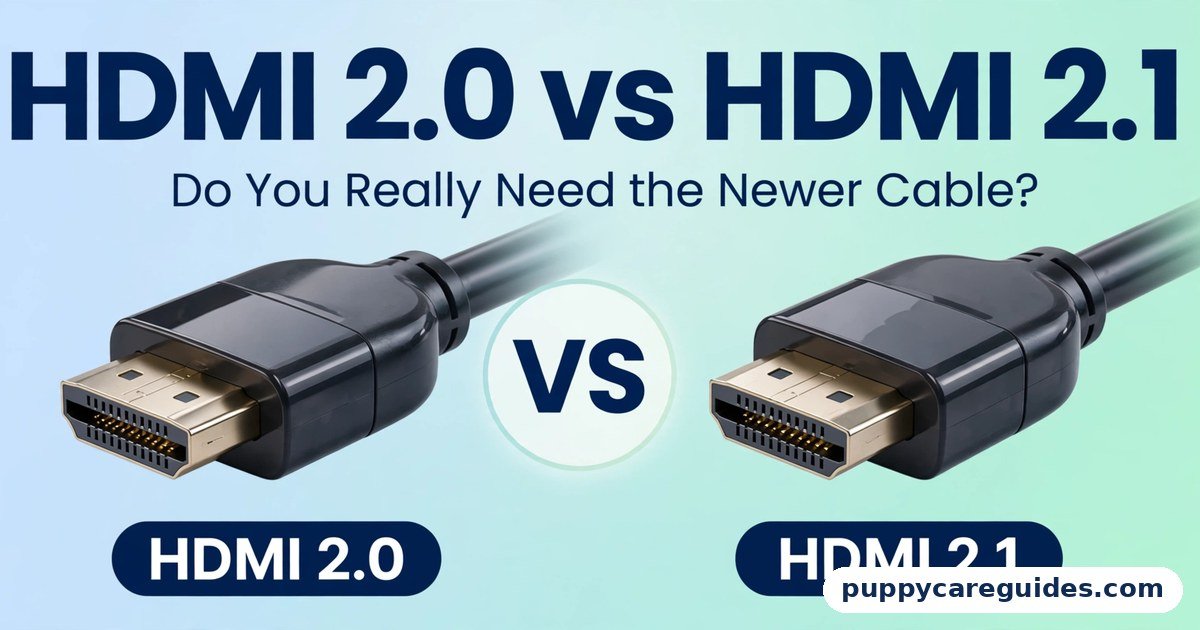
- HDMI 2.0 vs HDMI 2.1: Do You Really Need the Newer Cable? — bandwidth, eARC and 120Hz explained
- USB-C vs Thunderbolt: What’s the Difference? — the other port that looks identical but is not
- USB 2.0 vs USB 3.0: What’s the Real Speed Difference? — why the blue port matters for your drives
- 1080p vs 4K: Which Resolution Is Better for YouTube? — the resolutions these cables carry, compared
- 30fps vs 60fps: Which Frame Rate Is Better for Video? — refresh rates and frame rates, and why both matter







Leave a Reply