


JPG vs PNG: Which Is Better for Photos and Logos?
Quick Answer
Use JPG for photos and PNG for logos, screenshots, and anything that needs a transparent background.
For more technical background, see the JPEG overview on Wikipedia.
That is the short answer to jpg vs png.Table of Contents
JPG makes photo files small by removing a little detail your eye usually cannot see. PNG keeps every pixel exactly as it is, so text, logos, and sharp edges stay clean — but photo files become much bigger. Neither format wins at everything. The right choice depends on what the image shows.
Introduction
You’ve probably experienced this moment. You save an image, the software asks you to choose a format, and you’re stuck between JPG and PNG for two seconds. Or you upload an image to your website and the page suddenly loads slowly. Or your logo looks perfect on your laptop, but once you place it on a colored background, an ugly white box appears around it.
All of these little frustrations stem from the same root: JPG and PNG were designed for different jobs. JPG was designed for photographs, where colors blend easily and a small amount of lost detail doesn’t matter. PNG was designed for graphics, where every pixel matters and the background often needs to disappear completely.
This guide compares JPG vs. PNG in plain language: how each format works, where each shines, the mistakes people make with both, and a simple rule you can always follow. If you’re choosing formats for a website, you’ll also want our guide to PNG vs. WebP, which covers a new format built specifically for the web. The jpg vs png decision is simpler than it looks once you know what to check first.
jpg vs png: Quick Comparison Table
The table below sums up jpg vs png at a glance.
| Feature | JPG | PNG |
|---|---|---|
| Full name | Joint Photographic Experts Group | Portable Network Graphics |
| Compression type | Lossy — removes some detail to shrink the file | Lossless — keeps all image data |
| Transparency | No | Yes, including partial transparency |
| File size for photos | Small | Large, often several times bigger |
| File size for simple graphics | Small, but edges may look fuzzy | Small and perfectly sharp |
| Image quality | Excellent for photos at good settings | Perfect, exactly matches the original |
| Text and sharp edges | Can look blurry with fuzzy marks around letters | Always crisp and clean |
| Re-saving the file | Loses a little quality every save | No quality loss, ever |
| Animation | No | No |
| Browser and device support | Everywhere | Everywhere |
| Best for | Photos, website images, social media | Logos, screenshots, text graphics, transparency |
What Is JPG?
JPG, also written as JPEG, is the most common image format in the world. It was created in the early 1990s by the Joint Photographic Experts Group – hence the name. Its job was simple: make images small enough to store and share, without making them look worse to the average viewer. The whole jpg vs png story starts here.
JPG achieves this with lossy compression. When you save an image as JPG, the format studies the image and discards details that the human eye can’t see, like small color variations in a smooth blue sky. At a good quality setting, the saved image looks almost identical to the original but can be several times smaller.
You can also choose a quality level. A higher setting retains more detail and results in a larger file. A lower setting compresses the file aggressively but makes the image look blocky and grainy, especially around the edges. Most tools default to a sensible medium setting, which is suitable for everyday photos.
Real example: Your phone takes a photo of a beach vacation at sunset. As an uncompressed file, it can be tens of megabytes. Saved as a JPG in good quality, it becomes a small file that sends quickly on WhatsApp and still looks beautiful on a phone screen, a laptop, and even a regular-size print. In any jpg vs png comparison, JPG stands for small files that suit photos.
What Is PNG?
PNG stands for Portable Network Graphics. It emerged in the mid-1990s as a free, high-quality format for images on the early web, and it quickly became the standard for graphics that looked just right. The jpg vs png gap is easiest to understand right here.
PNG uses lossless compression. This means it shrinks the file by storing data more intelligently, not by deleting any of it. Open the PNG, save it, repeat a hundred times — the resulting image is pixel-for-pixel identical every time. Nothing is ever lost. File size is where jpg vs png gets practical.
Its second superpower is transparency. A PNG can have completely transparent areas, completely solid areas, and everything in between. This way a logo can float cleanly on any background color, a product photo can sit on a cutout shop page, and an icon can blend into an app screen. A JPG just can’t do this; its background is always a solid block of color.
Real example:Imagine your company logo. On your white business card, it looks just as good as any other shape. But on your website’s dark blue header, the JPG version shows a bright white rectangle around the logo, because the file itself has that white background. The PNG version only has the logo, so the blue header shows up exactly where it should be. In any jpg vs png comparison, PNG stands for lossless quality and transparency.
jpg vs png: Key Differences Between JPG and PNG
1. Compression: losing a little vs losing nothing
This is the difference everything else grows from. JPG’s lossy compression is a trade: you give up a small amount of invisible detail, and in return you get a dramatically smaller photo file. PNG’s lossless compression refuses that trade. It keeps all the detail, and you pay for it with storage space and loading time.
For a photo, JPG’s trade is almost always worth it. For a logo or a screenshot, it usually is not, because the detail JPG discards is exactly the detail that makes text and edges look clean.
2. Transparency: PNG’s unique advantage
If any part of your image needs to be see-through, the discussion ends immediately: choose PNG. Logos, icons, stickers, signature images, and product cut-outs all depend on transparency. JPG has no transparent pixels at all. Even a mostly empty JPG still paints its background as solid white or another colour.
Partial transparency matters too. Soft shadows and fading edges in a PNG blend smoothly into whatever sits behind the image. Recreate that same graphic as a JPG and the soft shadow becomes a hard, visible rectangle.
3. File size: it depends on the picture
People often ask which format is smaller, and the honest answer is: it depends on the image. For photographs, JPG wins easily, often by a wide margin, because photos are exactly what its compression was designed for. A detailed travel photo saved as PNG can be several times the size of the JPG version while looking identical on screen.
For simple graphics, the gap shrinks or even flips in practical terms. A logo with three flat colours contains very little data, so its PNG is small anyway — and perfectly sharp. The same logo as a JPG might be slightly smaller still, but the fuzzy edges are a poor bargain for a few saved kilobytes.
4. Sharpness: text, lines, and edges
JPG was built for smooth transitions, like skin tones and skies. It struggles with hard edges: the boundary between black text and a white page, the line of a chart, the border of a logo. Around those edges you may see a faint halo of smudged pixels, sometimes called artefacts. At small sizes it is subtle; zoom in and it becomes obvious.
PNG keeps every edge mathematically exact. Screenshots look clean, presentation slides stay readable, and diagrams keep their thin lines. If your image contains words that someone must read, PNG is almost always the safer choice.
5. Editing and re-saving
Think of JPG as a printed photocopy and PNG as the original document. Each new JPG save is like photocopying a photocopy: fine once, noticeably worse after many rounds. This matters if you edit the same file repeatedly over weeks, cropping, annotating, and re-exporting.
PNG never degrades, so it is the better working format. A common professional habit is to edit and store the master as PNG, then export a JPG copy only when a photo is finished and ready to publish or send. (Support is a tie, by the way: both formats open in every browser, phone, and printer — newer formats are a different story, as our JPG vs WebP comparison shows.) Every jpg vs png difference above comes back to lossy small files versus lossless bigger ones.
jpg vs png: Best Uses of JPG
- Everyday photos: family pictures, travel shots, food photos, and portraits from your phone or camera.
- Website photos: hero images, blog post photos, and product photography where fast loading matters.
- Social media: photos for Facebook, Instagram, and other platforms, which compress your uploads anyway.
- Email and messaging: photos you send to people, where a modest file size is quick and considerate.
- Online portfolios of photography: large collections where storing everything as PNG would waste enormous space.
jpg vs png: Best Uses of PNG
- Logos: especially any logo placed on more than one background colour, where transparency is essential.
- Screenshots: software screens, tutorials, and support images full of text and menus.
- Images containing text: charts, diagrams, infographics, certificates, and presentation graphics.
- Icons and user-interface graphics: small images that must stay pixel-sharp at tiny sizes.
- Working and master files: the copy you keep while editing, before exporting the final version.
- Transparent graphics: stickers, cut-out products, and overlays placed on top of other images. For logos and graphics with text, jpg vs png usually ends in PNG’s favour.
Pros and Cons
JPG — Pros
- Much smaller files for photographs.
- Loads quickly on websites and uses less mobile data.
- Looks excellent for photos at normal quality settings.
- Supported by every device, app, and website.
JPG — Cons
- No transparency support at all.
- Loses a little quality every time it is re-saved.
- Text and sharp edges can look fuzzy.
- Poor choice for logos and screenshots.
PNG — Pros
- Perfect, lossless quality that never degrades.
- Full transparency support, including soft edges and shadows.
- Text, logos, and screenshots stay perfectly sharp.
- Supported by every device, app, and website. That is the jpg vs png balance in one line.
PNG — Cons
- Photo files are much larger than JPG.
- Large PNGs slow down web pages.
- Wasteful for storing or sharing big photo collections.
- No benefit over JPG for an ordinary photo on a screen. This is where the jpg vs png choice really bites.
jpg vs png: Which Should You Choose?
Beginner / everyday user: Follow the one-line rule: photos go to JPG, screenshots and logos go to PNG. That single habit covers almost every situation you will meet.
Student: Use JPG for photos inside assignments and presentations to keep the file small enough to submit easily. Use PNG for charts, diagrams, and screenshots, because your teacher needs to read the labels clearly.
Creator / blogger: Publish photos as JPG so your pages load fast, and keep your logo, thumbnails with text, and infographics as PNG. When your site grows, look at WebP next — our PNG vs WebP guide shows where it beats both of these formats on speed.
Professional / designer: Keep master files lossless (PNG or your design tool’s native format) while you work. Deliver photos as high-quality JPG and graphics as PNG. Never deliver a client’s final logo only as a JPG; the missing transparency will cause problems the first time they place it on a dark background. Decide jpg vs png by the job — a photo or a graphic — and the choice makes itself.
jpg vs png: Common Mistakes to Avoid
Mistake 1: Saving photos as PNG “for better quality.” If the photo came from a camera or phone, the PNG version is not better quality — it is the same picture in a much bigger file. Quality cannot be added by changing the container.
Mistake 2: Converting a JPG to PNG to “restore” it. The detail JPG removed is gone forever. Converting only inflates the file size. If you need top quality, go back to the original camera file, not the JPG copy. Our JPG vs JPEG article explains a similar naming myth in detail.
Mistake 3: Sending a logo as JPG. The white box problem appears the moment the logo lands on any non-white background. Always keep and send a transparent PNG (or SVG) version.
Mistake 4: Re-saving the same JPG again and again. Crop, edit, and save from the master file each time instead of editing the exported JPG repeatedly.
Mistake 5: Using huge PNG photos on a website. A page carrying several multi-megabyte PNG photos will feel slow on mobile data, and visitors will leave before they see your content. Most jpg vs png regrets come from exactly these avoidable errors.
How to Convert Between JPG and PNG
Sometimes you genuinely need to switch formats — for example, turning a JPG photo into a PNG working file, or exporting a PNG graphic as a JPG for email. The steps are simple on any device:
- On Windows: Open the image in the Photos app (or Paint), choose Save As or Export, and select the format you need.
- On Mac: Open the image in Preview, go to File → Export, and pick JPEG or PNG from the format menu.
- On a phone: Use a free converter app, or open the image in your gallery editor and look for a Save Copy or Export option with format choice.
- Online: Free converter websites let you drop in a file and download the converted version. Use well-known tools, and avoid uploading private or sensitive images to random sites.
- Before you save: For JPG, set quality around 80–90 for photos — a good balance of size and appearance. For PNG there is no quality setting to worry about; lossless is lossless.
Remember the direction matters. PNG to JPG is a sensible final step for photos. JPG to PNG only makes sense when you need transparency added during editing or a lossless working copy — it will not improve the picture itself. Whichever side of jpg vs png you pick, keep the original file saved before you convert.
jpg vs png: Frequently Asked Questions
Is PNG always better than JPG?
No. PNG is better for graphics, logos, screenshots, and transparency. JPG is better for photos because it gives almost the same visible quality in a much smaller file. “Better” always depends on what the image is and where it will be used. This is the core of the jpg vs png debate.
Does converting a JPG to PNG improve its quality?
No. Conversion cannot bring back detail that JPG compression already removed. The PNG copy looks identical to the JPG but takes up more space. If quality matters, start from the original photo or camera file instead. That is jpg vs png in practice.
Which format is fastest for a website?
For photos, JPG, because smaller files load faster and use less of your visitor’s data. Logos and small graphics are fine as PNG since those files are naturally small. If speed is your top priority, WebP usually beats both for website use. That is the jpg vs png difference where it counts.
Why does my logo have a white background in JPG?
Because JPG cannot store transparency. The empty area around your logo is saved as solid pixels, usually white. Save the logo as PNG instead, and the background disappears so any page colour can show through. That is jpg vs png in daily use.
Can I use PNG for printing photos?
You can, and it will print correctly, but for photographs it offers no visible advantage over a high-quality JPG and creates much larger files. Printers and photo services accept JPG happily. PNG is more useful for printing graphics, posters with text, and designs that need exact edges. That is the jpg vs png difference that matters most.
jpg vs png: Final Verdict
Photo = JPG. Graphic or transparency = PNG.
Do not search for one winner. Save photos as JPG so they stay small, fast, and easy to share. Save logos, screenshots, and text images as PNG so they stay sharp, clean, and free of ugly background boxes. Learn that single rule and you will pick the right format almost every time. That is the jpg vs png choice in short: JPG for photos and small files, PNG for graphics, logos and transparency.
Related Articles
- JPG vs JPEG: Is There Any Difference? — the next post: two names, one format, and the simple history behind them.
- PNG vs WebP: Which Is Better for Websites? — when the newer WebP format beats PNG on speed.
- JPG vs WebP: Which Is Better for Photos? — the photo side of the WebP question.
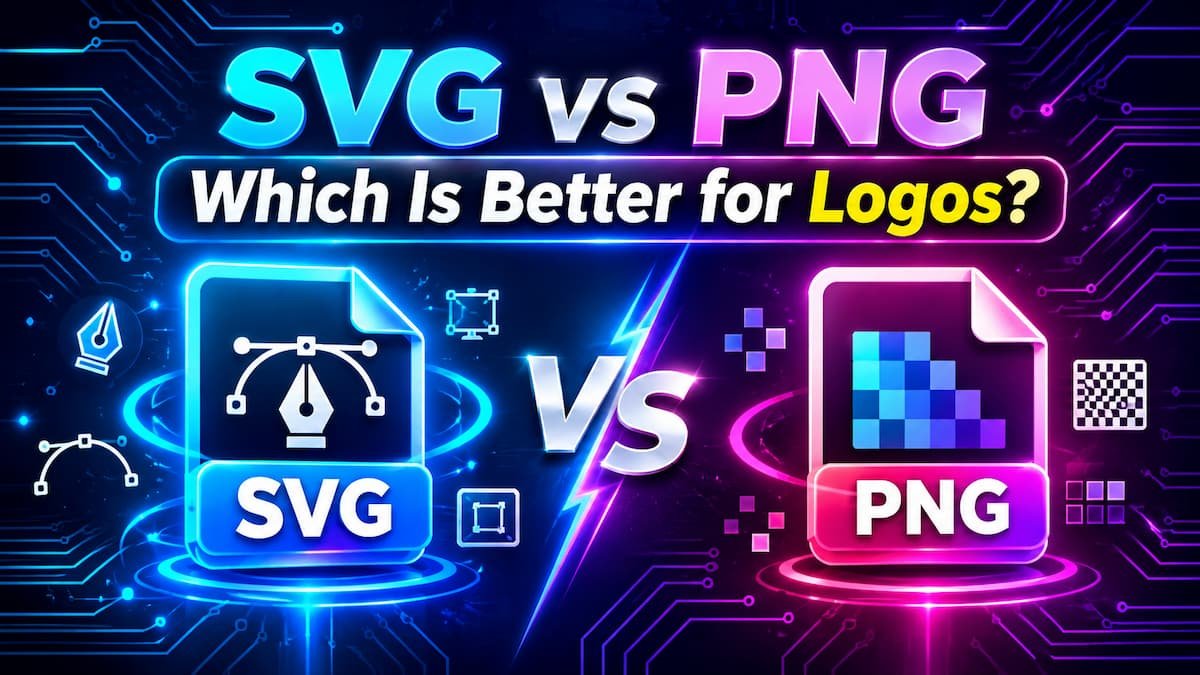
- SVG vs PNG: Which Is Better for Logos? — the other great option for logos, explained.






Leave a Reply