

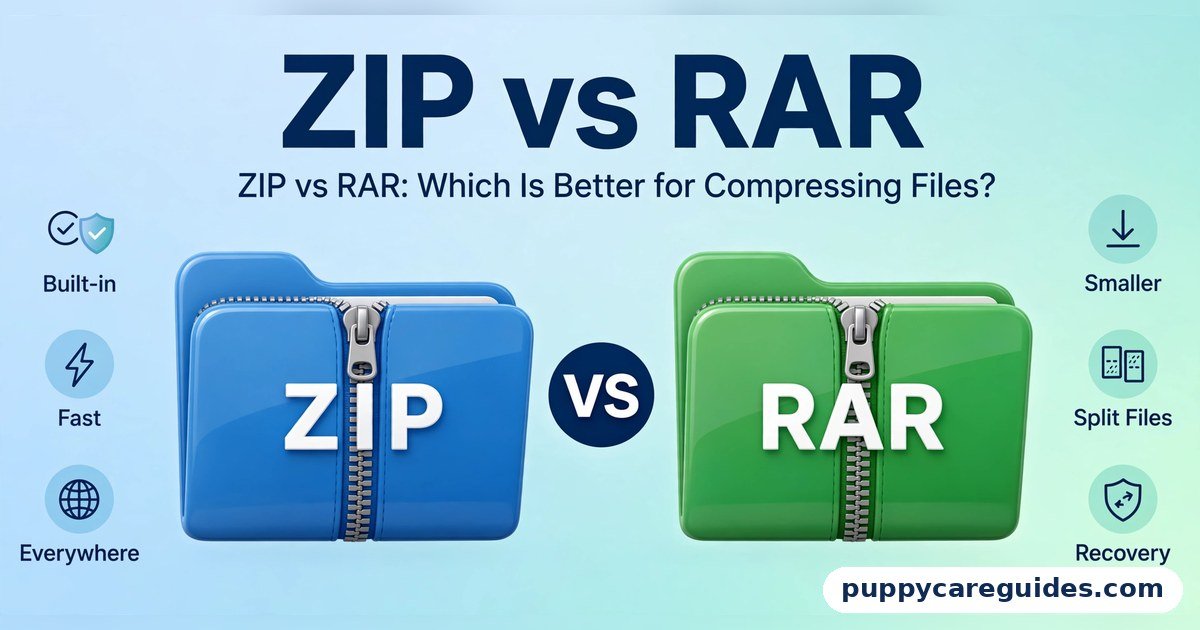
ZIP vs RAR: Which Is Better for Compressing Files?
Quick Answer
For everyday use and sending files to other people, choose ZIP. For very large archives that you control yourself, RAR can be the better choice. That is the short answer to ZIP vs RAR.

For more technical background, see the ZIP format overview on Wikipedia.
Table of Contents
ZIP wins on compatibility. Windows, macOS, Android, and iPhone can all open ZIP files without installing anything, so the person receiving your file never gets stuck. It is also free and fast for normal folders.
RAR wins on compression power for big jobs. It often squeezes large files a little smaller, can split an archive into parts, and can add recovery data to help repair a damaged archive. The trade-off is that RAR is proprietary, linked to WinRAR, and many devices need an extra app to open it.
Introduction
You have probably hit this moment: you try to email a folder of photos or a work project, and the attachment is too large. Or you upload files to a website and run into a size limit. That is exactly the problem compression was made to solve.
Compression works by repacking data more efficiently. Think of it like vacuum-packing clothes in a suitcase: the clothes do not change, but wasted space is removed, so everything takes up less room. When the archive is opened, files are restored to their original size — for ZIP and RAR, this is lossless, meaning no data is thrown away.
An archive format also bundles many files and folders into one single file, which is far easier to send, store, and download than a loose folder of hundreds of items.
In this guide, we compare ZIP vs RAR side by side: how well they compress, how their password protection differs, and which one you should pick for sending, storing, and splitting files. The ZIP vs RAR decision is simpler than it looks once you know what to check first.
ZIP vs RAR: Quick Comparison Table
The table below sums up ZIP vs RAR at a glance.
| Feature | ZIP | RAR |
|---|---|---|
| Creator/origin | Phil Katz, PKZIP, released in 1989 | Eugene Roshal, released in 1993 |
| Compression ratio | Good, especially for documents and text | Usually better, especially on large files and solid archives |
| Speed | Very fast to create and open | Slightly slower, because it works harder to compress |
| Built-in support in Windows | Yes, built into Windows and macOS for decades | Limited — Windows 11 added native support in 2023; older versions need an app |
| Password/encryption | AES-256 in modern tools, but legacy ZipCrypto is weak | AES-256, and it can also encrypt file names |
| Free vs licensed | Open, public specification; completely free to use | Proprietary format; creating RAR files normally requires licensed WinRAR |
| Recovery feature | No built-in recovery record | Yes, recovery records can help repair damaged archives |
| Splitting into parts | Supported, but less commonly used | Excellent multi-part volumes, a core RAR feature |
| Best for | Sending files to anyone, everyday compression | Very large archives, split uploads, long-term storage |
Note: Both formats are lossless, so neither one reduces the quality of your files — the difference is size, features, and compatibility, not quality.
What Is ZIP?
ZIP is the world’s most widely used archive format. It was created by Phil Katz and released in 1989 as part of his PKZIP software. Katz published the specification, so any developer could build ZIP support into their own programs. That open decision is why ZIP became the universal standard. The whole ZIP vs RAR story starts here.
Because the specification is public, ZIP support is built directly into Windows and macOS. You can right-click a file to compress it, and double-click any ZIP file to open it — no extra software, no licence, and no cost. The same is true on most phones.
A real example: sending a client 40 documents one by one is messy, and some might get missed. Put them in one ZIP file and you have a single, smaller attachment that keeps the folder structure intact, ready to open on any computer.
ZIP files use the .zip extension, and the format also sits behind file types you already use — DOCX documents, XLSX spreadsheets, and Android APK apps are all built on ZIP technology. In any ZIP vs RAR comparison, ZIP stands for instant support on every computer.
What Is RAR?
RAR stands for Roshal Archive, named after its creator, Eugene Roshal, who released the format in 1993. RAR is most closely associated with WinRAR, the official program for creating RAR archives on Windows. The ZIP vs RAR gap is easiest to understand right here.
Unlike ZIP, RAR is proprietary. While many free programs can open RAR files, creating them is officially done with WinRAR, which is paid software (offered with a long trial). This is the biggest practical difference between the formats.
RAR was designed for power users handling large amounts of data. Its standout feature is the recovery record: extra data added inside the archive that can sometimes repair it if part is later damaged by a failing drive or a bad download.
A real example: a photographer backing up 80 GB of RAW photos can compress the collection, split it into parts for different drives or upload services, and include a recovery record for extra safety.
RAR files use the .rar extension, and split archives appear as .part1.rar, .part2.rar, and so on. In any ZIP vs RAR comparison, RAR stands for stronger compression and recovery options.
ZIP vs RAR: Key Differences Between ZIP and RAR
1. Opening Files: Windows Opens ZIP With No Software, RAR Needs an App
ZIP support has been built into Windows since Windows XP and into macOS for just as long. Anyone can open a ZIP file by simply double-clicking it.
RAR is different. Windows 11 added built-in support for opening RAR files in 2023, but older Windows versions still require an app such as WinRAR or 7-Zip. Send a RAR file to a non-technical person on an older laptop, and they may not know how to open it.
2. Compression Ratio: RAR Usually Wins on Large Files
Both formats shrink files, but RAR generally compresses more, especially on large collections. One reason is its “solid archive” option, which treats all files as one continuous stream instead of compressing each separately. With many similar files — logs, documents, or code — solid compression finds patterns across all of them and saves noticeably more space.
For a small folder, the difference might be only a few percent. For a 20 GB archive, that can mean gigabytes saved. ZIP, however, is usually faster to create and extract, which matters more for everyday jobs.
3. Recovery: RAR Can Repair Damaged Archives
When you create a RAR archive, you can add a recovery record — extra data stored inside the file. If the archive is later partially corrupted, WinRAR can use that record to reconstruct the damaged sections.
ZIP has no equivalent feature. If a ZIP file is badly damaged, the files inside may simply be lost. For a quick email attachment, recovery data is unnecessary. For a long-term backup, it is a genuine safety net and one of RAR’s strongest advantages.
4. Passwords and Encryption: RAR Is Stronger and More Private
ZIP’s original encryption, called ZipCrypto, is old and weak, and should not be trusted for anything sensitive. Modern tools such as 7-Zip can create ZIP files with strong AES-256 encryption instead — but you have to make sure that option is actually selected.
RAR uses AES-256 encryption by default, which is very strong. It also offers a privacy feature ZIP cannot match: encrypting the file names inside the archive. With an encrypted ZIP, someone without the password can often still see the list of file names. With RAR’s file-name encryption on, even that list is hidden.
5. Splitting Into Parts: RAR Makes Multi-Part Archives Easy
Both formats can split a large archive into smaller pieces, but splitting is a core feature of RAR and WinRAR. Choose a part size — say 500 MB or 4 GB — and the program creates a numbered set of volumes, ideal when an upload service or FAT32 USB drive has a file-size limit.
To extract a split archive, you need all parts in the same folder, starting from the first part. ZIP can also span multiple files, but the feature is far less commonly used, so most people who regularly split archives choose RAR.
6. Mobile Support: ZIP Is Built In, RAR Needs an App
On Android and iPhone, ZIP files open natively in the built-in Files apps. RAR files usually require a third-party app such as the official RAR app for Android or iZip on iOS. If your file is going to someone’s phone, ZIP is the safer, friction-free choice. Every ZIP vs RAR difference above comes back to convenience versus compression.
ZIP vs RAR: Best Uses of ZIP
- Sending files to anyone: Email attachments, client work, and shared folders, where the other person must be able to open the file with zero setup.
- Everyday compression: Quickly shrinking a folder of documents, spreadsheets, or mixed files before sending or storing it.
- No-software situations: School, office, or shared computers where you cannot install programs.
- Website downloads: Offering files for download, because every visitor’s device can open ZIP natively.
- Mixed devices: Moving files between Windows, Mac, Android, and iPhone without worrying about compatibility.
ZIP vs RAR: Best Uses of RAR
- Very large archives: Backups and collections of many gigabytes, where RAR’s stronger compression saves real space.
- Splitting into parts for upload limits: Breaking a huge archive into pieces that fit an upload service, cloud drive, or USB stick limit.
- Archives with recovery records: Important backups where the repair option protects against partial damage over time.
- Long-term storage: Personal archives you will keep and open yourself, where compatibility with other people is not a concern.
- Similar-file collections: Large sets of similar files that benefit most from solid-archive compression. For the smallest possible archives, the ZIP vs RAR edge goes to RAR.
Pros and Cons
ZIP — Pros
- Opens on virtually every device with no extra software
- Completely free, with an open, public specification
- Fast to create and fast to extract
- Supported by Windows, macOS, Android, and iOS natively
- Ideal for sharing, because recipients never get stuck
ZIP — Cons
- Compression is usually weaker than RAR on large archives
- No built-in recovery record to repair damaged archives
- Legacy ZipCrypto encryption is weak and still appears in some tools
- File names inside an encrypted ZIP can still be visible
- Splitting into parts is supported but rarely used and inconsistent
RAR — Pros
- Better compression, especially on large files and solid archives
- Recovery records can help repair damaged archives
- Strong AES-256 encryption, including encrypted file names
- Excellent splitting into multi-part volumes
- Good for long-term personal backups and storage
RAR — Cons
- Proprietary format; creating RAR files normally requires WinRAR
- Many devices need an extra app to open RAR files
- Slightly slower to compress than ZIP
- Risky to send to non-technical people who may not be able to open it
- Less universal support on phones and older computers
ZIP vs RAR: Which Should You Choose?
- Everyday user: Choose ZIP. It is fast, free, and opens everywhere, covering almost everything you will send or save.
- Student or office worker: Choose ZIP. Teachers and colleagues can open it on any school or work computer without installing software.
- Person archiving large collections: Consider RAR. For backups of many gigabytes that only you will open, better compression, split volumes, and recovery records are worth it.
- Person downloading files: Download ZIP whenever there is a choice, and install 7-Zip so you can also open any RAR file you receive.
In short, default to ZIP, and reach for RAR only when size, splitting, or recovery solves a real problem. Decide ZIP vs RAR by who has to open the file, and the choice makes itself.
ZIP vs RAR: Common Mistakes
- Compressing already-compressed files and expecting big savings: JPG photos, MP4 videos, and MP3 audio are already compressed, so a ZIP or RAR may shrink them by only 1–2%. Compression helps most with documents and uncompressed files.
- Sending RAR to people who cannot open it: If the recipient has an older laptop or only a phone, a RAR attachment can become a confusing support problem. Use ZIP for other people.
- Using weak ZIP passwords: A ZIP protected with legacy ZipCrypto, or a short, obvious password, is not real security. Use AES-256 and a long, unique password.
- Zipping a ZIP repeatedly: Compressing an already-compressed archive does not keep making it smaller, and can even make it slightly larger.
- Expecting compression to shrink everything: Some files barely compress at all. Compression is not magic storage.
- Downloading RAR files from untrusted sources: Archives from unknown websites can hide malware. Only open archives from sources you trust, and keep antivirus active when extracting them. Most ZIP vs RAR regrets come from exactly these avoidable errors.
How to Create and Open ZIP and RAR Files
To create a ZIP file on Windows:
- Select the files or folder you want to compress.
- Right-click the selection.
- Choose “Compress to ZIP file” in Windows 11, or “Send to” > “Compressed (zipped) folder” in Windows 10.
- Rename the new ZIP file if you like, and it is ready to send or store.
On a Mac: select the items, right-click, and choose “Compress.”
To open a ZIP file:
- Double-click the ZIP file in Windows or macOS.
- Browse the contents, or right-click and choose “Extract All” to unpack everything into a folder.
To open a RAR file without WinRAR:
- Download and install 7-Zip, a free and widely trusted extractor for Windows.
- Right-click the RAR file and choose 7-Zip > “Extract Here” or “Extract to” a folder.
- Alternatively, on Windows 11, right-click the RAR file and use the built-in “Extract All” option, since Windows 11 added native RAR support.
- On a phone, install a reputable extractor app — such as RAR on Android or iZip on iPhone — then open the file from inside the app.
To create a RAR file:
- Install WinRAR from its official website.
- Select your files, right-click, and choose “Add to archive.”
- Select RAR as the format, set your options for compression, splitting, password, and recovery record, then click OK. Whichever way you decide ZIP vs RAR, always keep the original files until the archive is tested.
ZIP vs RAR: FAQs
How do I open a RAR file without WinRAR?
Install 7-Zip, which is free, then right-click the RAR file and choose the extract option from the 7-Zip menu. On Windows 11, you may not need anything at all, because the system can now open RAR files natively. On phones, a free extractor app such as RAR for Android does the same job. This is the core of the ZIP vs RAR debate.
How much smaller does ZIP make files?
It depends on the file type. Documents, text files, and uncompressed images often shrink by 50–80% or more. Files already compressed, such as JPG photos and MP4 videos, may shrink by only a few percent. There is no guaranteed number, so check the result after compressing. That is ZIP vs RAR in practice.
Is a password-protected ZIP safe?
Only if it uses modern encryption. A ZIP protected with old ZipCrypto is weak and can be broken. A ZIP created with AES-256 by a current tool like 7-Zip, with a long and unique password, is much stronger. Even then, people can usually see the file names inside an encrypted ZIP. That is the ZIP vs RAR difference where it counts.
Can RAR files damage my computer?
A RAR file itself is just an archive, but files inside any archive from an untrusted source can contain malware. Only download from sources you trust, scan with updated antivirus software, and be suspicious of archives that ask you to disable security tools. That is the ZIP vs RAR difference in daily use.
Can I convert a RAR file to ZIP?
Yes. Extract the RAR file first using 7-Zip or WinRAR, then compress the extracted files into a new ZIP file using the built-in Windows or macOS option. There is no direct one-click conversion, but the process takes only a minute.
ZIP vs RAR: Final Verdict
Use ZIP for sending and everyday files, and use RAR only for large personal archives where its compression, splitting, and recovery features matter.
ZIP is the universal language of compressed files: free, fast, and openable by everyone with no extra software. RAR is the specialist tool — more powerful for huge archives you keep yourself, but less friendly when another person needs to open your file. For most people, ZIP is the right answer. That is the ZIP vs RAR choice in short: ZIP to share, RAR to squeeze.
Related Articles
- PDF vs DOCX — Which document format is better for sharing, editing, and printing?
- ZIP vs 7z — How ZIP compares with the high-compression 7z format from 7-Zip.
- CSV vs Excel (XLSX) — Plain-text data tables versus full spreadsheet workbooks explained.
- ePub vs PDF — The best ebook format for reading on phones, tablets, and e-readers.
- MP4 vs MKV — Two leading video containers compared for playback and storage.
- JPG vs PNG — Which image format to use for photos, graphics, and the web.





Leave a Reply