

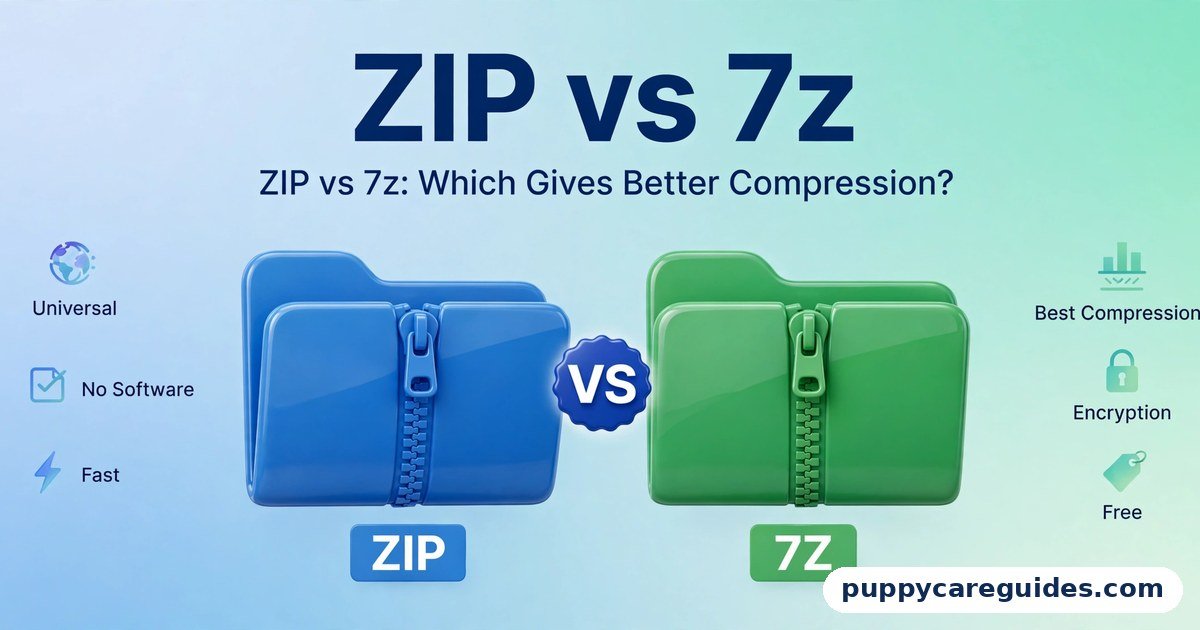
ZIP vs 7z: Which Gives Better Compression?
Quick Answer
If you want to save the maximum space for your own backups, choose 7z. If you are sending files to other people, choose ZIP. That is the short answer to ZIP vs 7z.
For more technical background, see the 7z format overview on Wikipedia.
Table of Contents
7z almost always produces a smaller archive than ZIP, sometimes by a wide margin on documents and logs. The trade-off: it is slower to create, and the receiver needs 7-Zip or a compatible app to open it.
ZIP compresses a little less, but it is fast and opens on virtually every device with no extra software — for sharing, that convenience beats a few saved megabytes.
Introduction
You have probably hit this moment. You are backing up a big folder — years of documents and project files — and your drive or cloud storage says there is not enough space. Or you need to email a folder too large to attach, so you right-click it, look for a “compress” option, and wonder which format will make it small enough.
That shrinking process is called compression. In plain language, compression software finds repeated patterns in your files — the same words and blocks of data — and stores them once instead of hundreds of times. The result is a single archive that takes up less space, and opening it rebuilds your original files exactly as they were.
ZIP and 7z are the two most common archive formats you will meet: ZIP, the old universal standard, and 7z, the newer format from the free 7-Zip program, built to squeeze harder. This guide compares how much space each saves, how fast they are, and how their encryption differs. The ZIP vs 7z decision is simpler than it looks once you know what to check first.
ZIP vs 7z: Quick Comparison Table
The table below sums up ZIP vs 7z at a glance.
| Feature | ZIP | 7z |
|---|---|---|
| Creator/origin | Phil Katz / PKWARE, 1989 | Igor Pavlov, format of the 7-Zip program, 1999 |
| Compression method | Deflate | LZMA2 (also supports LZMA and others) |
| Compression ratio | Good — noticeably smaller than the originals | Excellent — often 10–40% smaller than ZIP on text-heavy files |
| Speed | Fast to compress and extract | Slower to compress, especially at maximum settings; extraction is reasonably fast |
| Software needed | None — built into Windows, macOS, Android, and iOS | 7-Zip or a compatible app such as WinRAR, PeaZip, or Keka |
| Compatibility | Universal — opens almost anywhere | Good, but not built into Windows or macOS by default |
| Encryption | AES-256 available in many tools, but legacy ZipCrypto is weak | AES-256, and it can also encrypt file names inside the archive |
| Cost/open source | Open specification, free to use everywhere | Fully free and open source |
| Best for | Sharing files, downloads, everyday quick compression | Your own backups, long-term archives, maximum space saving |
Note: Both formats are lossless — your files come back bit-for-bit identical when extracted. The difference is archive size and how easily others can open it, never file quality.
What Is ZIP?
ZIP is the original archive format for personal computers. It was created in 1989 by Phil Katz, founder of PKWARE, who released it as an open specification anyone could use — so almost every software maker built in ZIP support. The whole ZIP vs 7z story starts here.
A ZIP file is a container holding one file, or thousands of files and folders, each compressed individually using a method called Deflate, in a single file ending in .zip. Because each file is compressed separately, you can pull one document out of a large ZIP without unpacking everything else. Today ZIP support is built into Windows, macOS, Android, and iOS — you double-click the file and it opens like a folder.
Real example: A teacher sends this week’s worksheets to 30 parents. She right-clicks the folder, chooses “Compress to ZIP file,” and attaches the result to an email. Every parent — on laptops, Macs, Chromebooks, and phones — opens it with a double-click or tap. Nobody installs anything. That is ZIP’s superpower. In any ZIP vs 7z comparison, ZIP stands for instant support on every computer.
What Is 7z?
7z is the native format of 7-Zip, a free, open-source archiving program created by developer Igor Pavlov and first released in 1999. It was designed with one priority: compress as small as possible, using modern algorithms the older ZIP specification was never built around. The ZIP vs 7z gap is easiest to understand right here.
Instead of Deflate, 7z normally uses LZMA or its successor LZMA2. These look for repeated patterns across much larger stretches of data — and across the whole archive rather than file by file. This “solid” compression means that if fifty similar documents share the same wording, 7z stores it far more efficiently than ZIP can. 7-Zip also offers compression levels from fast to “Ultra,” and AES-256 encryption that can hide the file names inside.
The catch is support. Windows and macOS do not open .7z files natively in most versions, so you — and anyone you send one to — need 7-Zip or a compatible app such as Keka or ZArchiver.
Real example: A system administrator archives a year’s worth of server log files — plain text and highly repetitive, exactly what 7z handles best. The 7z archive comes out dramatically smaller than the ZIP version, so years of archives fit on one backup drive, and only the admin will open them. In any ZIP vs 7z comparison, 7z stands for the tightest compression of all.
ZIP vs 7z: Key Differences Between ZIP and 7z
1. Compression ratio: a concrete example
Imagine a typical example folder: 1 GB of mixed documents, spreadsheets, and log files — the kind you might back up from a work computer. These are typical results for that kind of content, not a controlled lab test: as ZIP at normal settings, the folder might shrink to around 350–400 MB. As 7z at a high or Ultra setting, it might come down to roughly 250–300 MB.
That 7z archive can be 20–30% smaller than the ZIP of the same files. Across a backup drive holding hundreds of gigabytes, that is the difference between “everything fits” and “buy another drive.” For a small folder you email once, it rarely matters next to ZIP’s convenience.
2. Compression algorithms: Deflate vs LZMA2
ZIP’s Deflate algorithm dates from the early 1990s. It is clever and fast, but it only looks for repeated patterns within a relatively small window of data, and it compresses each file separately.
LZMA2, the default in 7z, searches a much larger window and, with solid compression, treats the archive almost like one continuous stream. Repeated phrases across files and the repeated lines in log files and database exports collapse far more efficiently. That is why 7z’s advantage is biggest on text, logs, databases, and code — data full of repetition.
3. Speed: ZIP is faster, 7z is slower but smaller
ZIP is quick: zipping a folder on a modern computer usually takes seconds, and extracting one is fast too.
7z at higher settings works much harder. It searches more data and uses more memory, so creating an Ultra 7z archive of a large folder can take several times longer than zipping it — minutes instead of seconds on big jobs. Opening a 7z archive is usually reasonably fast, though still a little slower than ZIP. If you compress once and store for years, the extra minutes are worth paying. If you send files all day, ZIP’s speed wins.
4. Compatibility: ZIP opens anywhere, 7z needs an app
This difference decides most real-world choices. A ZIP file opens natively on Windows, macOS, Linux, Android, iOS, and ChromeOS — send one to anyone, and it will simply open.
A 7z file needs 7-Zip or a compatible archiver installed first — a two-minute job for a technical user, a genuine roadblock for a non-technical one. If the recipient cannot open your file, your space saving bought you a support phone call. That is the main reason ZIP still dominates sharing.
5. Encryption: both offer AES-256, but the details matter
Both formats can encrypt archives with AES-256, strong modern encryption — when it is actually used. With ZIP, be careful: its original password protection, called ZipCrypto, is old and weak, and a determined attacker with free tools can break it. Many tools, including 7-Zip itself, can create ZIP files with proper AES-256 instead, but you often have to select it deliberately.
7z makes the strong choice the default, and adds a feature ZIP lacks: it can encrypt the file names too. With an encrypted ZIP, anyone can still see the file names; only the contents are protected. With 7z, the list itself is hidden until the password is entered.
6. Already-compressed files barely shrink in either format
Files that are already compressed cannot be compressed much further. JPG photos, MP4 videos, and MP3 music already use their own compression internally, so the repeated patterns are mostly gone before ZIP or 7z sees them.
Put 1 GB of JPG photos into either format and you will typically get back an archive of around 950 MB–1 GB — a saving of only a few percent. For media collections, neither format saves space; they only bundle files into one. Choose based on the compressible files — documents, text, and data. Every ZIP vs 7z difference above comes back to convenience versus compression.
ZIP vs 7z: Best Uses of 7z
- Your own backups: Only you will open the archive, so smallest size wins.
- Maximum compression of large folders: Big document and project folders shrink noticeably more than in ZIP.
- Archiving logs and data: Server logs, database exports, and CSV files are repetitive text — where LZMA2 shines.
- Long-term storage: Archives kept for years, where every saved gigabyte cuts costs.
- Encrypted archives: Sensitive backups needing AES-256, including hidden file names. For the smallest archives and backups, the ZIP vs 7z edge goes to 7z.
ZIP vs 7z: Best Uses of ZIP
- Sending files to other people: Attachments and deliverables that must open without help.
- Downloads from websites: Software and documents for a general audience expecting instant opening.
- Compatibility-first situations: School and office workflows where you do not control the opening device.
- Quick everyday compression: Fast shrinking of a folder you need to send now.
- Phones and tablets: Sharing with people opening the file on mobile, with no extra apps.
Pros and Cons
ZIP — Pros
- Opens natively on Windows, macOS, phones, and tablets — no software to install
- Very fast to create and extract, even on older computers
- Universally accepted for email, downloads, and office sharing
- Lets you extract a single file without unpacking the whole archive
ZIP — Cons
- Larger archives than 7z, especially on text, logs, and documents
- Legacy ZipCrypto password protection is weak and should not be trusted
- Cannot encrypt the file names inside an archive
7z — Pros
- Best compression of the two — often 10–40% smaller than ZIP on compressible files
- Strong AES-256 encryption by default, including optional file-name encryption
- Completely free and open source, with no licence costs
- Adjustable compression levels, from fast to Ultra, plus archive splitting
7z — Cons
- Not opened natively by Windows or macOS — recipients need an extra app
- Slow to create at high and Ultra settings, and uses more memory
- Extracting one file from a huge solid archive can be slower
ZIP vs 7z: Which Should You Choose?
- Everyday user: Use ZIP. Files you send to family and coworkers should open everywhere with a double-click. Keep 7-Zip installed for the rare 7z file someone sends you.
- Student: Use ZIP for assignments and group projects others must open on any device. Use 7z only for archiving your own old coursework if storage is tight.
- Backup and archiving user: Use 7z. If the archives are yours and opened by you, take the smaller size and stronger encryption — the slower compression happens once; the saving lasts.
- Gamer and software downloader: Expect both. Games and mods come in ZIP, 7z, and RAR, so install 7-Zip once — it opens all of them. Decide ZIP vs 7z by who has to open the file, and the choice makes itself.
ZIP vs 7z: Common Mistakes
- Sending 7z files to non-technical people. If the recipient cannot open it, you saved space and created a problem. When in doubt, send ZIP.
- Expecting JPG and MP4 files to shrink. Photos, videos, and music are already compressed. Archiving bundles them but saves almost no space.
- Trusting a weak ZIP password. Old ZipCrypto protection can be broken. Make sure your tool uses AES-256, or use encrypted 7z instead.
- Using maximum settings for tiny gains. Ultra can take several times longer while saving only a little more. The default level is the smart balance for everyday jobs.
- Forgetting the password. There is no “forgot password” button. A forgotten password on an encrypted archive means the data is gone — store it somewhere safe.
- Downloading 7-Zip from fake sites. Lookalike sites bundle adware with free tools. Only download from the official site, 7-zip.org. Most ZIP vs 7z regrets come from exactly these avoidable errors.
How to Create and Open 7z and ZIP Files
- Install 7-Zip from the official site. Go to 7-zip.org, download the version matching your Windows system (64-bit for most PCs), and run the installer. It is free, with no trial and no account.
- Select what you want to compress. In File Explorer, highlight the file, folder, or several files at once.
- Right-click and open the 7-Zip menu. Choose 7-Zip (on Windows 11, first choose “Show more options”), then click “Add to archive…”
- Choose your format and settings. Set Archive format to 7z for maximum compression for yourself, or Zip for a file you plan to send. Leave the level on Normal, or pick Ultra for backups.
- Add a password if you need one. Enter it in the Encryption section. For 7z, tick “Encrypt file names” if the file list should stay private too. Store the password safely — it cannot be recovered.
- Click OK and check the result. Compare the archive’s size with the original to see what you saved.
- Opening a ZIP file: On Windows and macOS, double-click it — it opens like a folder, and you can drag files out or click “Extract All.” On a phone, tap it in the Files app.
- Opening a 7z file: On Windows, right-click it and choose 7-Zip > Extract Here. On macOS, use Keka. On Android, use ZArchiver; on iPhone, use a file-manager app that supports 7z. Whichever way you decide ZIP vs 7z, always keep the original files until the archive is tested.
ZIP vs 7z: FAQs
Does a 7z file open on a phone?
Not with the built-in tools alone, in most cases. Phone file apps open ZIP natively, but a 7z file usually needs an extra app — ZArchiver on Android, or a 7z-capable file-manager app on iPhone. That extra step is why ZIP is safer for sending files to someone else’s phone. This is the core of the ZIP vs 7z debate.
Which format do game and software downloads usually come in?
Both, plus RAR. Smaller tools and mods are often distributed as ZIP because anyone can open them. Large game repacks and community archives often use 7z (or RAR) because the smaller size saves bandwidth on multi-gigabyte downloads. Installing 7-Zip covers you for all of them. That is ZIP vs 7z in practice.
How long does maximum compression take?
It depends on your files and your computer’s speed. As a rough guide, zipping a 1 GB folder of documents typically takes seconds, while the same folder at 7z Ultra settings can take a few minutes. For a one-off backup, the wait is usually worth it; for daily jobs, a normal level gives most of the saving in a fraction of the time. That is the ZIP vs 7z difference where it counts.
Is 7-Zip really free, even for work?
Yes. 7-Zip is free and open-source, for home and business use, on as many computers as you like. If a website asks you to pay for it, you are on the wrong website — go to 7-zip.org instead. That is the ZIP vs 7z difference in daily use.
Can a ZIP or 7z file get corrupted, and can I get my files back?
Yes — an archive is a single file, so damage from a failing drive, an interrupted copy, or a bad download can make part of it unreadable. 7-Zip will often extract the undamaged files, but there is no guarantee. Keep important data in at least two places.
ZIP vs 7z: Final Verdict
Keep it for yourself? Use 7z. Send it to someone else? Use ZIP.
That rule covers almost every real situation. 7z is the better compression technology: smaller archives and stronger encryption, perfect for your own backups. ZIP is the better communication technology: a little larger, but fast and openable by anyone. Pick based on who has to open the file. That is the ZIP vs 7z choice in short: ZIP to share, 7z to squeeze.
Related Articles
- PDF vs DOCX — Which document format is better for sharing, editing, and fixed layouts.
- ZIP vs RAR — ZIP against the other classic archive format, including recovery features.
- CSV vs Excel (XLSX) — Plain-text data tables vs full spreadsheets, compared.
- ePub vs PDF — The best ebook format for phones, tablets, and e-readers.
- MP4 vs MKV — The two big video containers compared on compatibility and size.
- H.264 vs H.265 — How the newer codec gives the same quality in roughly half the space.





Leave a Reply