

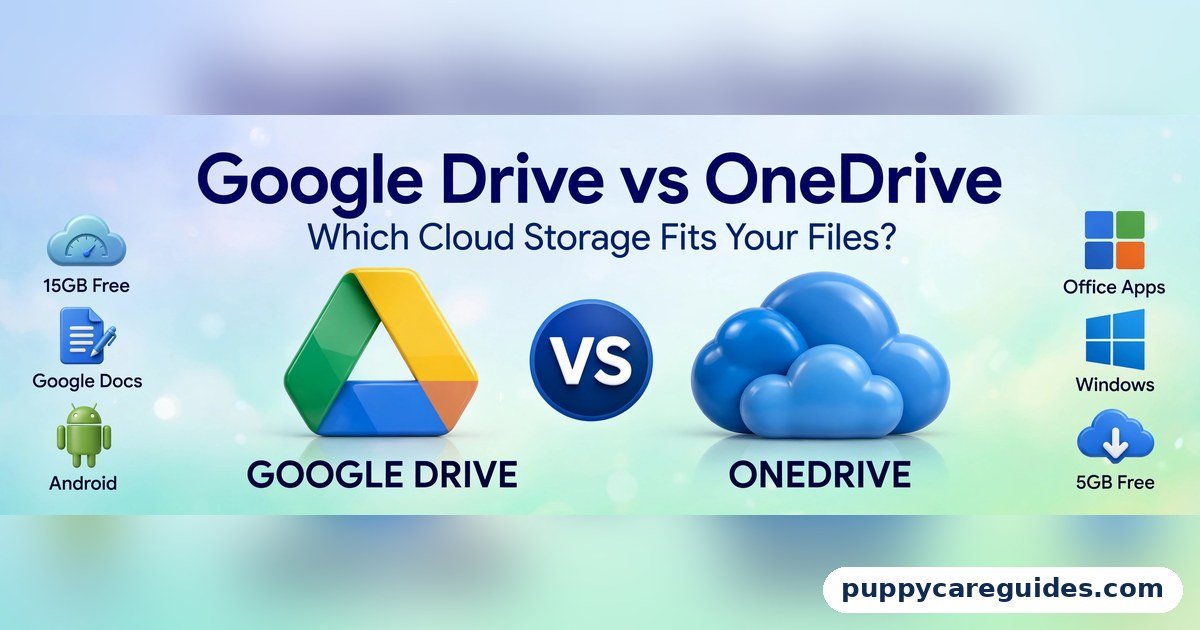
Google Drive vs OneDrive
Quick Answer
Use Google Drive if you live in Google’s world — Gmail, Google Photos, Android, and Google Docs. Use OneDrive if you live in Microsoft’s world — Windows, Microsoft Office, and especially if you pay for Microsoft 365, where OneDrive’s large storage makes the subscription a bargain. That is the short answer to google drive vs onedrive.

For more technical background, see the OneDrive overview on Wikipedia.
Table of Contents
Both services store your files safely online, sync them between your devices, and let you share them with a link. The real difference is not the storage itself; it is the neighbourhood each one lives in. Drive gives you more free space (15 GB against OneDrive’s 5 GB) and the best collaboration tools on the web. OneDrive is woven into Windows itself, and with Microsoft 365 it includes a full terabyte of storage plus the Office apps. Choose the ecosystem you already use, and the storage decision makes itself.
Introduction
Your phone says “storage full.” Your laptop’s hard drive is groaning. A USB stick with your only copy of important documents is one lost bag away from disaster. This is the moment everyone meets cloud storage — and the two names they meet first are Google Drive and Microsoft OneDrive.
Cloud storage sounds technical, but the idea is simple: your files live on the company’s secure servers as well as on your devices, so they are backed up, reachable from anywhere, and shareable with a link instead of an email attachment. Google Drive and OneDrive both do this job well. They differ in the details that decide daily happiness: how much free space you get, which office apps they connect to, how sharing feels, and how naturally they fit a Windows PC versus an Android phone.
This guide compares Google Drive vs OneDrive in plain language: storage and plans, the office apps each one unlocks, sharing, photo backup, and a simple rule for choosing. If your choice really starts with documents, our Microsoft Word vs Google Docs comparison is the companion read — the winner there usually wins here too. The google drive vs onedrive decision is simpler than it looks once you know what to check first.
google drive vs onedrive: Quick Comparison Table
The table below sums up google drive vs onedrive at a glance.
| Feature | Google Drive | OneDrive |
|---|---|---|
| Free storage | 15 GB (shared with Gmail and Google Photos) | 5 GB |
| Paid plans | Google One: from 100 GB up to several TB | Microsoft 365: 1 TB with Personal plan |
| Office apps | Google Docs, Sheets, Slides (free, in browser) | Microsoft Word, Excel, PowerPoint (with Microsoft 365) |
| Windows experience | App installs separately; web version excellent | Built into Windows and File Explorer |
| Android experience | Built into most Android phones | App available; less deeply integrated |
| Sharing | Link sharing is simple and famous for it | Link sharing with expiry dates and passwords on paid plans |
| Photo backup | Google Photos — best-in-class search and organisation | OneDrive camera backup; Photos app on Windows |
| Files on demand | Yes — files download when opened | Yes — a feature OneDrive pioneered |
| Collaboration | Real-time editing is the industry benchmark | Real-time editing in Office apps and Office on the web |
| Best for | Android/Gmail users, teams editing together | Windows/Office users, Microsoft 365 subscribers |
Note: storage amounts above are the long-standing standard figures for these services, but companies adjust plans and prices from time to time — always confirm the current offer on the official page before paying.
What Is Google Drive?
Google Drive is Google’s cloud storage service, launched in 2012, and it is the filing cabinet for everything Google. Your 15 GB of free storage is shared across Drive, Gmail, and Google Photos — generous compared to rivals, but it also means a mailbox full of big attachments and years of photos eat into the same pool. The whole google drive vs onedrive story starts here.
Drive’s superpower is what sits on top of the storage: Google Docs, Sheets, and Slides, the free office suite that lives in your browser. Files created there are stored in Drive, edited by several people at the same time with comments and suggestions, and — a lovely detail — native Google files historically take up very little of your quota compared with uploaded files. Drive also integrates with a huge range of third-party apps and is the default backup home for Android phones and WhatsApp backups on Android.
Real example: Three students build a group project. One creates a shared Drive folder, everyone drops in their research, and they write the final document together in Google Docs — each typing in a different section, seeing each other’s words appear live. No emailing versions, no “final_v2_REAL_final” files. That shared-folder way of working is Drive at its best. In any google drive vs onedrive comparison, Google Drive stands for the easiest sharing and the best free tier.
What Is OneDrive?
OneDrive is Microsoft’s cloud storage, and its superpower is position: it is built into Windows itself. Sign in to a Windows PC with your Microsoft account and OneDrive is already there in File Explorer, quietly able to back up your Desktop, Documents, and Pictures folders. Your files appear on the PC with little cloud icons and download the moment you open them — Microsoft calls this Files On-Demand, and it pioneered the idea. The google drive vs onedrive gap is easiest to understand right here.
OneDrive’s second superpower is value inside Microsoft 365. The Personal subscription bundles a full 1 TB of OneDrive storage with the real Microsoft Word, Excel, and PowerPoint for your computer — for many families, the storage alone justifies the subscription. OneDrive also includes a Personal Vault, an extra-protected folder with stronger sign-in for passports and financial documents, and ransomware detection and file recovery on paid plans. If your PC already runs Microsoft 365, the google drive vs onedrive difference shows up on day one.
Real example: You buy a new Windows laptop, sign in, and — because OneDrive was backing up your old PC’s Documents and Desktop — your files, folders, and even your desktop layout are simply there. Meanwhile your Microsoft 365 subscription means Word and Excel are fully licensed, and your phone photos back up to the same terabyte. That invisible continuity is OneDrive at its best. In any google drive vs onedrive comparison, OneDrive stands for deep Windows and Microsoft 365 integration.
google drive vs onedrive: Key Differences Between Google Drive and OneDrive
1. Free storage: 15 GB vs 5 GB — with a catch
On paper Google wins clearly: 15 GB free against Microsoft’s 5 GB. The catch is sharing. Google’s 15 GB is one pool for Drive files, Gmail, and Google Photos together, so an enthusiastic photographer can fill it surprisingly fast. OneDrive’s 5 GB is smaller but separate from your Outlook mailbox. Either way, free tiers are a starting point: heavy photo libraries and years of documents push most people toward a paid plan, which is where the comparison truly gets interesting.
2. Paid value: Google One vs the Microsoft 365 bundle
Google One sells storage in steps — 100 GB, 200 GB, and multi-terabyte plans — and adds perks like Google Photos editing features and support. Microsoft’s main offer is different in kind: Microsoft 365 Personal gives 1 TB of OneDrive plus the full desktop Office apps, and the Family plan gives 1 TB each to up to six people. If you would pay for Microsoft Office anyway, OneDrive inside that bundle is close to unbeatable value. If you only want raw storage and use free Google apps, Google One’s smaller, cheaper steps fit better. (Prices change; compare the current figures at signup, as the outline of this guide advises.)
3. The office apps decide more than the storage does
Drive is the home of Google Docs, Sheets, and Slides — free, browser-based, and the best real-time collaboration most people will ever use, as detailed in Microsoft Word vs Google Docs. OneDrive is the home of Microsoft Word, Excel, and PowerPoint files — the formats businesses run on — and it syncs them into the full desktop apps. In practice, your documents choose your drive: teams writing together live in Drive; professionals producing complex Excel models and formal Word documents live in OneDrive.
4. Windows vs Android: each service owns one home
OneDrive is part of Windows: built into File Explorer, automatically offered at setup, able to back up your core folders without installing anything. Drive on Windows is a good app, but an installed guest. The mirror image is Android: Drive and Google Photos are part of the phone’s fabric, while OneDrive is a capable visitor. Mac and iPhone users sit in neutral territory, where both work well and the office-apps question decides. This is the same ecosystem logic as Windows vs Linux and Chrome vs Firefox: the home platform quietly wins.
5. Sharing and collaboration: both good, different flavours
Drive made link sharing famous: “anyone with the link can view” takes ten seconds, permissions are clear, and several people editing one document see each other live. OneDrive matches most of this now — real-time co-authoring works in Office apps and Office on the web — and paid OneDrive adds sharing links that expire on a date you set and can be protected with a password, a business-friendly touch Drive answers with its own enterprise controls. For school and personal sharing, Drive feels simpler; for office formality, OneDrive’s link controls feel grown-up.
6. Photos: Google Photos is the stronger photo home
Both services back up phone photos automatically. Google Photos, which stores into your Drive quota, remains the better photo experience: its search finds “beach,” “birthday,” or a person’s name without any tagging by you, and its organisation tools lead the field. OneDrive’s photo features are perfectly serviceable — camera backup, albums, memories — and fine if your photos are one folder among many. Dedicated photo lovers usually land on Google; everyone else can let the ecosystem decide. Every google drive vs onedrive difference above comes back to Google’s world versus Microsoft’s world.
google drive vs onedrive: Best Uses of Google Drive
- Android users whose phone, Gmail, and Photos already live with Google
- Teams, classes, and groups writing and editing documents together in real time
- Anyone who wants the most free storage to start with (15 GB)
- Google Docs households — homework, clubs, and small projects run on shared folders
- People who work mainly in a browser, on any computer, including Chromebooks
google drive vs onedrive: Best Uses of OneDrive
- Windows users who want backup that simply happens inside File Explorer
- Microsoft 365 subscribers — 1 TB plus the full Office apps is the best bundle in cloud storage
- Office professionals whose real work files are Word, Excel, and PowerPoint documents
- Families on the Family plan — six people, 1 TB each, one subscription
- Anyone wanting a protected Personal Vault for identity and financial documents. For Windows and Office users, the google drive vs onedrive edge goes to OneDrive.
Pros and Cons
Google Drive — Pros
- 15 GB free — three times OneDrive’s free tier
- Best-in-class collaboration with Google Docs, Sheets, and Slides
- Google Photos search and organisation lead the market
- Works beautifully in any browser, on any platform
Google Drive — Cons
- Free quota is shared with Gmail and Google Photos, so it fills faster than expected
- Windows integration is an add-on, not built in
- Native desktop Office files are guests, not citizens
- Fewer link controls (expiry, passwords) on personal plans
OneDrive — Pros
- Built into Windows — backup of Desktop, Documents, and Pictures is nearly automatic
- Microsoft 365 bundles 1 TB with full Office apps: outstanding value
- Files On-Demand keeps your disk light while everything stays reachable
- Personal Vault and ransomware recovery on paid plans. That is the google drive vs onedrive balance in one line.
OneDrive — Cons
- Only 5 GB free
- Weakest fit for Android-first and Google-first users
- Real-time collaboration, while good, is less effortless than Google’s
- Photo experience trails Google Photos. This is where the google drive vs onedrive choice really bites.
google drive vs onedrive: Which Should You Choose?
- Beginner / everyday user: The one that matches your phone and email. Gmail and Android → Drive. Windows laptop and Outlook → OneDrive. Do not fight your ecosystem.
- Student: Drive for group work and free storage, unless your course hands you Microsoft 365 free through the university — then OneDrive’s terabyte wins.
- Creator / professional: OneDrive if clients exchange Word and Excel files and you already pay for Office. Drive if your team writes together in Docs and shares large folders by link.
- Family organiser: Microsoft 365 Family (six people × 1 TB + Office) is hard to beat for a household of Windows users; a Google-centred household should price Google One’s shared plans the same way. Whichever way you decide google drive vs onedrive, always test the mobile app with your real files before you commit. Decide google drive vs onedrive by the apps you live in, and the choice makes itself.
google drive vs onedrive: Common Mistakes
- Paying for both services’ paid plans. Pick one paid home for your files. Two subscriptions usually means confusion about which copy is the real one.
- Assuming “in the cloud” means “backed up” automatically. Sync is not backup: delete a file everywhere, or let ransomware encrypt it, and sync faithfully copies the damage. Both services offer version history and recovery windows — learn where yours are before you need them.
- Ignoring what fills your quota. On Google, old Gmail attachments and Photos videos silently eat the 15 GB. On OneDrive, a Desktop full of installers syncs itself. Spend ten minutes learning what counts.
- Sharing with “anyone with the link” for sensitive files. Convenient links forward themselves. For financial or identity documents, share with named people only, or use OneDrive’s Personal Vault and expiring links.
- Keeping the only copy of anything on a USB stick or one laptop. The entire point of this comparison is that your files deserve two homes. Choose either service, turn on automatic backup, and the lost-laptop disaster becomes an inconvenience instead of a tragedy.
- Letting work and personal files tangle in one account. If your employer provides storage, their rules own those files. Keep a personal account for personal things from day one. Most google drive vs onedrive regrets come from exactly these avoidable errors.
google drive vs onedrive: FAQs
Can I use Google Drive and OneDrive at the same time?
Yes, and many people do — for example OneDrive for work documents (or because Microsoft 365 includes it) and Drive for personal photos and shared family folders. Both apps can run on the same computer. Just decide which service is the home for which kind of file, and stay consistent, or you will eventually open the wrong copy and edit a document that lives in the other cloud. This is the core of the google drive vs onedrive debate.
Which is better for backing up photos?
Google Photos (storing into your Google account quota) is the stronger photo service: automatic backup, superb search by person, place, or object, and easy sharing. OneDrive’s camera backup is reliable and perfectly adequate, and it keeps photos beside your other files, which some people prefer. If photos are your main treasure, choose Google; if they are one folder among many, let your ecosystem decide. That is google drive vs onedrive in practice.
What happens when my free storage fills up?
On Google Drive, a full quota stops new uploads and backups, and Gmail can stop receiving mail — an unpleasant surprise worth avoiding. On OneDrive, syncing pauses and uploads fail until you free space or upgrade. Both services warn you as you approach the limit. The fixes are the same everywhere: delete duplicates and junk, clear out old videos, or step up to the smallest paid plan, which is usually inexpensive. That is the google drive vs onedrive difference where it counts.
Is my data safe with Google and Microsoft?
Both companies run their storage on professionally secured infrastructure with encryption in transit and at rest, and both offer two-step verification — turn it on; it protects your files more than any other single setting. The practical risks are usually account risks (a weak or reused password) and sharing mistakes (a public link), not the storage itself. For your most sensitive documents, OneDrive’s Personal Vault adds an extra lock on paid plans. That is the google drive vs onedrive difference in daily use.
Can I move my files from one service to the other later?
Yes. Download everything from one service (both offer a full export — Google Takeout is the famous one) and upload it to the other, or use a migration tool. It is tedious with very large libraries but entirely possible, and file formats are standard: your documents, photos, and videos are not locked in. Knowing this should relax the decision — you are choosing a home, not signing a lifetime contract. That is the google drive vs onedrive difference that matters most.
google drive vs onedrive: Final Verdict
Google’s world = Drive. Windows and Office world = OneDrive.
Google Drive and OneDrive are both mature, safe, and generous enough that the storage itself is no longer the argument. Drive gives more free space and the finest collaborative writing experience on the internet. OneDrive is part of Windows itself and, inside Microsoft 365, offers the best-value terabyte in the business. If you remember only one line, make it this: your files should live where your apps already live — check which office suite and which phone you use, and the choice is made. That is the google drive vs onedrive choice in short: Drive for Google users, OneDrive for Microsoft users.
Next: Microsoft Word vs Google Docs — the document decision that usually decides this one too.
Related Articles
- Microsoft Word vs Google Docs — the office apps that live on top of this storage
- Chrome vs Firefox — the browser you will open these files in
- Windows vs Linux — the operating system underneath your cloud folders
- Free Antivirus vs Paid Antivirus — protecting the computer these files sync to
- PDF vs DOCX — from our File & Document Formats series, on the files you will store most





Leave a Reply